Use Calendar Day Bookings
Before You Start
Section titled “Before You Start”- Plan or add-on: All plans, Car Rental module.
- Hidden settings: Set Calendar Day Bookings by Default is hidden until you turn on Show Advanced Settings. It also shows only after Enable Calendar Day Bookings? is saved as Yes.
Show Hidden Settings
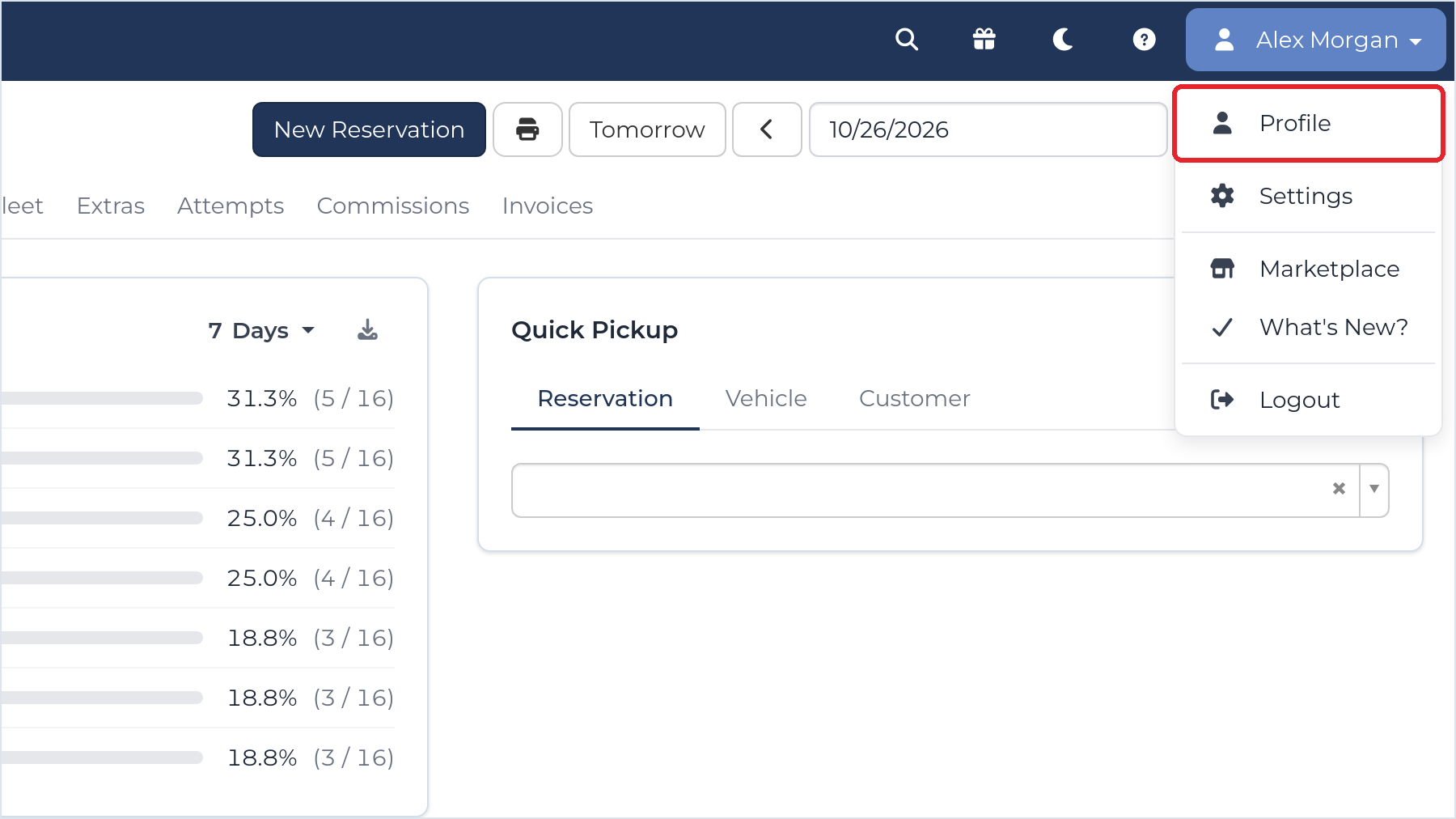
Section titled “Show Hidden Settings”- Click your name in the top right corner, then click Profile.
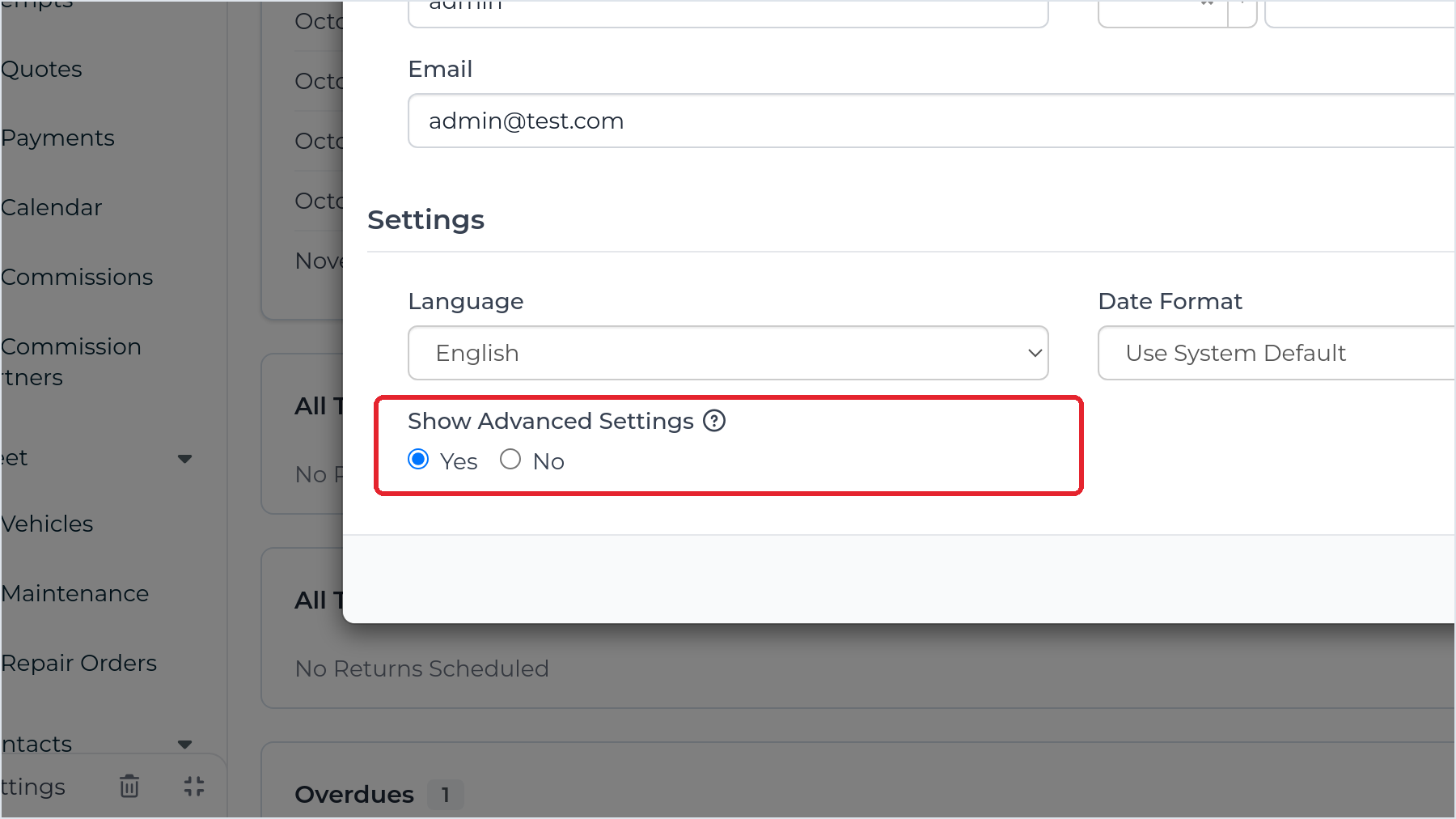
- In the User Profile window, find Show Advanced Settings and choose Yes.
- Click Save at the bottom of the window. Hidden settings now show on every settings page.
Show me where (2 pictures)
How It Works
Section titled “How It Works”How Dates Are Counted
Section titled “How Dates Are Counted”HQ counts each date the rental touches. Hours are never charged, and Apply Daily Price After More Than x Hours has no effect.
Example: Daily Rate $50.
- Monday 14:00 to Wednesday 10:00: 3 days = $150. Counted by 24 hours, it would be 1 day and 20 hours.
- Monday 09:00 to Monday 17:00: 1 day = $50.
- Monday 22:00 to Tuesday 02:00: 2 days = $100.
Choosing It For Each Reservation
Section titled “Choosing It For Each Reservation”When Enable Calendar Day Bookings? is Yes, staff see Calendar Day Booking? in step 1 of each reservation. Set Calendar Day Bookings by Default decides its starting value, and decides it for reservations made on your website.
Example: With the default set to Yes, a website booking from Monday 22:00 to Tuesday 02:00 is charged 2 days.
Other Rules Still Apply
Section titled “Other Rules Still Apply”The extra day time rules and Minimum Rental Days To Charge still apply to calendar day bookings.
Example: Minimum Rental Days To Charge = 3. A calendar day booking from Monday 09:00 to Monday 17:00 is charged 3 days.
Set It Up
Section titled “Set It Up”Get There
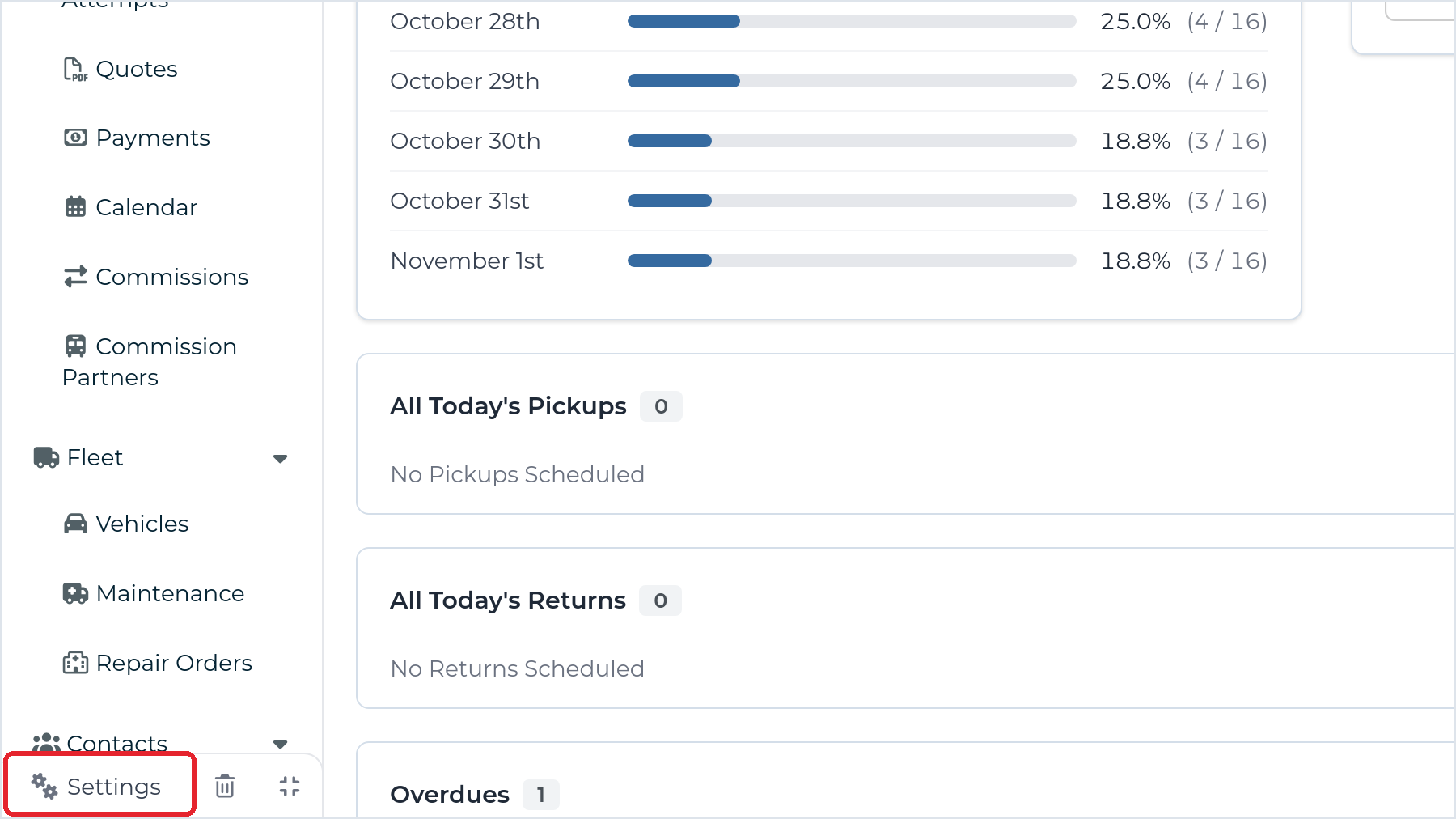
Section titled “Get There”- Click Settings at the bottom of the left menu.
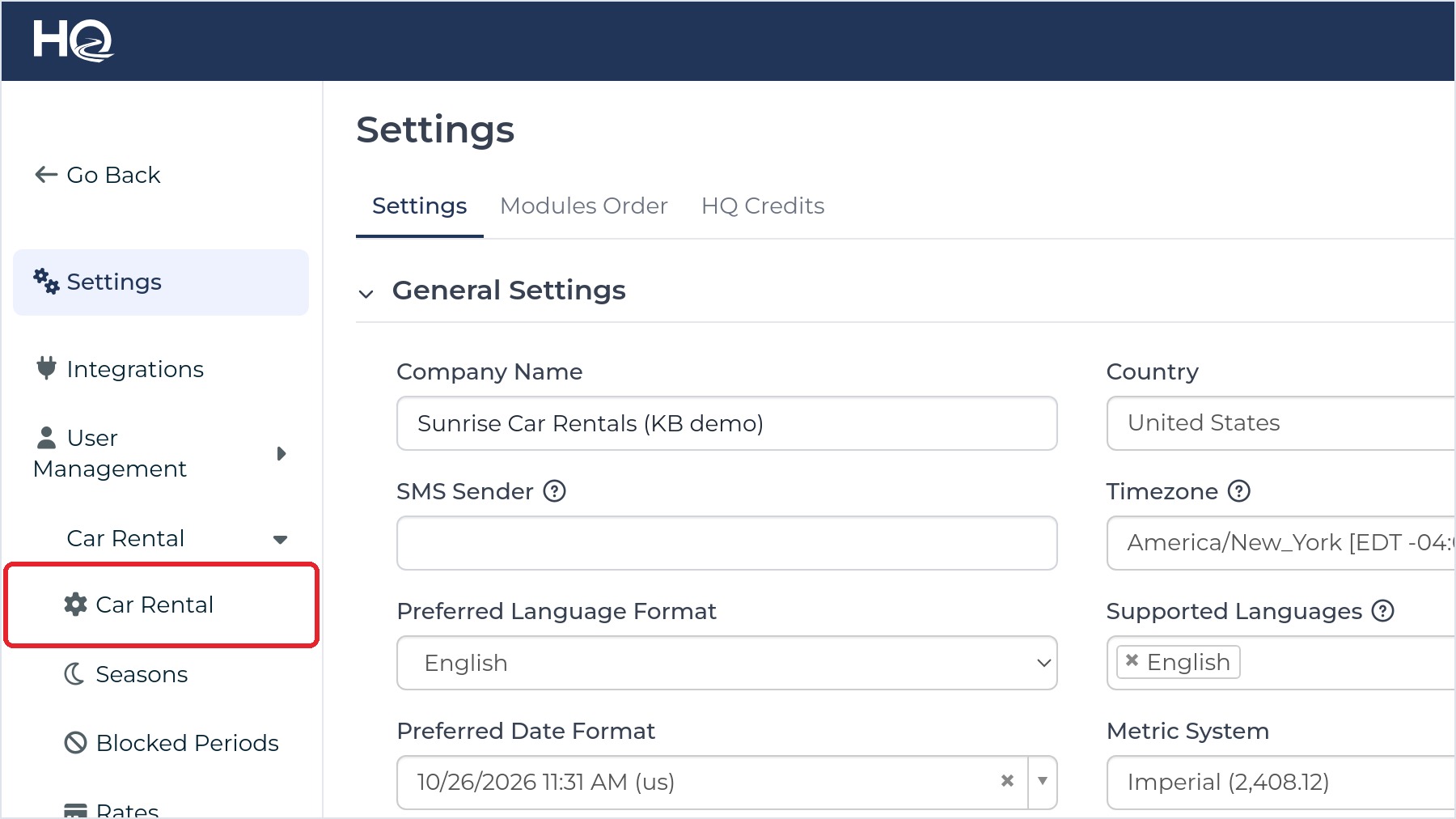
- In the left menu, under the group Car Rental, click Car Rental.
- Stay on the tab General Settings. Click the section Rates & Days Calculations to open it.
Show me where (3 pictures)
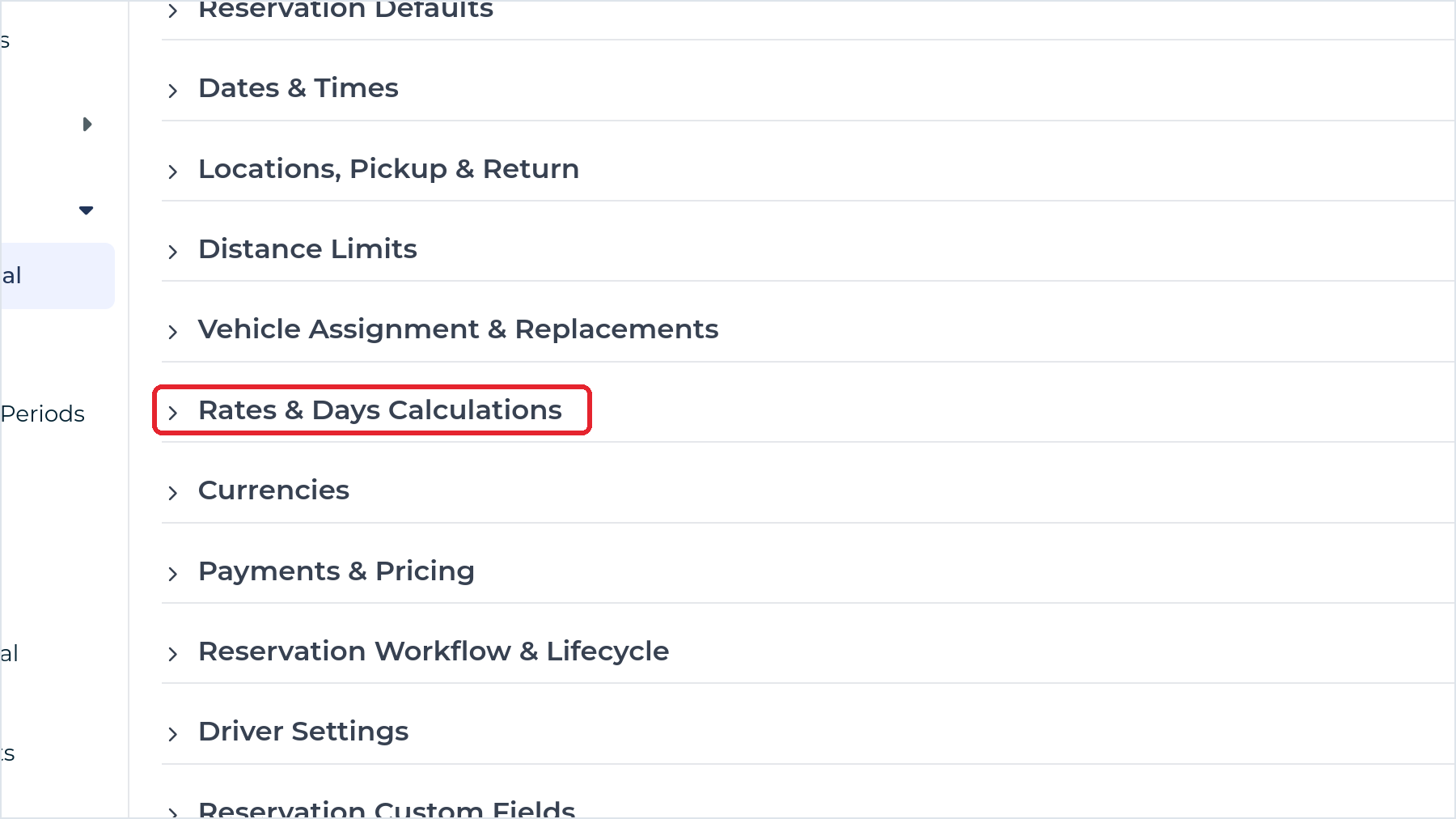
Page address: /settings/car-rental
Turn It On
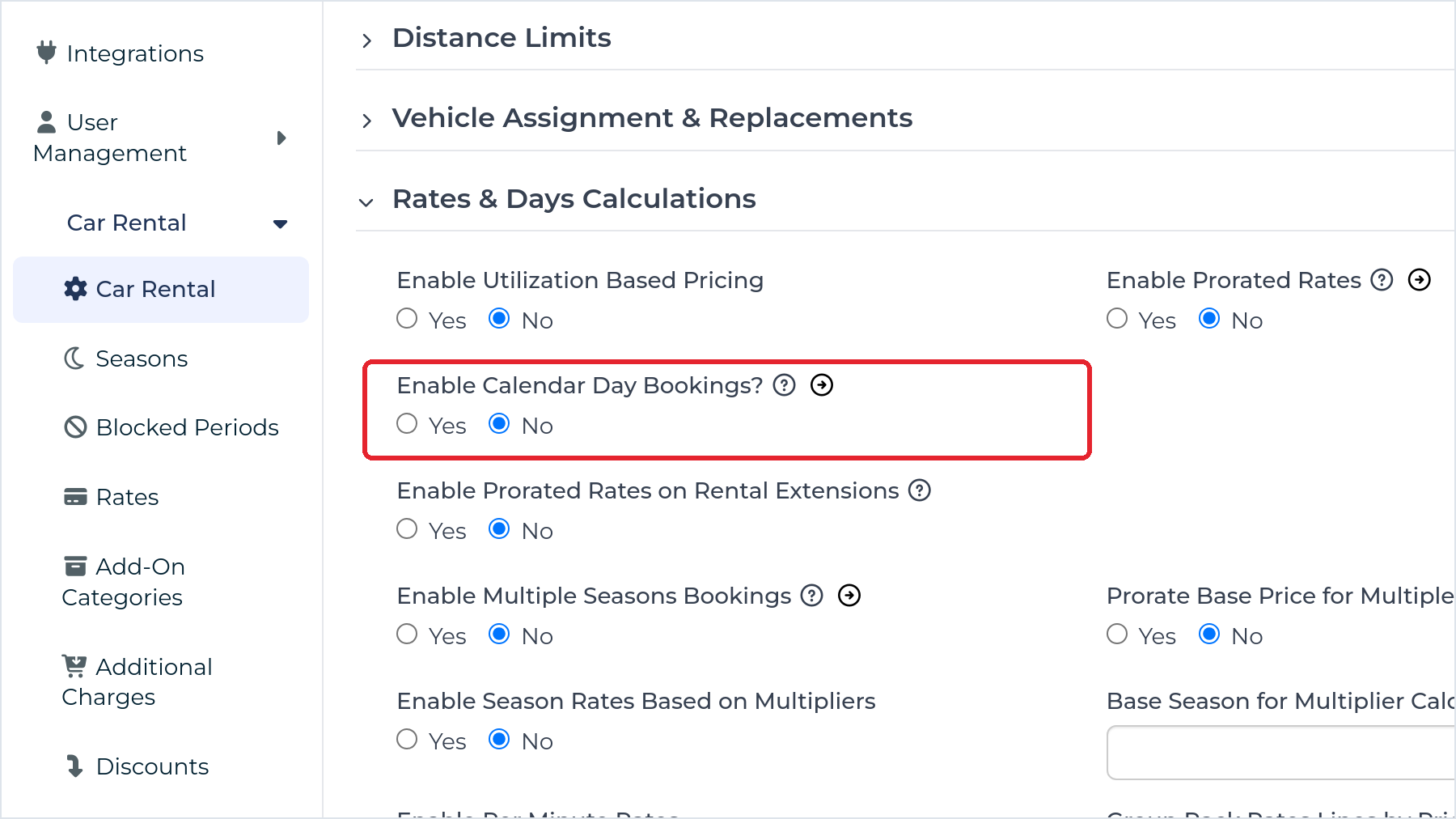
Section titled “Turn It On”- Set Enable Calendar Day Bookings? to Yes.
- Click Save at the bottom of the page.
- Optional: set Set Calendar Day Bookings by Default to Yes in the same section, then click Save again.
Show me where (1 picture)
Good To Know
Section titled “Good To Know”- Changing the setting does not change existing reservations. Each one keeps the value saved when it was created.
- You can rename the Calendar Day Booking? label in the Text Settings tab.
If Something Goes Wrong
Section titled “If Something Goes Wrong”A Same Day Rental Shows 2 Days
Section titled “A Same Day Rental Shows 2 Days”- Why it happens: It is a calendar day booking that crosses midnight.
- What to do: Set Calendar Day Booking? to No in step 1 of the reservation.
Settings Used In This Article
Section titled “Settings Used In This Article”Both are in Settings, under Car Rental, tab General Settings, section Rates & Days Calculations. Full details are in General Settings Reference: Rates & Days Calculations Part 1.
- Enable Calendar Day Bookings?: lets reservations count dates instead of 24 hour periods, and shows Calendar Day Booking? in step 1.
- Set Calendar Day Bookings by Default: the starting value of Calendar Day Booking?, also used for website reservations.