Compare Your Rates With The Market
Before You Start
Section titled “Before You Start”- Plan or add-on: Rate Radar paid add-on, turned on by our support team.
- At least one Location must be enrolled by our support team, and its codes mapped.
How It Works
Section titled “How It Works”The Columns
Section titled “The Columns”- Vehicle class and My rate: your class and your daily rate.
- Position: how far My rate is from the market average.
- Market average and Cheapest: the average and the lowest competitor rate.
- One column per competitor. A dash means it did not price that class.
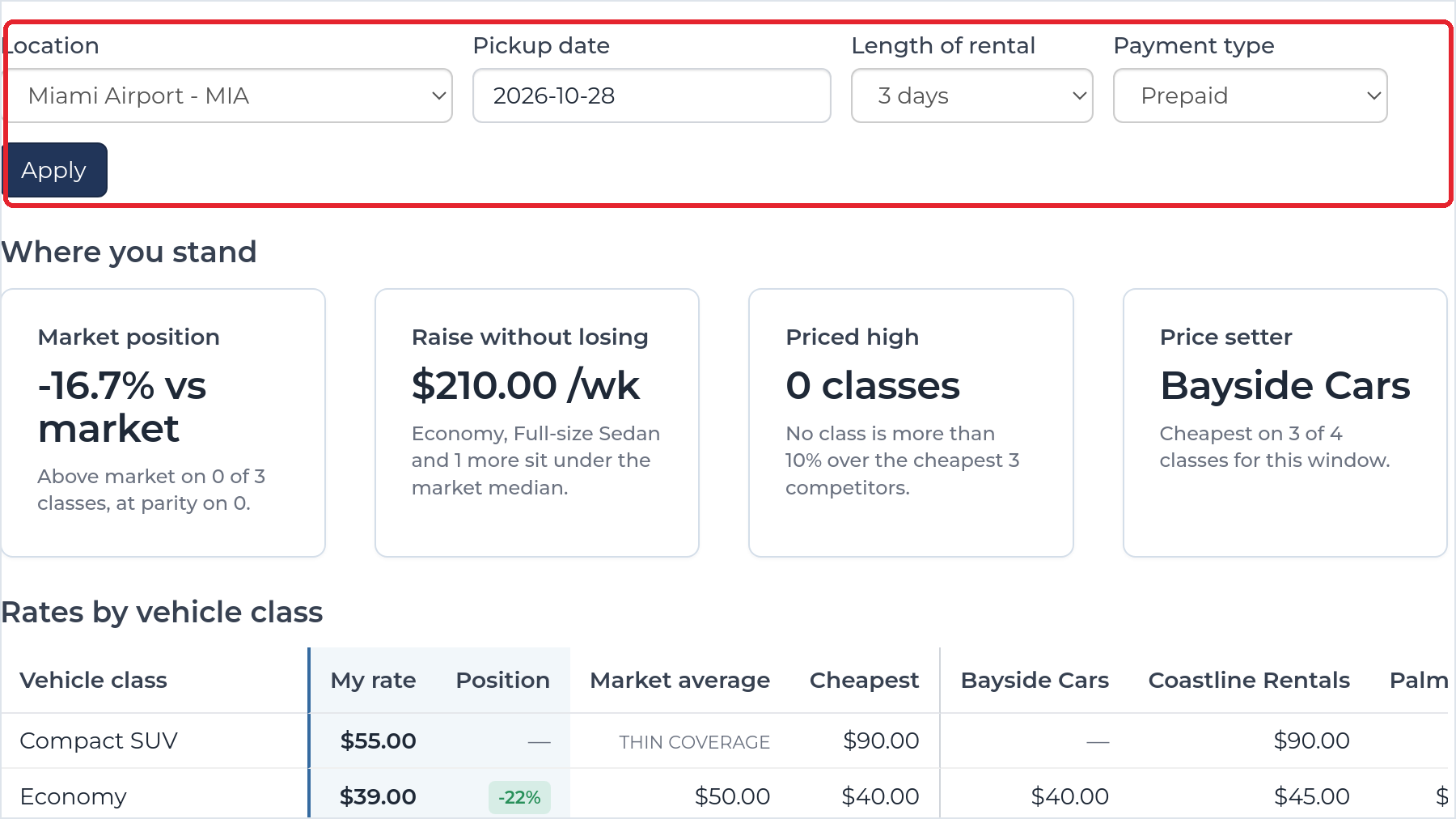
Example: Economy competitors charge $40, $45, $50 and $65. The average is $50, the cheapest $40. Your $39 is 22% below.
Thin Coverage
Section titled “Thin Coverage”The average and position need at least 3 competitors. With fewer, the row shows Thin coverage.
Example: Only two competitors price Compact SUV, at $90 and $100. The Compact SUV row shows Thin coverage.
Set It Up
Section titled “Set It Up”Compare Your Rates
Section titled “Compare Your Rates”Get There
Section titled “Get There”- In the left menu, under Car Rental, click Rate Radar.
- Click the tab Rates.
Page address: /car-rental/rate-radar
- Choose the Location, Pickup date, Length of rental and Payment type.
- Click Apply. The tiles and the table show the market next to your rates.
Show me where (1 picture)
Good To Know
Section titled “Good To Know”- Market rates are shown in the market’s currency.
- The Where you stand tiles sum up the rows on screen. See How Rate Radar Works Out My Rate And The Tiles.
If Something Goes Wrong
Section titled “If Something Goes Wrong”My Rate Shows Other Currency
Section titled “My Rate Shows Other Currency”- Why it happens: Your rate is in another currency than the market.
- What to do: Nothing. Rates are compared only in the same currency.
Settings Used In This Article
Section titled “Settings Used In This Article”These are the filters of the Rates tab.
- Location: an enrolled Location and its market.
- Pickup date: a date covered by the latest snapshot. Default tomorrow.
- Length of rental: 1, 3, 7 or 14 days. Default 3 days.
- Payment type: Prepaid or Pay At Counter. Default the enrollment’s.