Set Up A Decreasing Daily Rate
Before You Start
Section titled “Before You Start”- Plan or add-on: All plans, Car Rental module.
- Hidden settings: the three settings for weekly rates and new rate defaults are hidden until you turn on Show Advanced Settings.
Show Hidden Settings
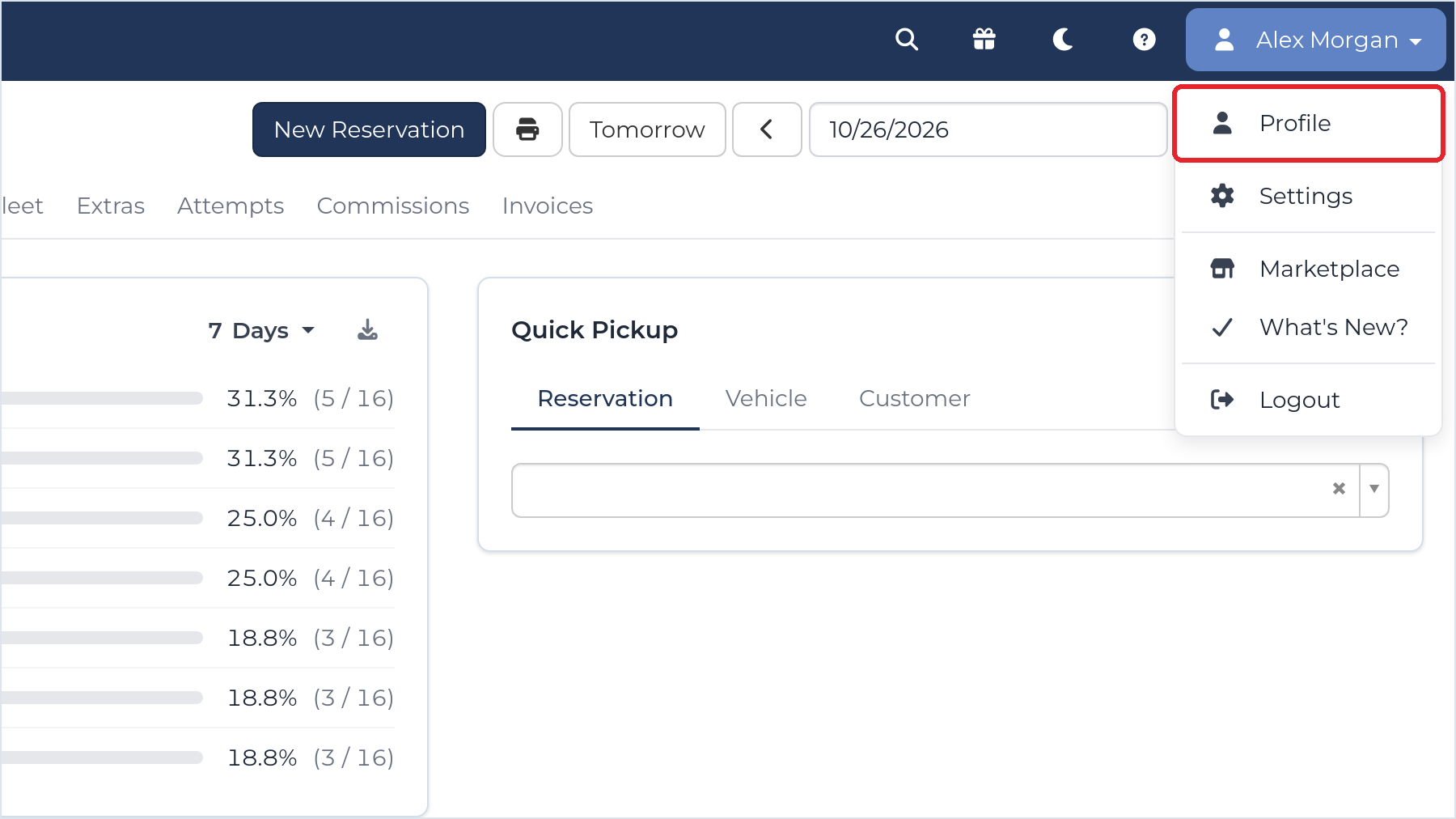
Section titled “Show Hidden Settings”- Click your name in the top right corner, then click Profile.
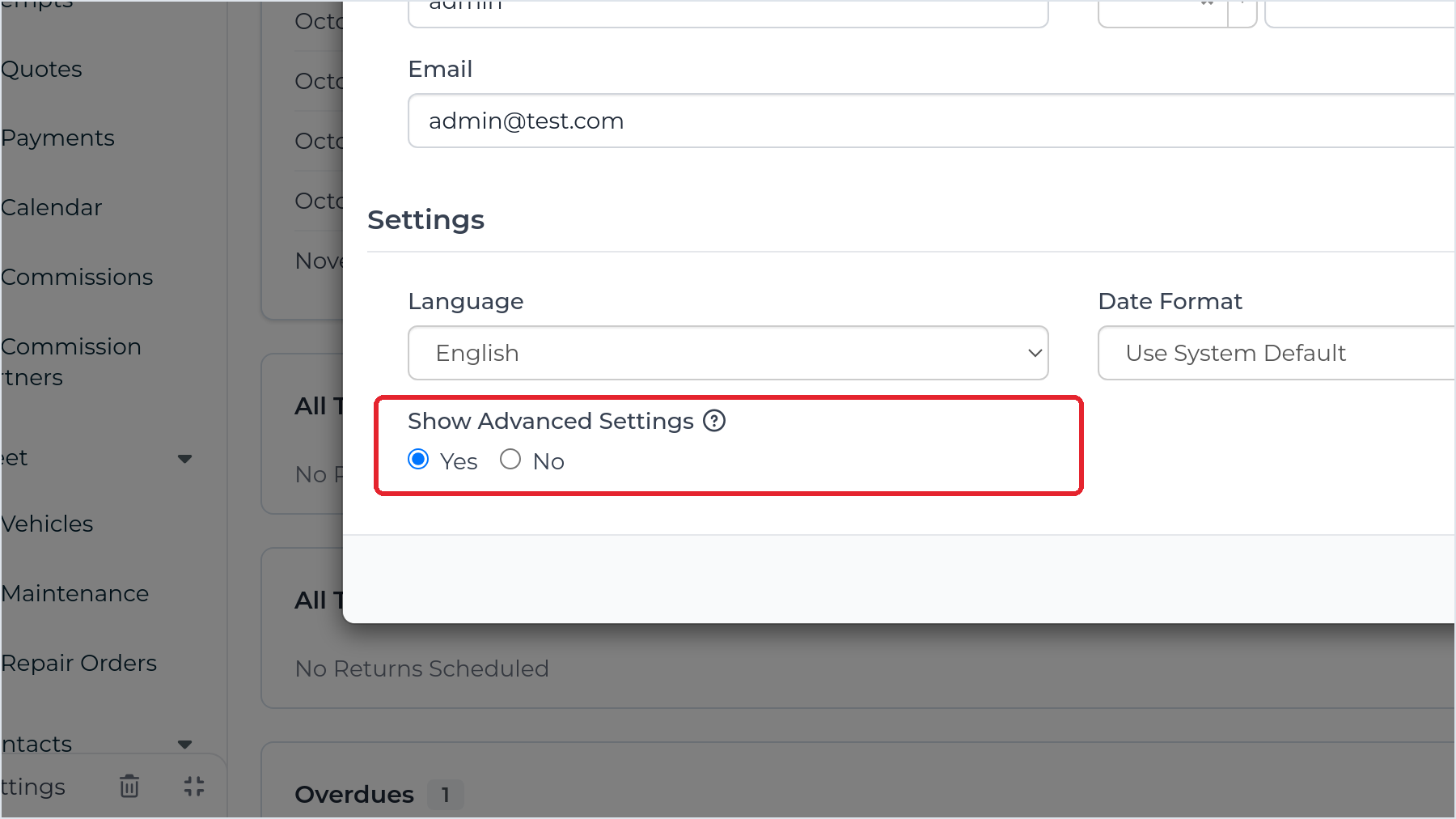
- In the User Profile window, find Show Advanced Settings and choose Yes.
- Click Save at the bottom of the window. Hidden settings now show on every settings page.
Show me where (2 pictures)
How It Works
Section titled “How It Works”How HQ Picks The Row
Section titled “How HQ Picks The Row”- HQ counts the days of the whole rental, then picks the row whose Start Interval and End Interval include that number.
- That row’s Price is charged for every day. The days are not split across rows.
- An empty End Interval means no upper limit.
- HQ checks the rows in table order. The first match wins, and with no match HQ uses the first row.
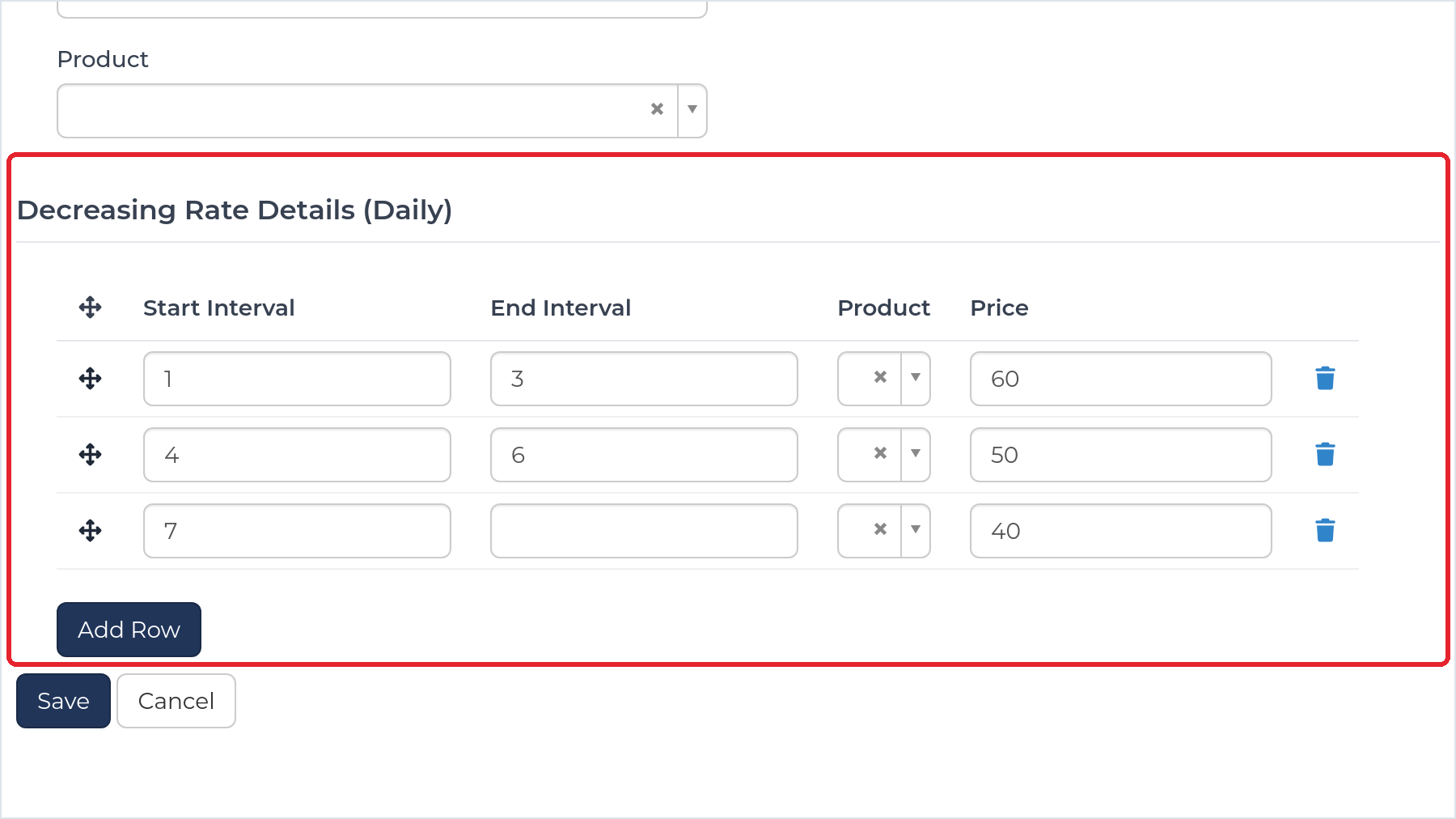
Example: With the rows above, 2 days cost $120, 5 days $250 and 10 days $400. With Apply Daily Price After More Than x Hours = 3, 4 days and 5 hours count as 5 days = $250.
Adding A Weekly Rate
Section titled “Adding A Weekly Rate”A decreasing rate never uses the Monthly Rate. With Enable Weekly Rates on Decreasing Rates based on Intervals = Yes, it shows a Weekly Rate:
- Full weeks cost the Weekly Rate. The other days use the row that matches the whole rental.
- A rental shorter than 7 days that costs more than the Weekly Rate is charged as 1 week, on all your rates.
Example: Weekly Rate $280. 10 days cost $280 + 3 × $40 = $400. 6 days would cost $300, so they cost $280.
Defaults For New Rates
Section titled “Defaults For New Rates”- Enable Decreasing Day Rates Structure = Yes opens every new rate with the daily table. Existing rates do not change.
- Default Days Interval for Decreasing Rates Structure prefills the rows.
Example: With 1-3,4-6,7, a new rate opens with the rows 1 to 3, 4 to 6, and 7 with no End Interval. You only enter the prices.
Set It Up
Section titled “Set It Up”Get There
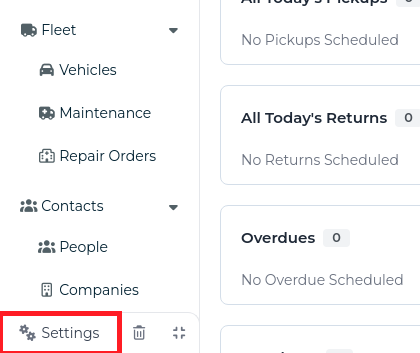
Section titled “Get There”- Click Settings at the bottom of the left menu.
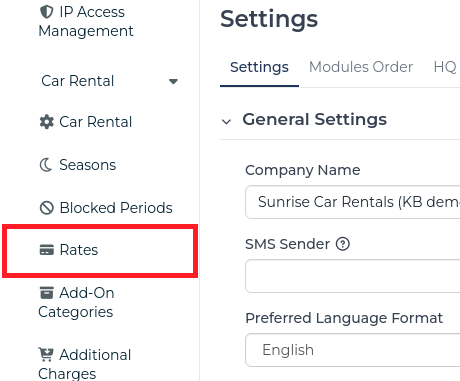
- In the left menu, under the group Car Rental, click Rates.
Show me where (2 pictures)
Page address: /settings/car-rental/rates
Set Up The Rows
Section titled “Set Up The Rows”- Click Add Rate in the top right corner, or click an existing rate.
- Choose the Season and the Vehicle Class.
- Set Decreasing Rate Based on Interval (Per Day) to Yes. The table Decreasing Rate Details (Daily) appears.
- In the first row, enter the Start Interval, End Interval and Price.
- Click Add Row under the table for each extra row. Leave the End Interval of the last row empty.
- Drag the rows by the arrows on the left to set their order.
- Click Save at the bottom of the page.
Show me where (1 picture)
If Something Goes Wrong
Section titled “If Something Goes Wrong”A Long Rental Was Charged The Highest Daily Price
Section titled “A Long Rental Was Charged The Highest Daily Price”- Why it happens: The last row has an End Interval, so no row matched and HQ used the first row.
- What to do: Leave the End Interval of the last row empty.
Settings Used In This Article
Section titled “Settings Used In This Article”The first is on each rate. The others are in Settings, under Car Rental, tab General Settings, section Rates & Days Calculations. Full details are in General Settings Reference: Rates & Days Calculations Part 1.
- Decreasing Rate Based on Interval (Per Day): replaces the Daily, Weekly and Monthly Rate with the daily table.
- Enable Weekly Rates on Decreasing Rates based on Intervals: adds a Weekly Rate to decreasing rates.
- Enable Decreasing Day Rates Structure: opens new rates with the daily table.
- Default Days Interval for Decreasing Rates Structure: prefills the rows of new rates.