Create An Additional Charge
Before You Start
Section titled “Before You Start”- Plan or add-on: All plans, Car Rental module.
- You need: an Add-On Category. See Create An Add-On Category.
How It Works
Section titled “How It Works”Totals The Charge Counts Toward
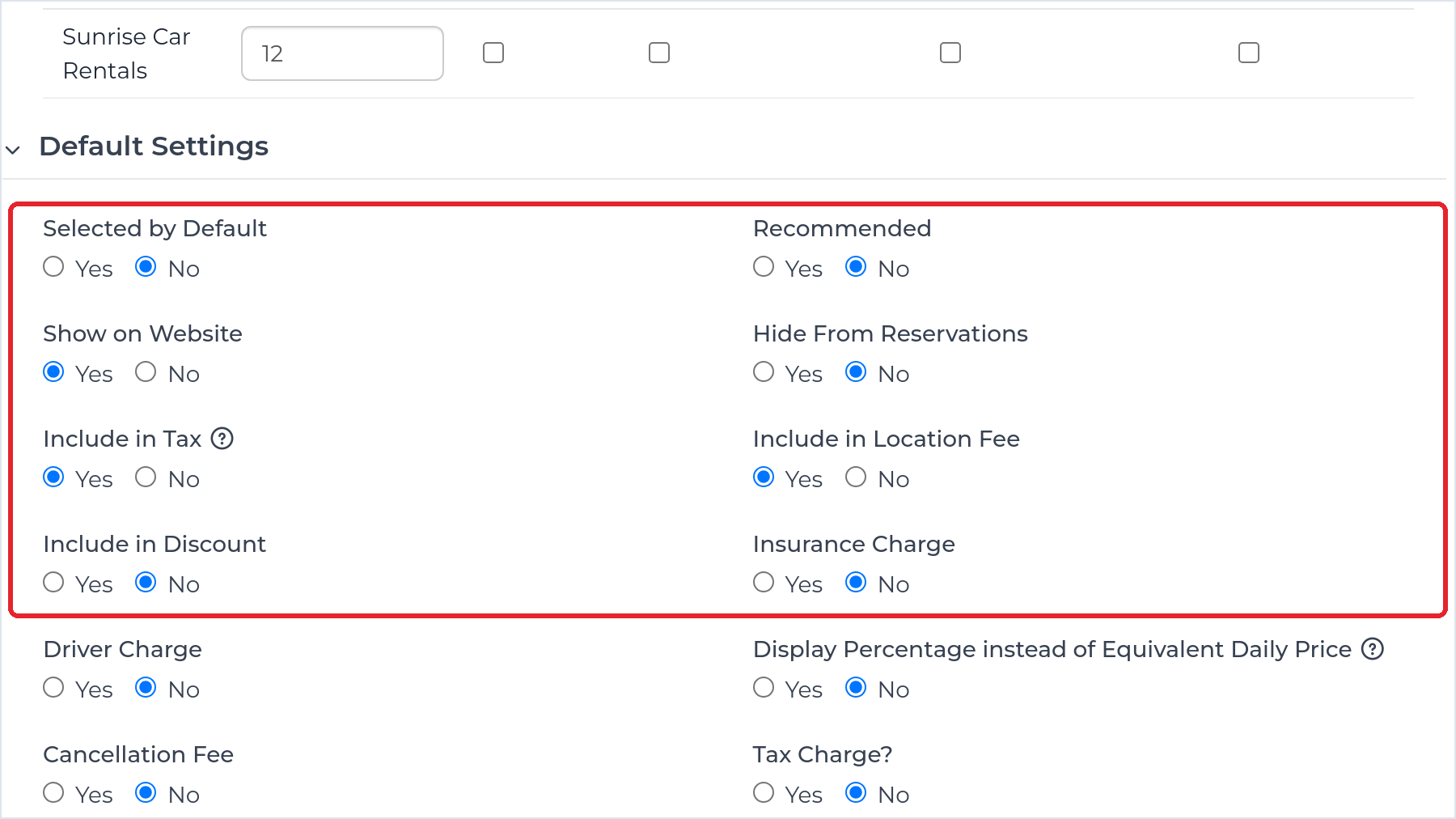
Section titled “Totals The Charge Counts Toward”Include in Tax, Include in Location Fee and Include in Discount decide which totals include the charge. Each reservation keeps the values it had when created.
Example: GPS with Include in Tax = Yes adds its $9.99 a day to the amount the sales tax is worked out on.
Set It Up
Section titled “Set It Up”Get There
Section titled “Get There”- Click Settings at the bottom of the left menu.
- In the left menu, under the group Car Rental, click Additional Charges.
Show me where (2 pictures)
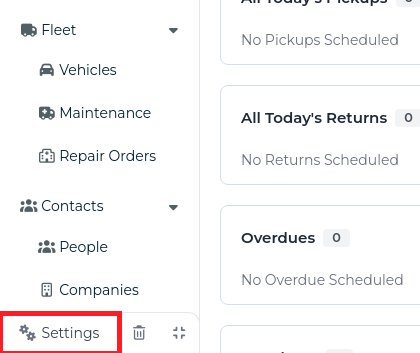
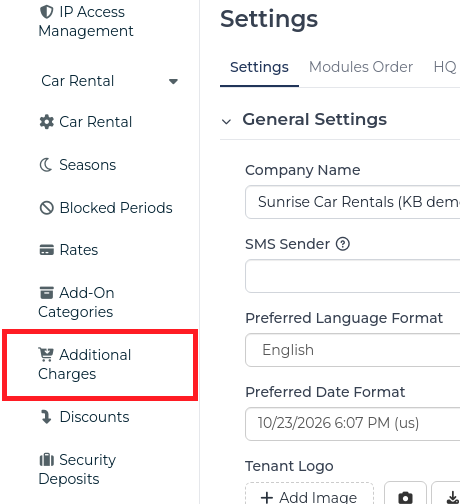
Page address: /settings/fleets/additional-charges
Add The Charge
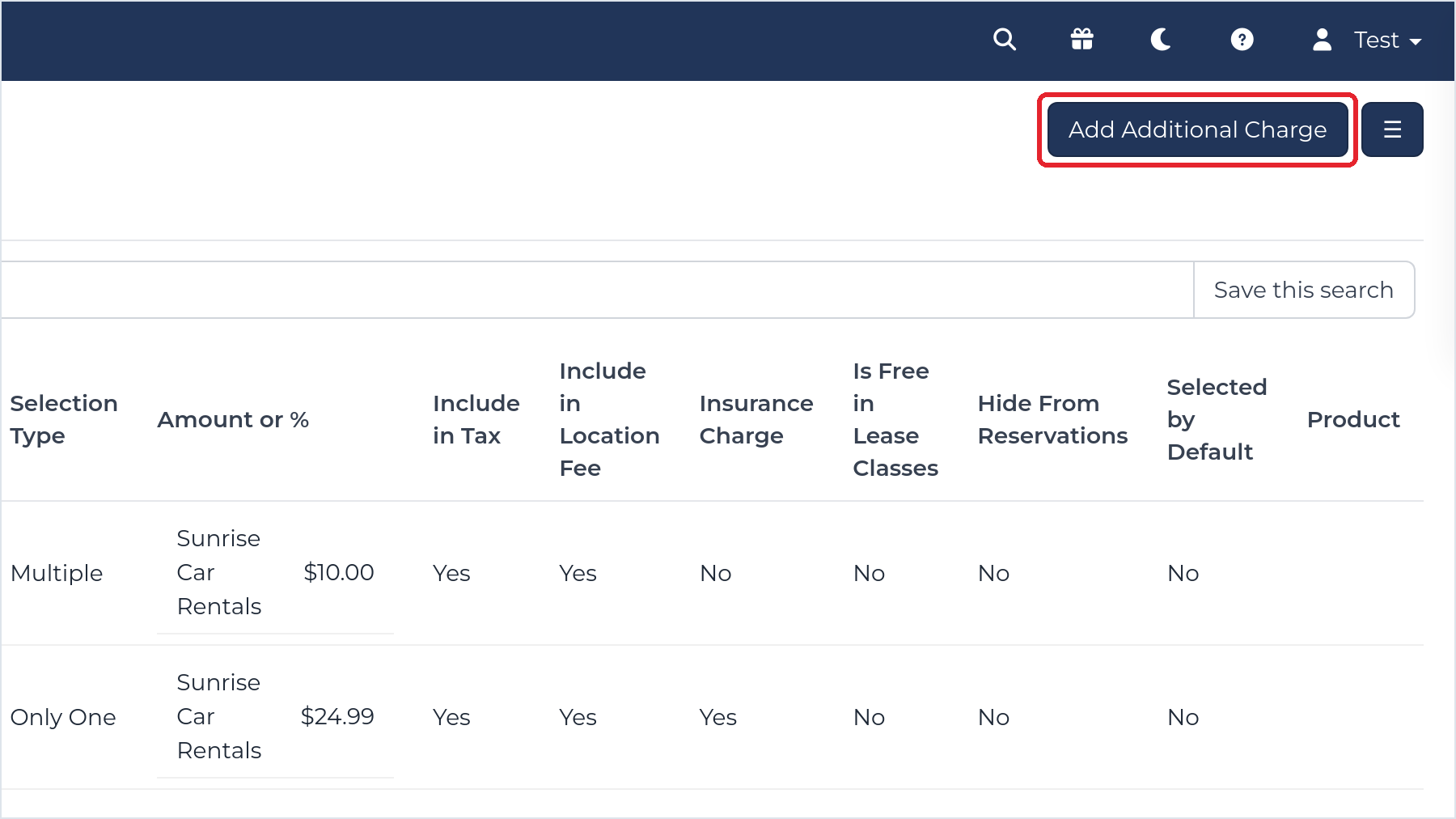
Section titled “Add The Charge”- Click Add Additional Charge in the top right corner.
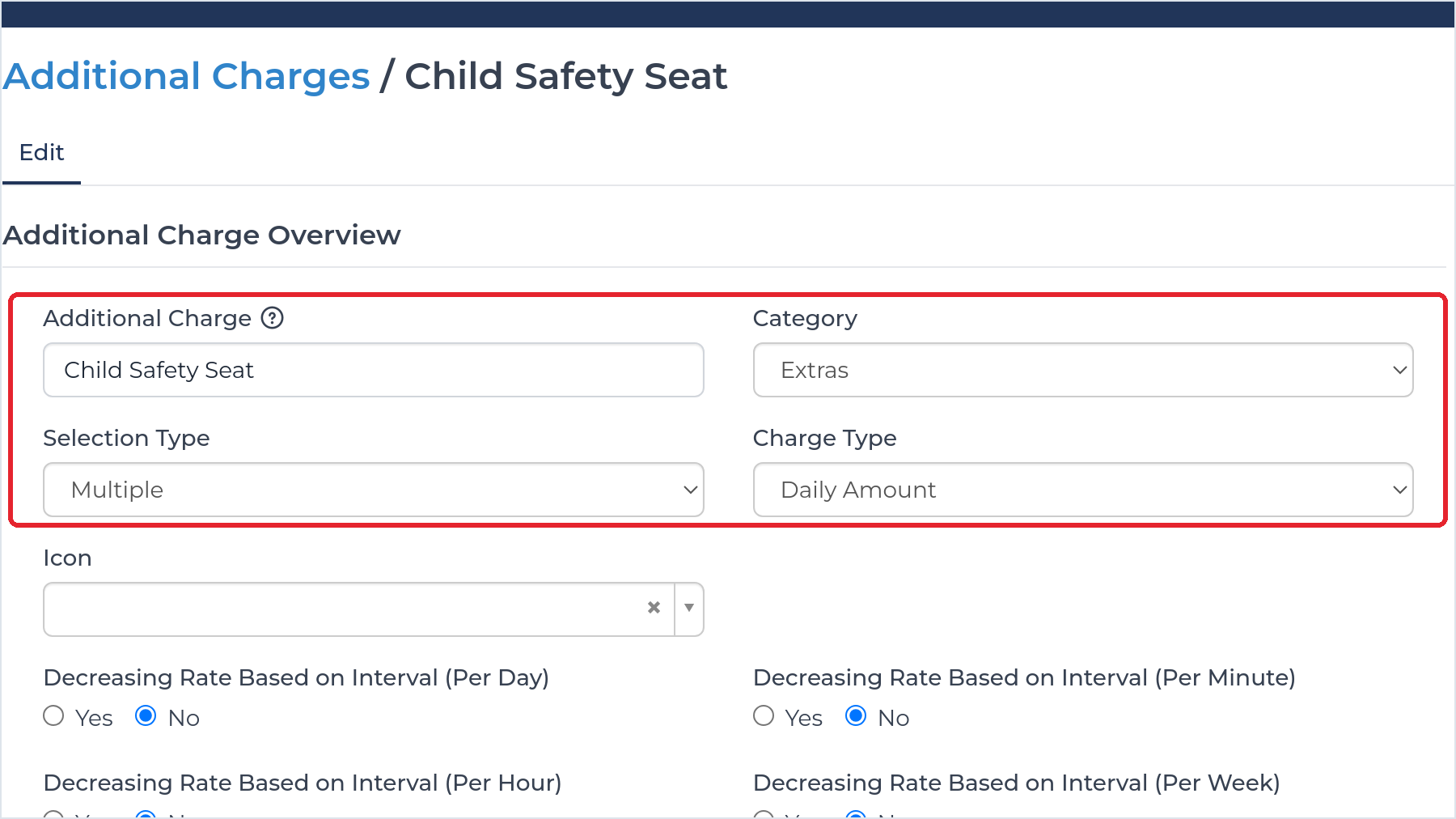
- Enter the Additional Charge name, then choose the Category, Selection Type and Charge Type.
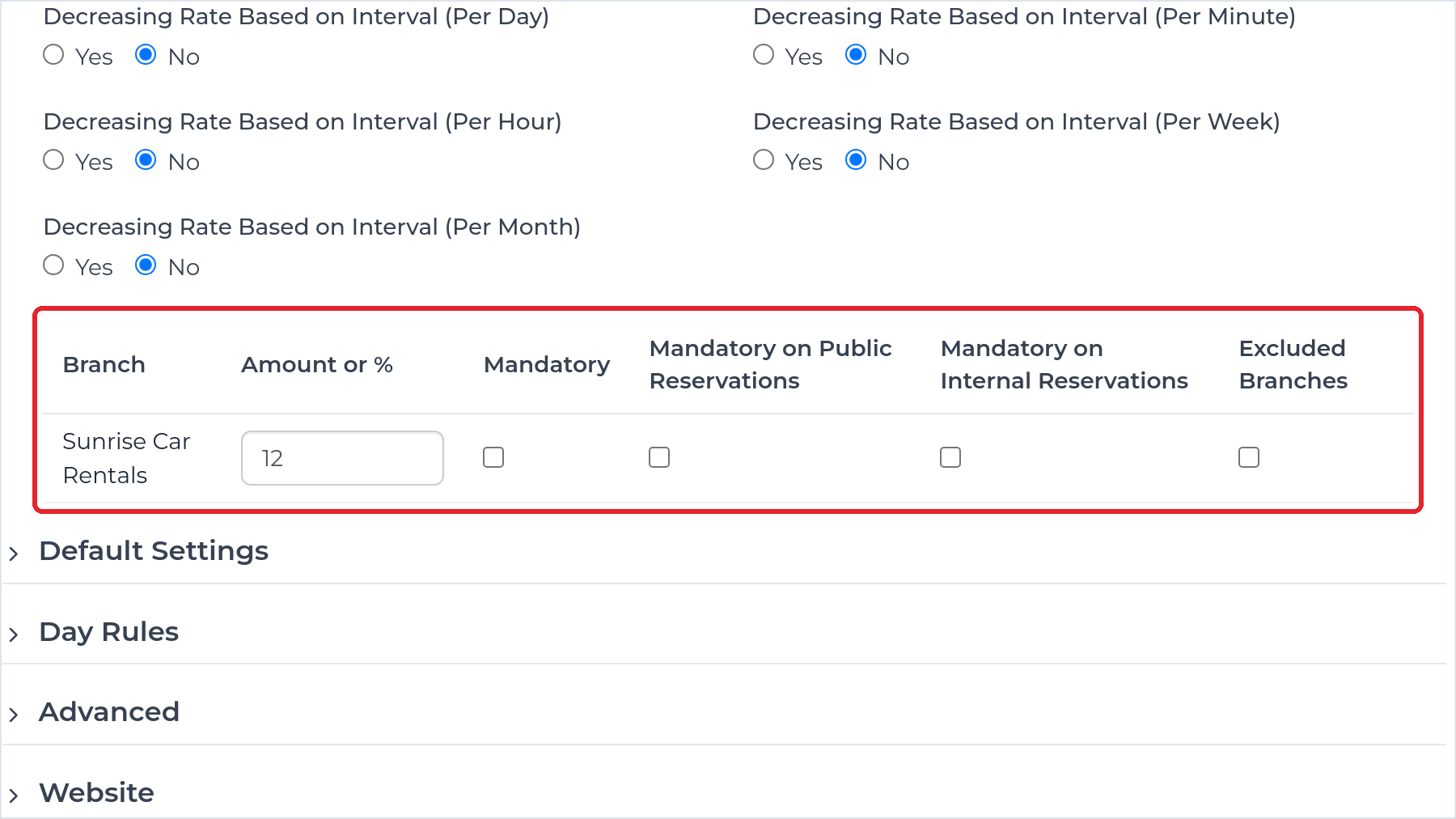
- In the Branch table, enter the Amount or % for each Branch.
- Open Default Settings and set Include in Tax, Include in Location Fee, Include in Discount, Show on Website and Hide From Reservations.
- Open Website and fill in the Label and Description for each language.
- Click Save at the bottom of the page.
Show me where (4 pictures)
Good To Know
Section titled “Good To Know”- Tax Charge? shows the charge with the taxes in the summary. Saving it with Yes also sets Hide From Reservations to Yes.
- Hide From Reservations takes the charge off the Step 3 list, but HQ can still add it automatically.
If Something Goes Wrong
Section titled “If Something Goes Wrong”The Charge Is Not On The Website
Section titled “The Charge Is Not On The Website”- Why it happens: Show on Website is No.
- What to do: Set it to Yes and save.
Settings Used In This Article
Section titled “Settings Used In This Article”These are fields of each charge.
- Selection Type: Only One, or Multiple with a quantity.
- Charge Type: how the price grows. See How Each Charge Type Is Calculated.
- Amount or %: the price per Branch, or the percentage for Percent.
- Include in Tax: counts toward sales tax. Default Yes.
- Include in Location Fee: counts toward the Location Fee. Default No.
- Include in Discount: counts toward percentage discounts. Default No.