Show Prices And Take Reservations In Other Currencies
Before You Start
Section titled “Before You Start”- Plan or add-on: All plans, Car Rental module.
- Hidden settings: Allow Reservations in Other Currencies is hidden until you turn on Show Advanced Settings.
- Check that your payment gateway account accepts each currency you will charge in.
Show Hidden Settings
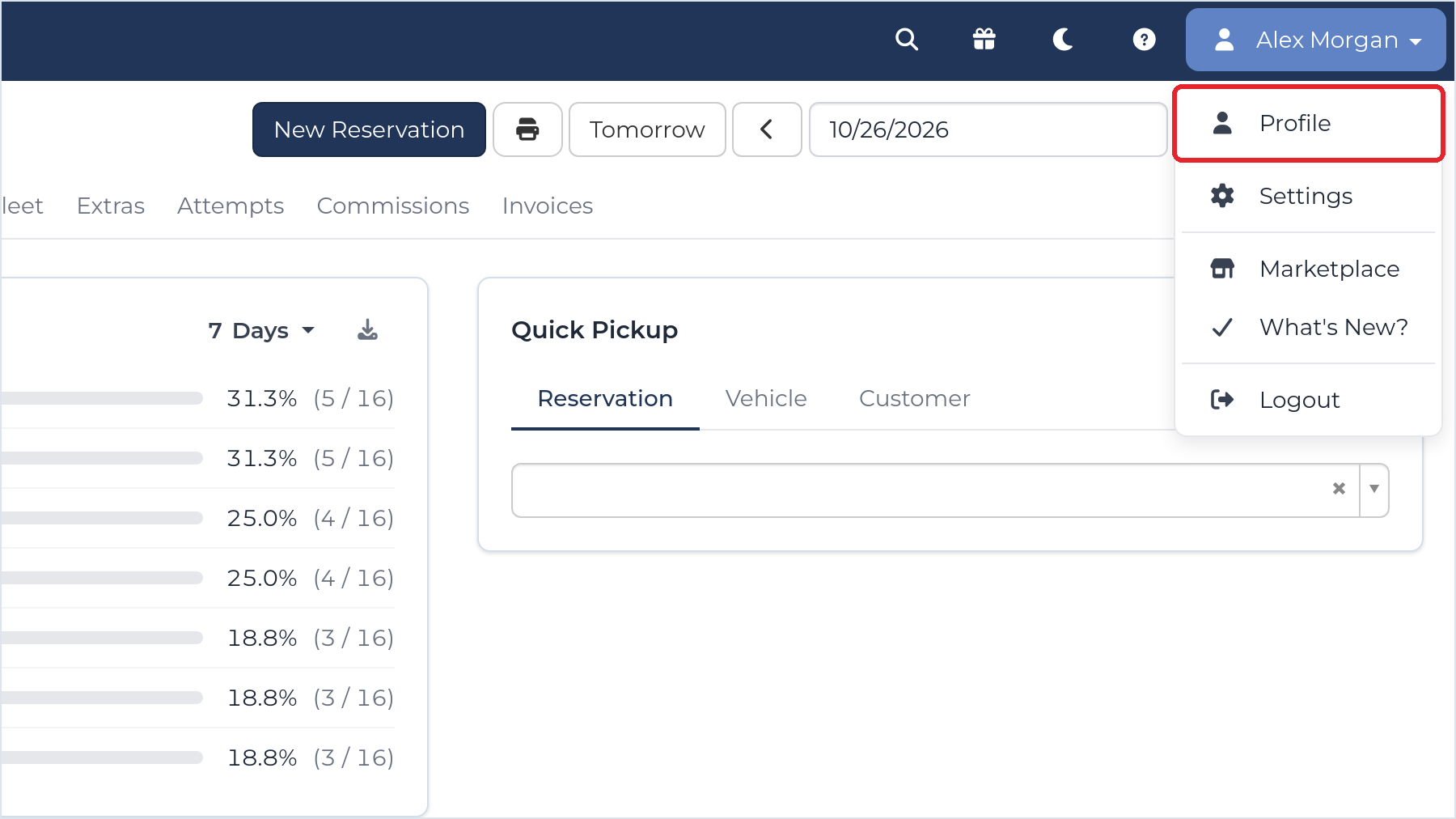
Section titled “Show Hidden Settings”- Click your name in the top right corner, then click Profile.
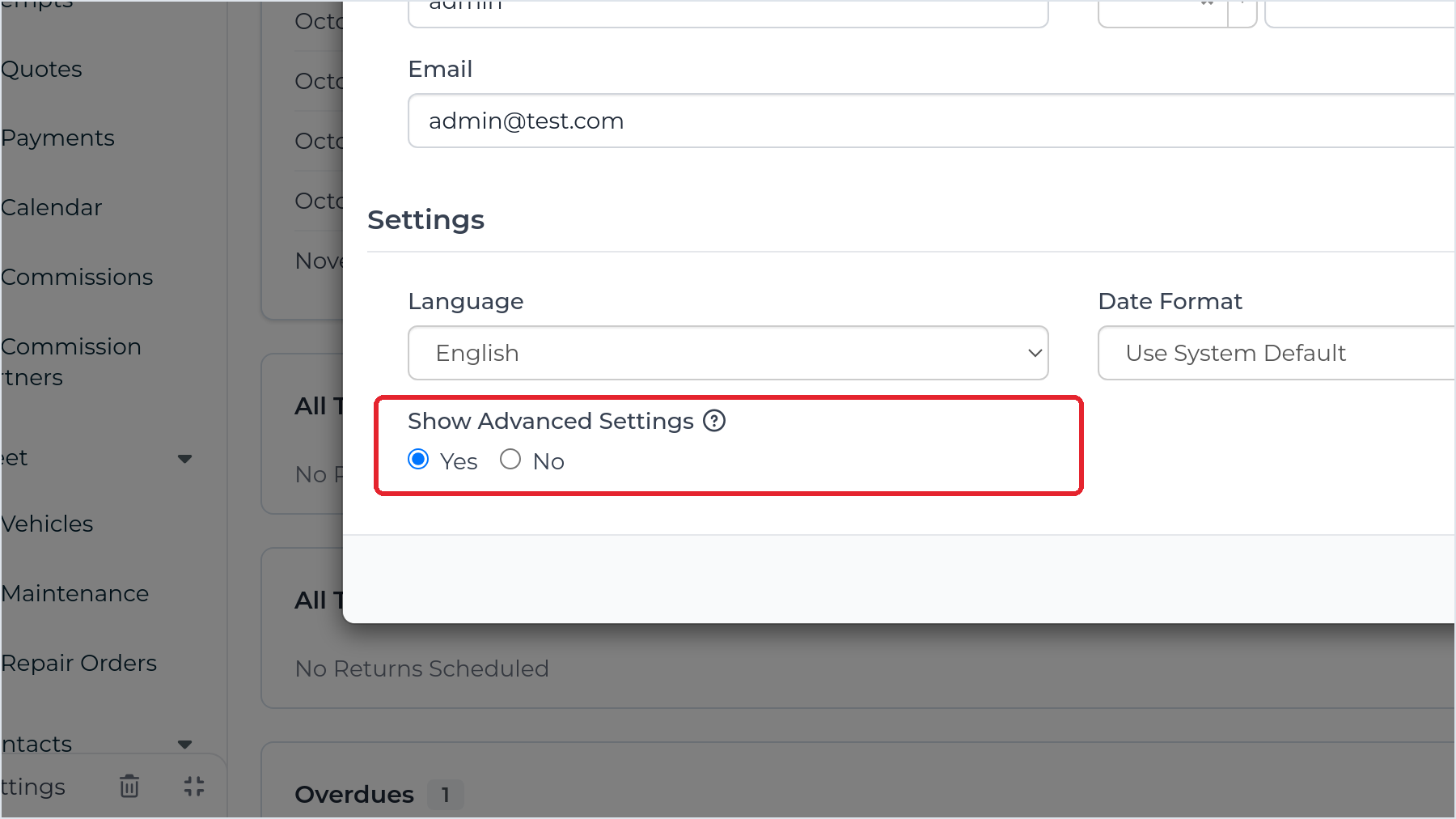
- In the User Profile window, find Show Advanced Settings and choose Yes.
- Click Save at the bottom of the window. Hidden settings now show on every settings page.
Show me where (2 pictures)
How It Works
Section titled “How It Works”Include Your Default Currency
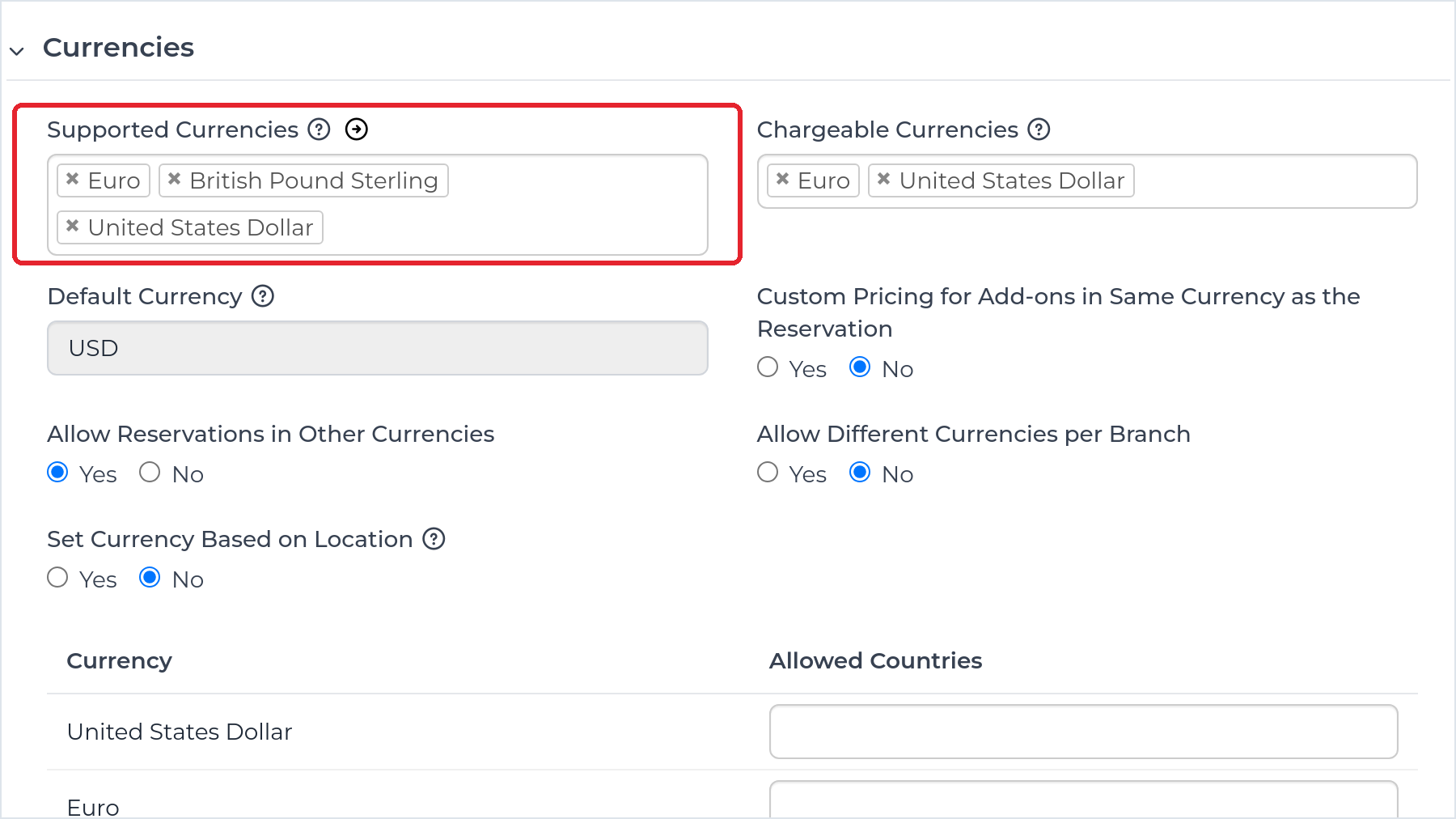
Section titled “Include Your Default Currency”Supported Currencies must include your Default Currency.
Example: A USD account that shows Euro and British Pound lists all three: Euro, British Pound Sterling and United States Dollar.
Set It Up
Section titled “Set It Up”Choose The Currencies
Section titled “Choose The Currencies”Get There
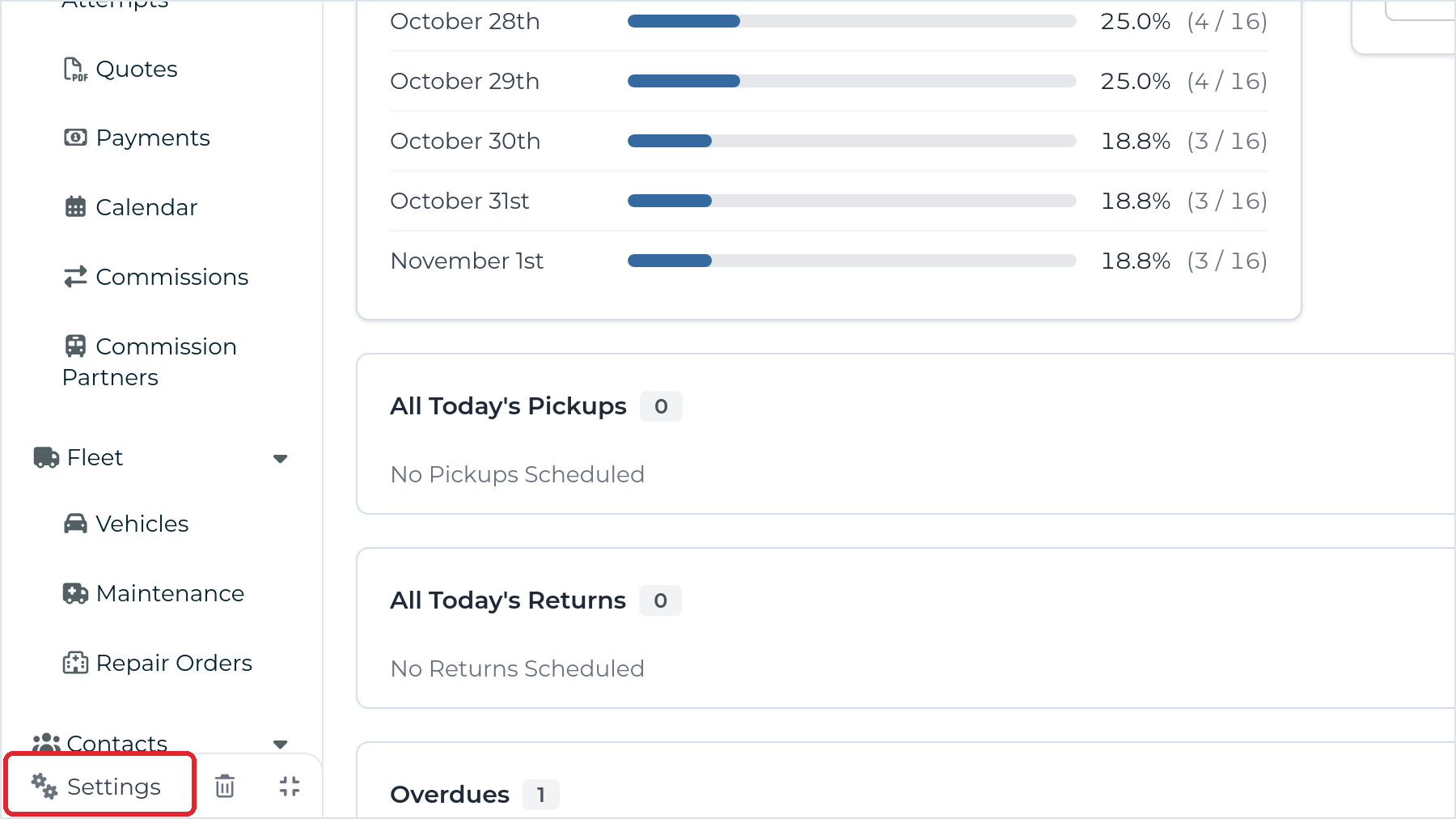
Section titled “Get There”- Click Settings at the bottom of the left menu.
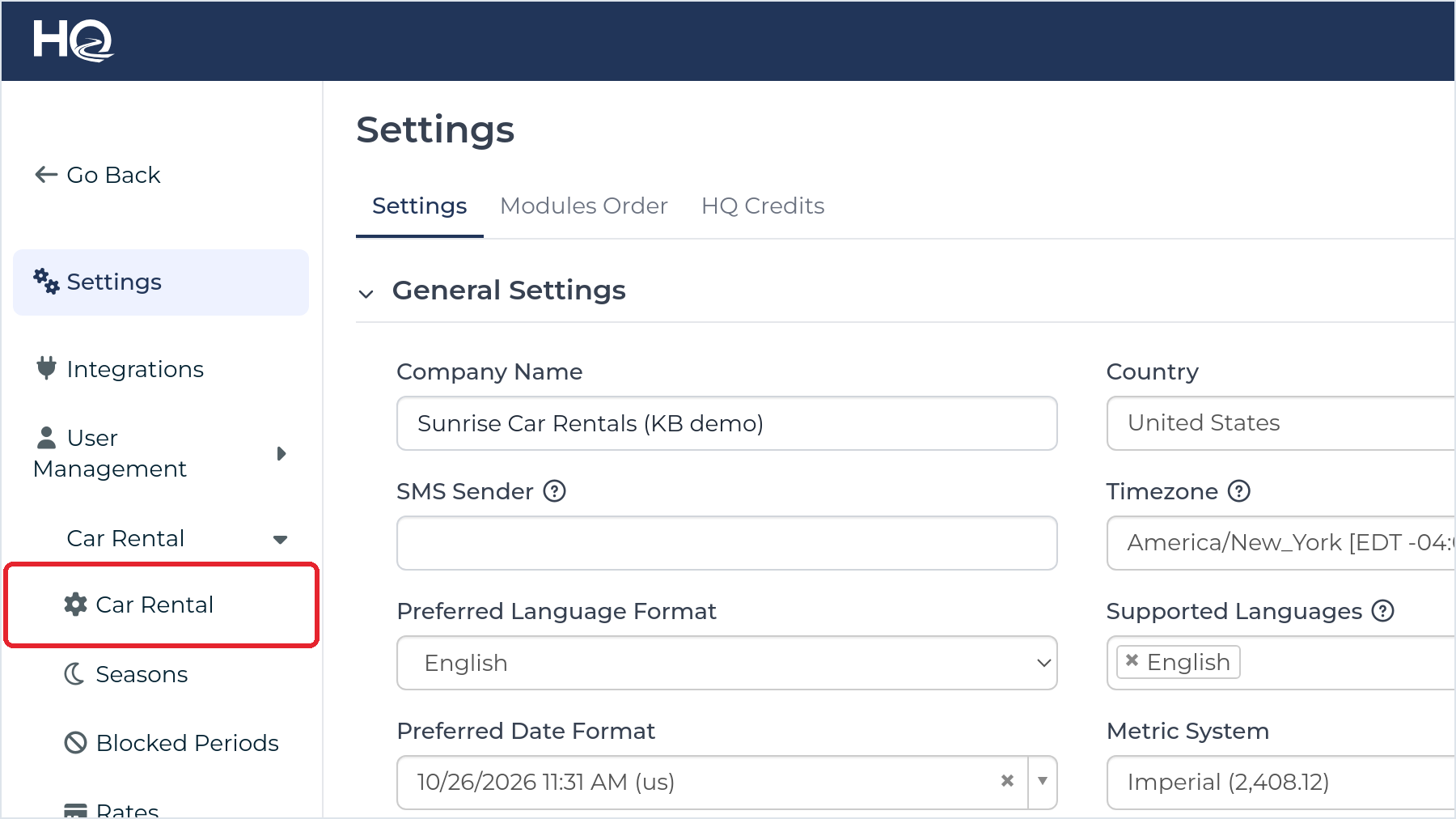
- In the left menu, under the group Car Rental, click Car Rental.
- Stay on the tab General Settings. It opens first.
Show me where (3 pictures)
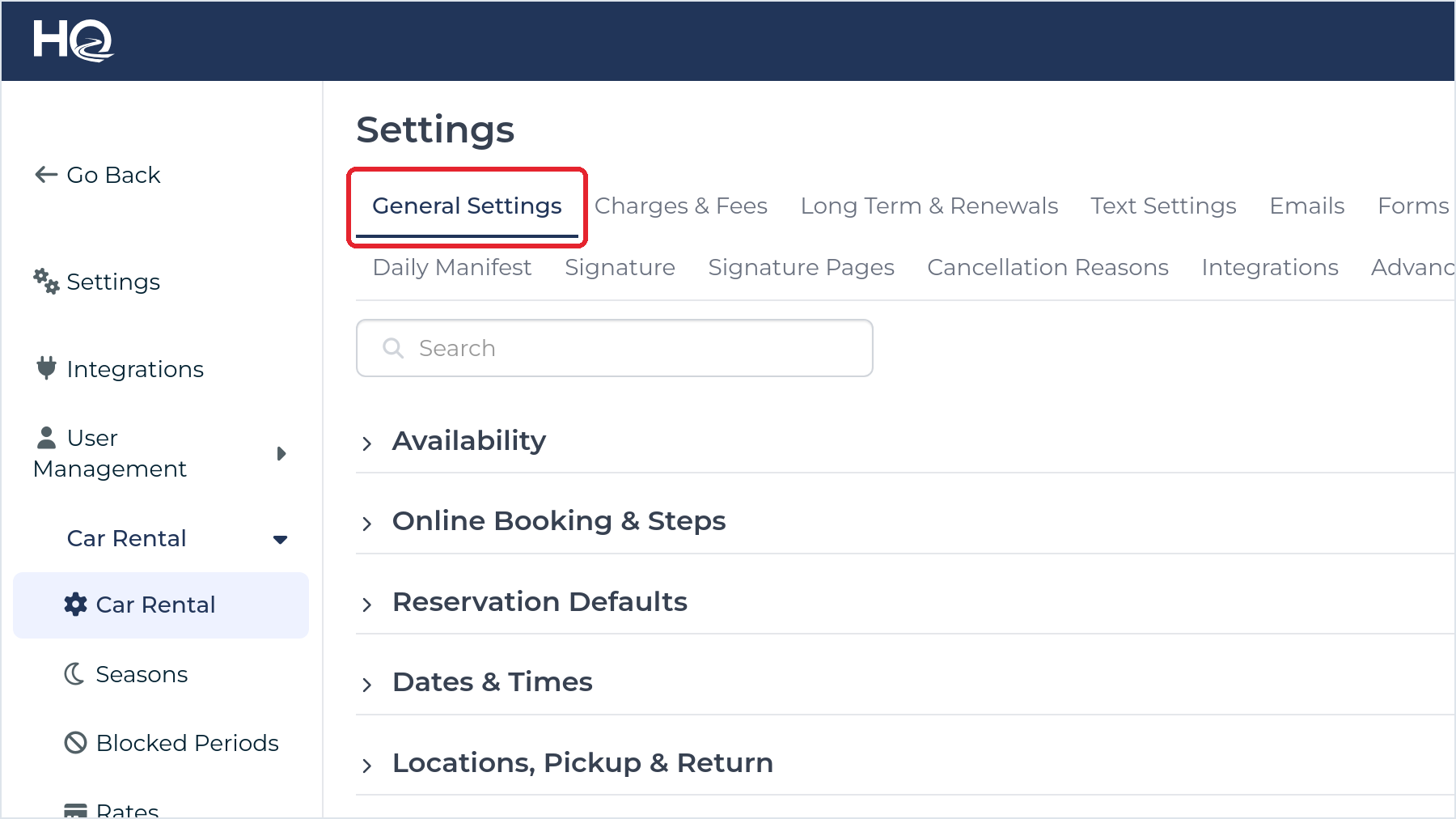
Page address: /settings/car-rental
- Click Currencies to open the section.
- In Supported Currencies, add every currency customers can see prices in.
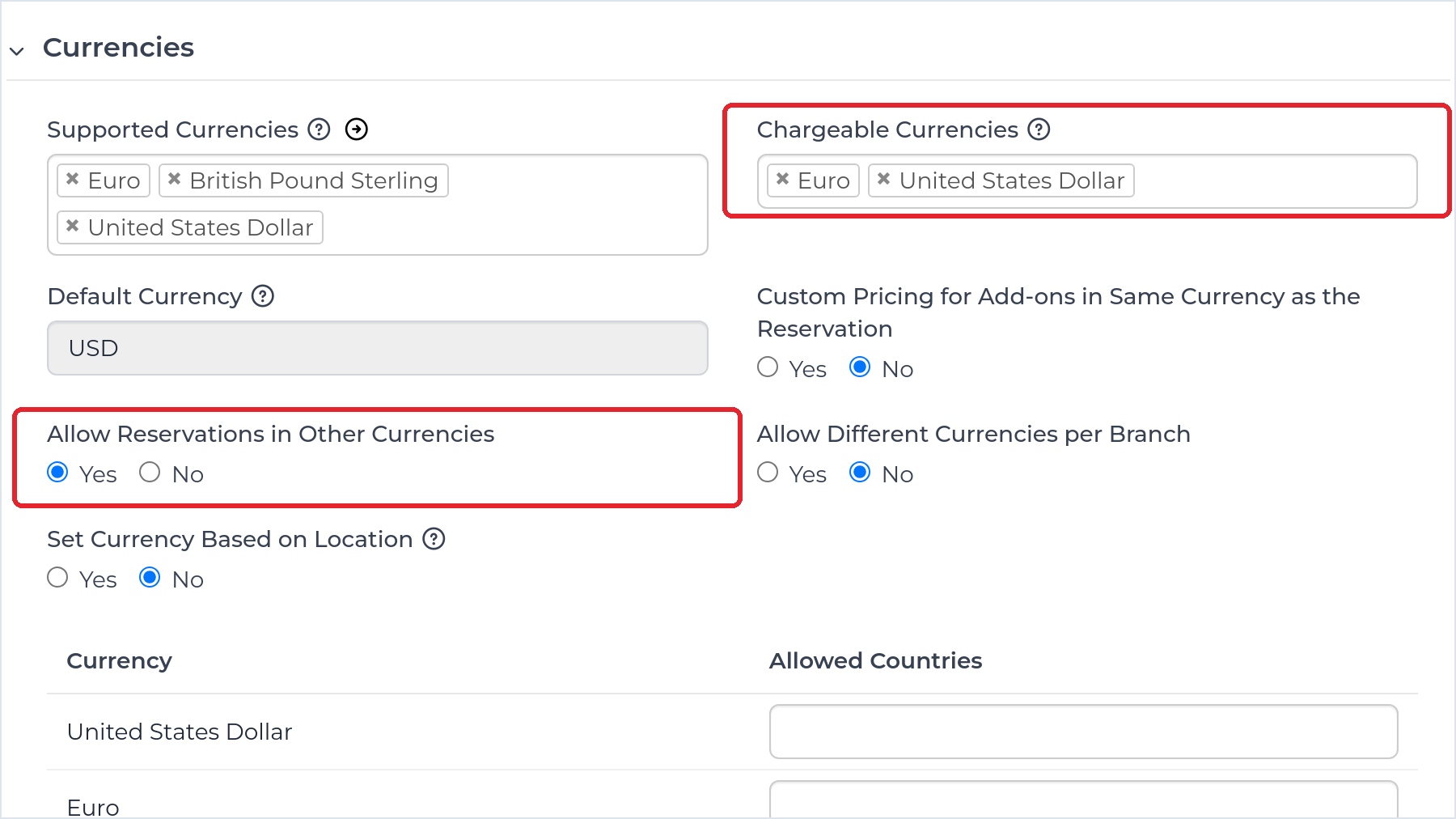
- To take reservations in other currencies, set Allow Reservations in Other Currencies to Yes.
- In Chargeable Currencies, add the currencies customers can book and pay in.
- Click Save at the bottom of the page.
Show me where (2 pictures)
Check Your Payment Gateways
Section titled “Check Your Payment Gateways”Get There
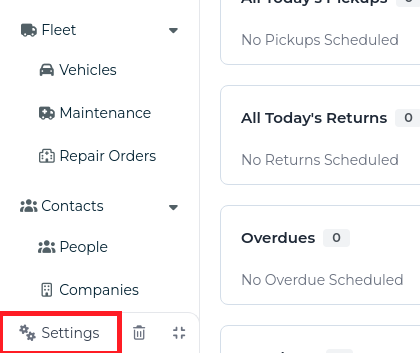
Section titled “Get There”- Click Settings at the bottom of the left menu.
- In the left menu, click the group Payment Gateways to open it. Skip this step if its items already show.
- Under the group Payment Gateways, click Gateways.
Show me where (3 pictures)
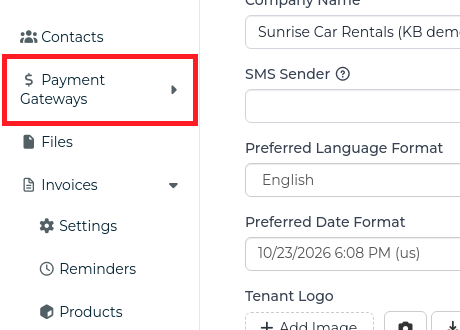
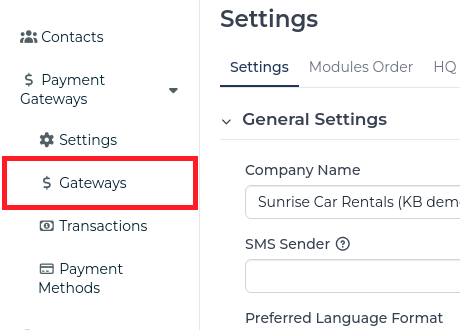
Page address: /settings/payment-gateways/gateways
- Click a gateway to open it.
- Check that Supported Currencies lists each chargeable currency.
- Click Save if you changed it.
Good To Know
Section titled “Good To Know”- Prices in a currency that is only supported change from day to day with the exchange rate.
- Make a test booking in each chargeable currency before you rely on it.
If Something Goes Wrong
Section titled “If Something Goes Wrong”Customers Still Pay In The Default Currency
Section titled “Customers Still Pay In The Default Currency”- Why it happens: Allow Reservations in Other Currencies is No, or the currency is not in Chargeable Currencies.
- What to do: Do steps 3 and 4 above, then save.
Settings Used In This Article
Section titled “Settings Used In This Article”These are in Settings, under Car Rental, tab General Settings, section Currencies.
- Supported Currencies: the currencies customers can see prices in.
- Allow Reservations in Other Currencies: creates the reservation in the customer’s chargeable currency. Hidden setting.
- Chargeable Currencies: the currencies customers can book and pay in.