Read The Price Summary Of A Reservation
Before You Start
Section titled “Before You Start”- Plan or add-on: All plans, Car Rental module.
How It Works
Section titled “How It Works”What Each Line Means
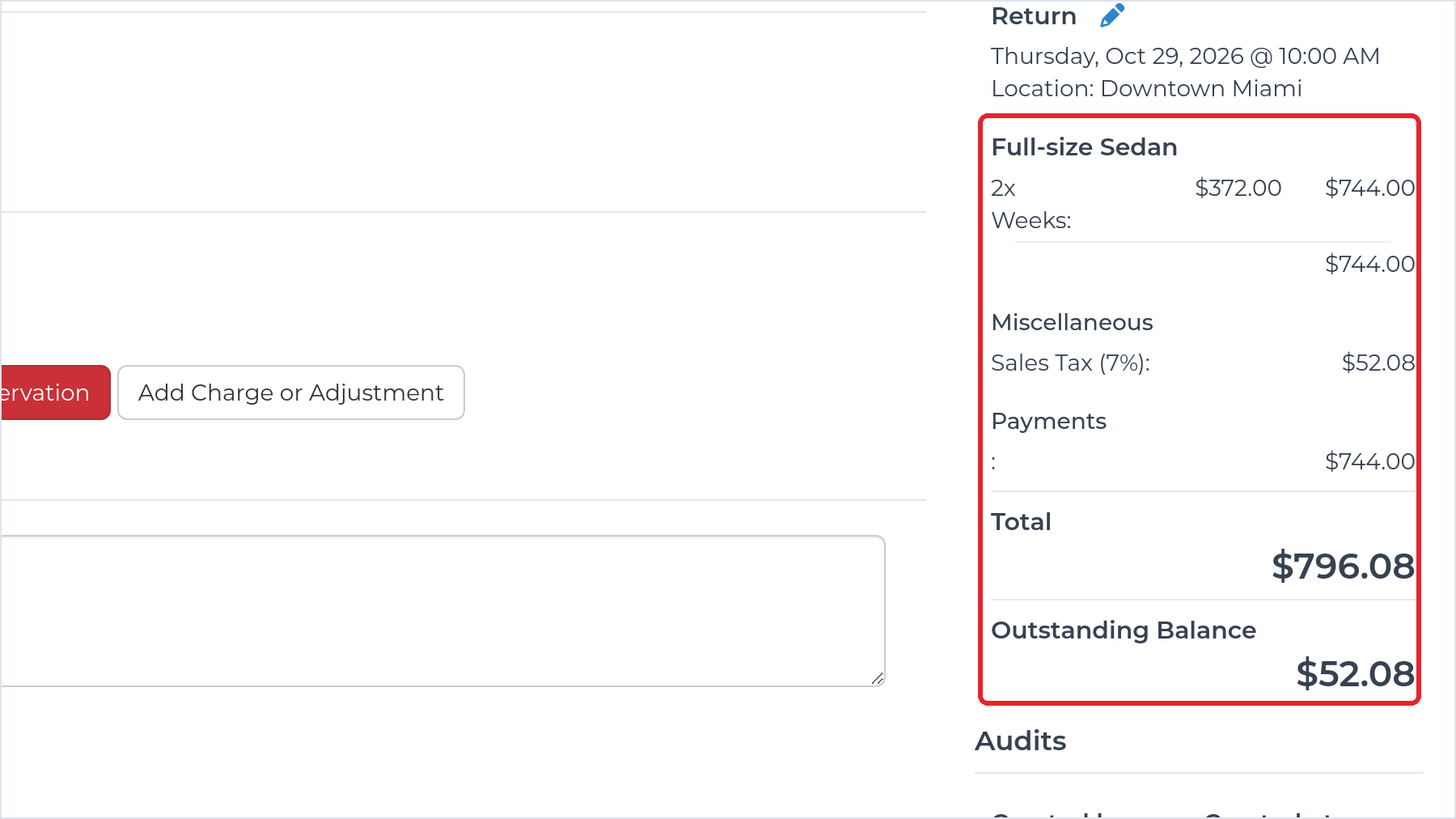
Section titled “What Each Line Means”From top to bottom, the Summary box shows:
- The rental price lines, like “4x Days” with the price per day and the line total. Weeks, months, hours and minutes have their own lines.
- One line per discount, with a negative amount, then the rental price after discounts.
- The Additional Charges, under the name of their Add-On Category. “(E)” marks a charge added by a rental extension.
- External Charges and Vehicle Damages, when the reservation has them.
- Miscellaneous: the Location Fee, Sales Tax and Government Tax with their percentages, plus charges set as Tax Charge?.
- Payments, Payment Fees and Refunds, when there are any.
- Total, then Outstanding Balance when part is paid or still to pay.
- Security Deposit, below the Total and not part of it.
Example: A 2 week rental shows “2x Weeks” at $372.00 = $744.00, Sales Tax (7%) $52.08 and a Total of $796.08. After a $744.00 payment, the Outstanding Balance is $52.08.
Rentals Over Several Seasons
Section titled “Rentals Over Several Seasons”A rental priced with several Seasons shows one group of lines per Season. With Prorate Base Price for Multiple Seasons = Yes, it shows one combined line.
Example: 2 days in Summer and 2 days in Autumn show as “2x Days” twice, one line per Season.
Labels In Your Account
Section titled “Labels In Your Account”Labels like “Days”, “Miscellaneous” and “Security Deposit” can be renamed in the Text Settings tab, so your account may show other words. Customers see the same Summary box when they book on your website.
Example: If you renamed “Miscellaneous” to “Taxes And Fees”, the tax lines show under “Taxes And Fees”.
Set It Up
Section titled “Set It Up”Get There
Section titled “Get There”- In the left menu, under the group Car Rental, click Reservations.
Show me where (1 picture)
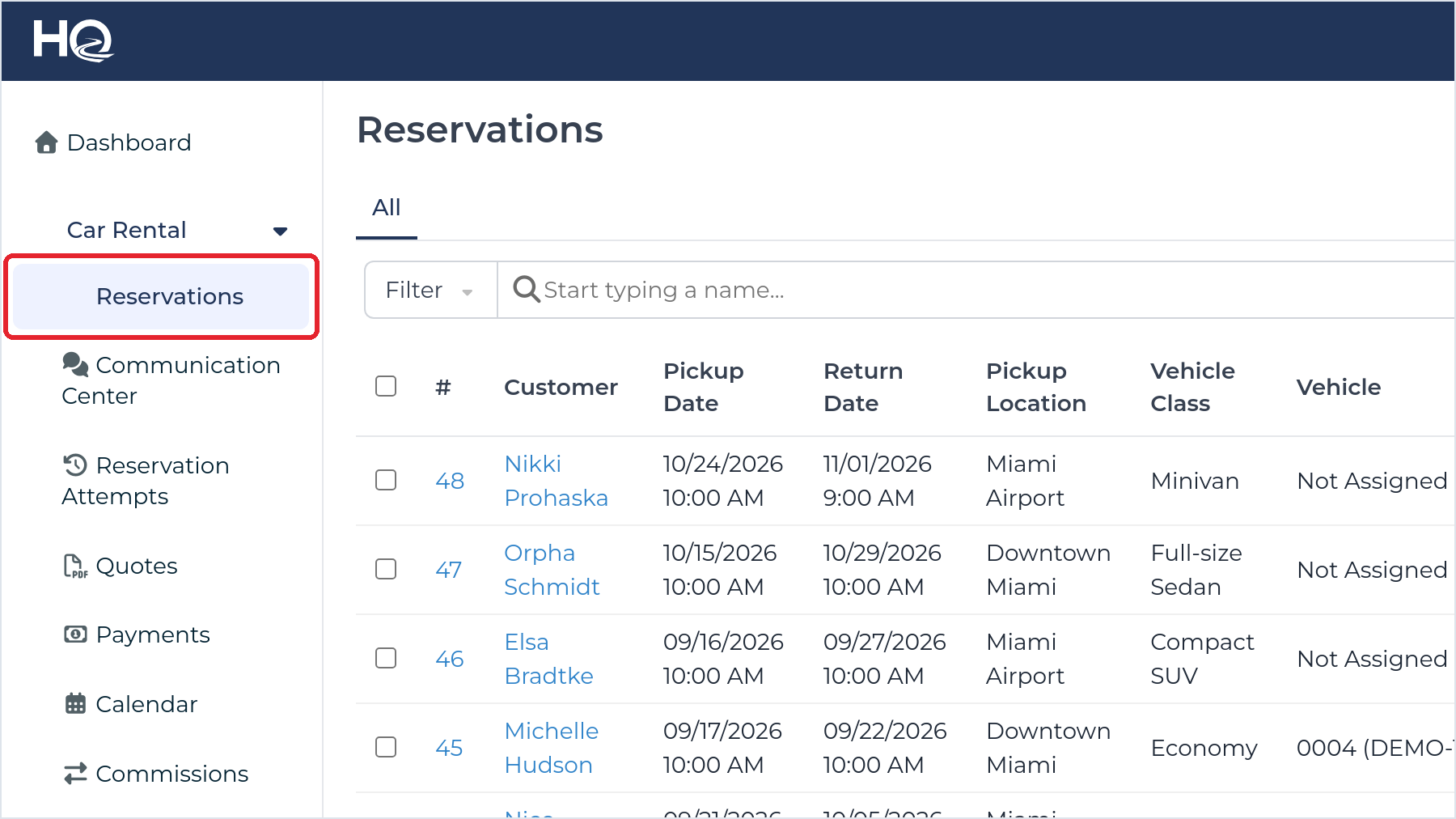
Page address: /car-rental/reservations
Open The Summary
Section titled “Open The Summary”- Click the reservation in the list to open it.
- Look at the Summary box on the right side of the page. It shows on every step.
Show me where (1 picture)
Good To Know
Section titled “Good To Know”- The Summary box shows prices without tax, even when Steps 2 and 3 show prices with tax.
- With weekday rates, the price per day in the Summary is an average. The Total is still the sum of each day.
If Something Goes Wrong
Section titled “If Something Goes Wrong”The Total Does Not Match The Lines I Add Up
Section titled “The Total Does Not Match The Lines I Add Up”- Why it happens: Payments and the Security Deposit are not part of the Total, and the Miscellaneous lines add taxes.
- What to do: Add the rental price after discounts, the charges and the Miscellaneous lines. See How A Rental Price Is Calculated.
Settings Used In This Article
Section titled “Settings Used In This Article”It is in Settings, under Car Rental, tab General Settings, section Rates & Days Calculations. Full details are in General Settings Reference: Rates & Days Calculations Part 1.
- Prorate Base Price for Multiple Seasons: shows one combined line for a rental over several Seasons. Hidden until you turn on Show Advanced Settings.