Turn On Rate Radar For Your Team
Before You Start
Section titled “Before You Start”- Plan or add-on: Paid add-on. You can see the price in Billing or ask our support team.
- Turned on by: our support team. The Rate Radar card is not shown to customers in the integrations marketplace.
How It Works
Section titled “How It Works”Roles Do Not Get It Automatically
Section titled “Roles Do Not Get It Automatically”Rate Radar shows in the menu only when it is on for your account and the role has Can view Rate Radar. Existing roles do not get it when Rate Radar is turned on.
Example: Rate Radar is turned on today. A user with the role Agent does not see it until you allow it for Agent.
Set It Up
Section titled “Set It Up”Ask For Rate Radar
Section titled “Ask For Rate Radar”- Create a support ticket asking to turn on Rate Radar.
- Wait for our support team to confirm it is on.
Give Roles Access
Section titled “Give Roles Access”Get There
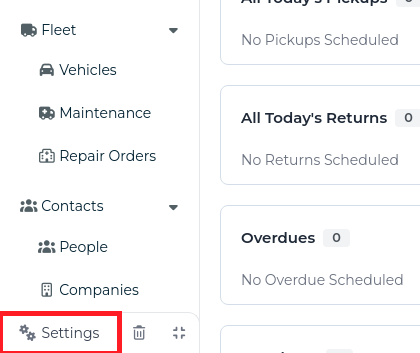
Section titled “Get There”- Click Settings at the bottom of the left menu.
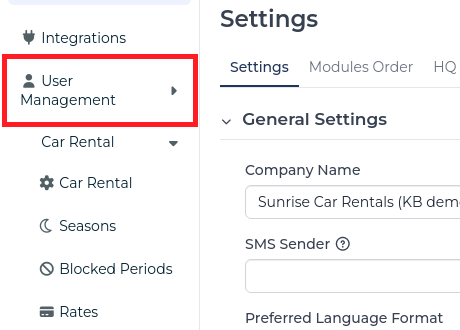
- In the left menu, click the group User Management to open it. Skip this step if its items already show.
- Under the group User Management, click Access Control.
Show me where (3 pictures)
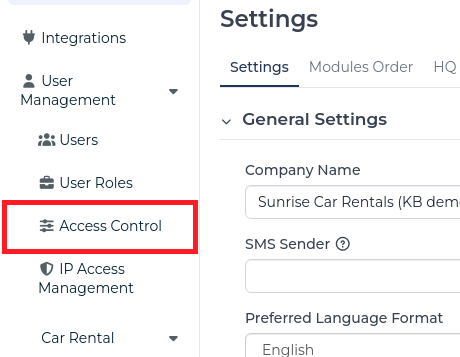
Page address: /settings/users/acl
- Click the tab of a role that should see Rate Radar, then the tab Car Rental.
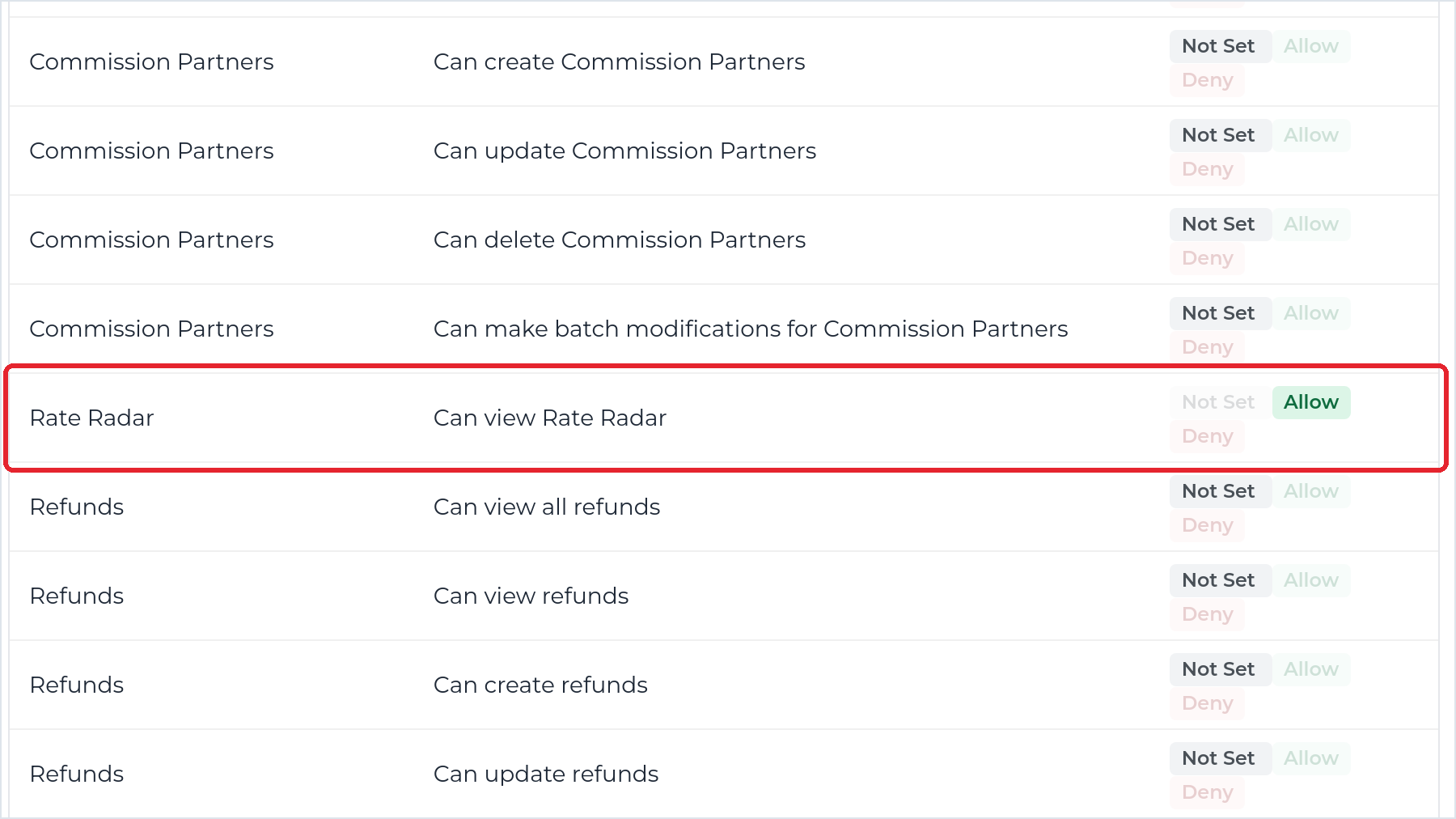
- In the group Rate Radar, click Allow next to Can view Rate Radar. The change is saved at once.
- Repeat for each role. Rate Radar now shows in the left menu for users of these roles.
Show me where (1 picture)
If Something Goes Wrong
Section titled “If Something Goes Wrong”I Still Do Not See Rate Radar In The Menu
Section titled “I Still Do Not See Rate Radar In The Menu”- Why it happens: Rate Radar is not on yet, or your own role does not have Can view Rate Radar.
- What to do: Check your role in Access Control, or ask our support team.
Settings Used In This Article
Section titled “Settings Used In This Article”- Can view Rate Radar: shows Rate Radar to a role. In Access Control, group Rate Radar.