Set Up Decreasing Hourly And Per Minute Rates
Before You Start
Section titled “Before You Start”- Plan or add-on: All plans, Car Rental module.
- Per minute rows: they need Enable Per Minute Rates, as shown in Use Per Minute Rates.
How It Works
Section titled “How It Works”How HQ Picks The Row
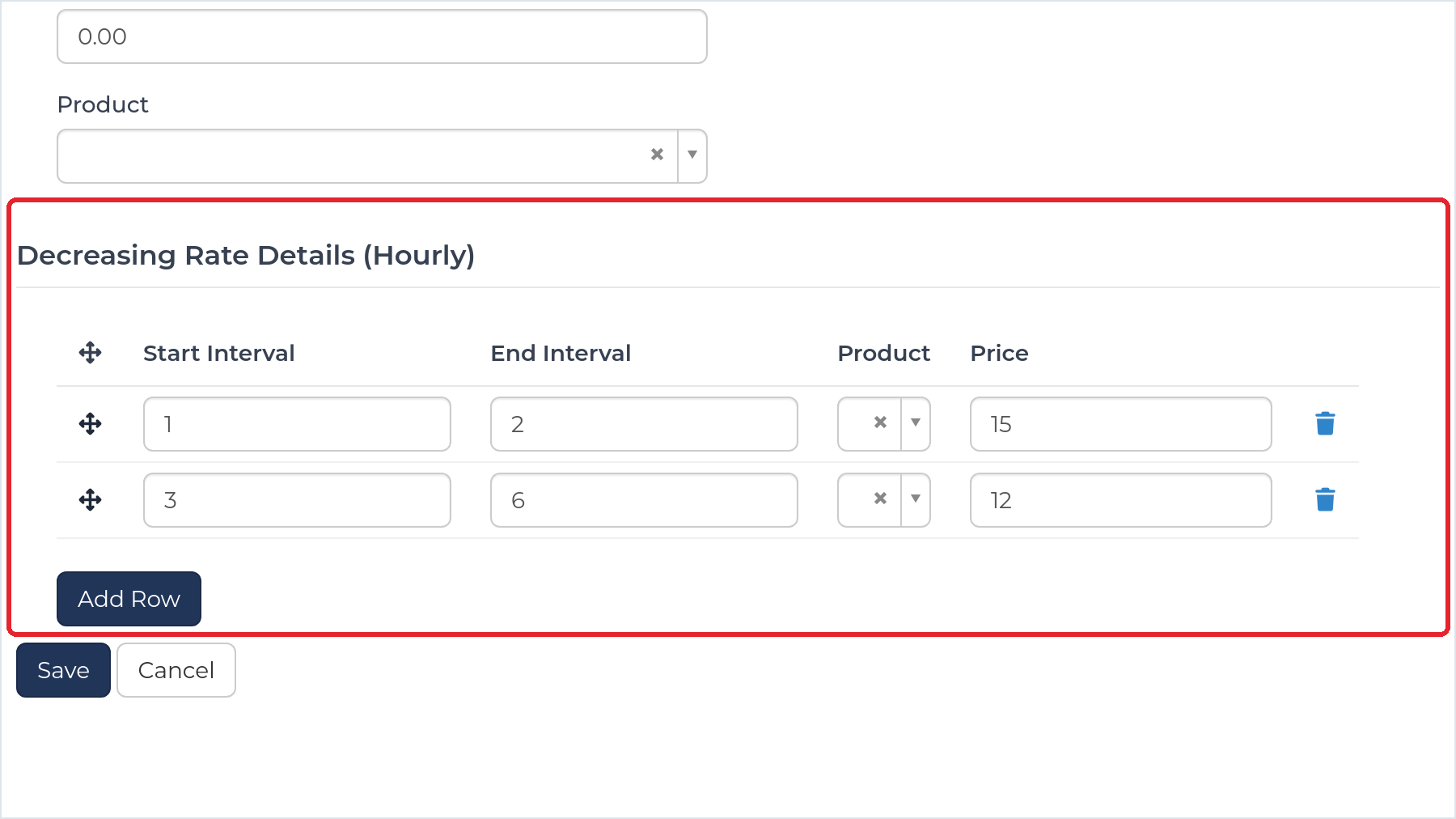
Section titled “How HQ Picks The Row”The number of leftover hours picks one row of Decreasing Rate Details (Hourly). That row’s Price is charged for each hour.
- A rental shorter than 1 hour, with no full days, is charged as 1 hour when per minute rates are off.
- Extra time over Apply Daily Price After More Than x Hours still becomes one more day.
Example: With the rows above, 1 day and 2 hours costs the Daily Rate + 2 × $15 = Daily Rate + $30.
Per Minute Rows
Section titled “Per Minute Rows”Decreasing Rate Based on Interval (Per Minute) works the same way for leftover minutes, with the table Decreasing Rate Details (Per Minute). It shows only when Enable Per Minute Rates is Yes.
Example: Rows of 1 to 30 minutes at $0.30 and 31 or more at $0.20. 40 leftover minutes cost 40 × $0.20 = $8.
Set It Up
Section titled “Set It Up”Get There
Section titled “Get There”- Click Settings at the bottom of the left menu.
- In the left menu, under the group Car Rental, click Rates.
Show me where (2 pictures)
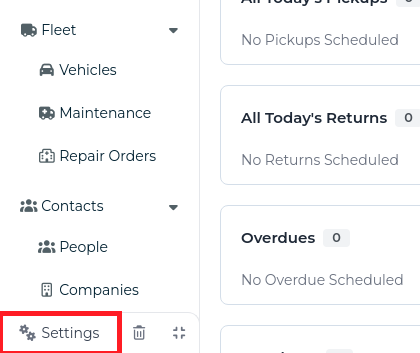
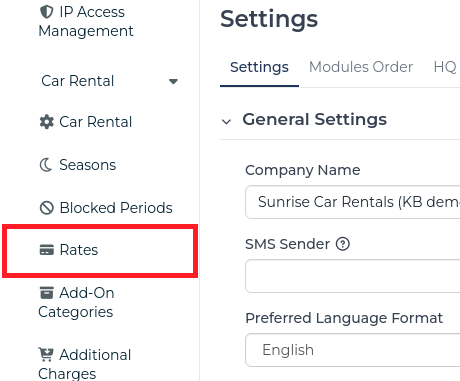
Page address: /settings/car-rental/rates
Set Up The Rows
Section titled “Set Up The Rows”- Click Add Rate in the top right corner, or click an existing rate.
- Set Decreasing Rate Based on Interval (Per Hour) to Yes. The table Decreasing Rate Details (Hourly) appears.
- Enter the Start Interval, End Interval and Price of each row. Click Add Row for each extra row.
- Click Save at the bottom of the page.
For per minute rows, set Decreasing Rate Based on Interval (Per Minute) to Yes and fill in its table the same way.
Show me where (1 picture)
Good To Know
Section titled “Good To Know”- HQ checks the rows in table order. The first match wins, and with no match HQ uses the first row.
- Hourly rows can also change by weekday. See Weekday And Weekend Rates.
If Something Goes Wrong
Section titled “If Something Goes Wrong”Leftover Hours Were Charged At The Wrong Price
Section titled “Leftover Hours Were Charged At The Wrong Price”- Why it happens: Two rows include the same number of hours, or no row includes it.
- What to do: Check that the rows do not overlap and that the last row covers the longest time.
Settings Used In This Article
Section titled “Settings Used In This Article”All are on each rate, except Enable Per Minute Rates. That one is in Settings, under Car Rental, tab General Settings, section Rates & Days Calculations.
- Decreasing Rate Based on Interval (Per Hour): replaces the Hourly Rate with the hourly table.
- Decreasing Rate Based on Interval (Per Minute): replaces the Minute Rate with the minute table.
- Enable Per Minute Rates: shows the per minute option on every rate.