Use A Different Currency Per Branch Or Per Rate
Before You Start
Section titled “Before You Start”- Plan or add-on: All plans, Car Rental module.
- Hidden settings: Allow Different Currencies per Branch and Enable Currencies per Rates are hidden until you turn on Show Advanced Settings.
Show Hidden Settings
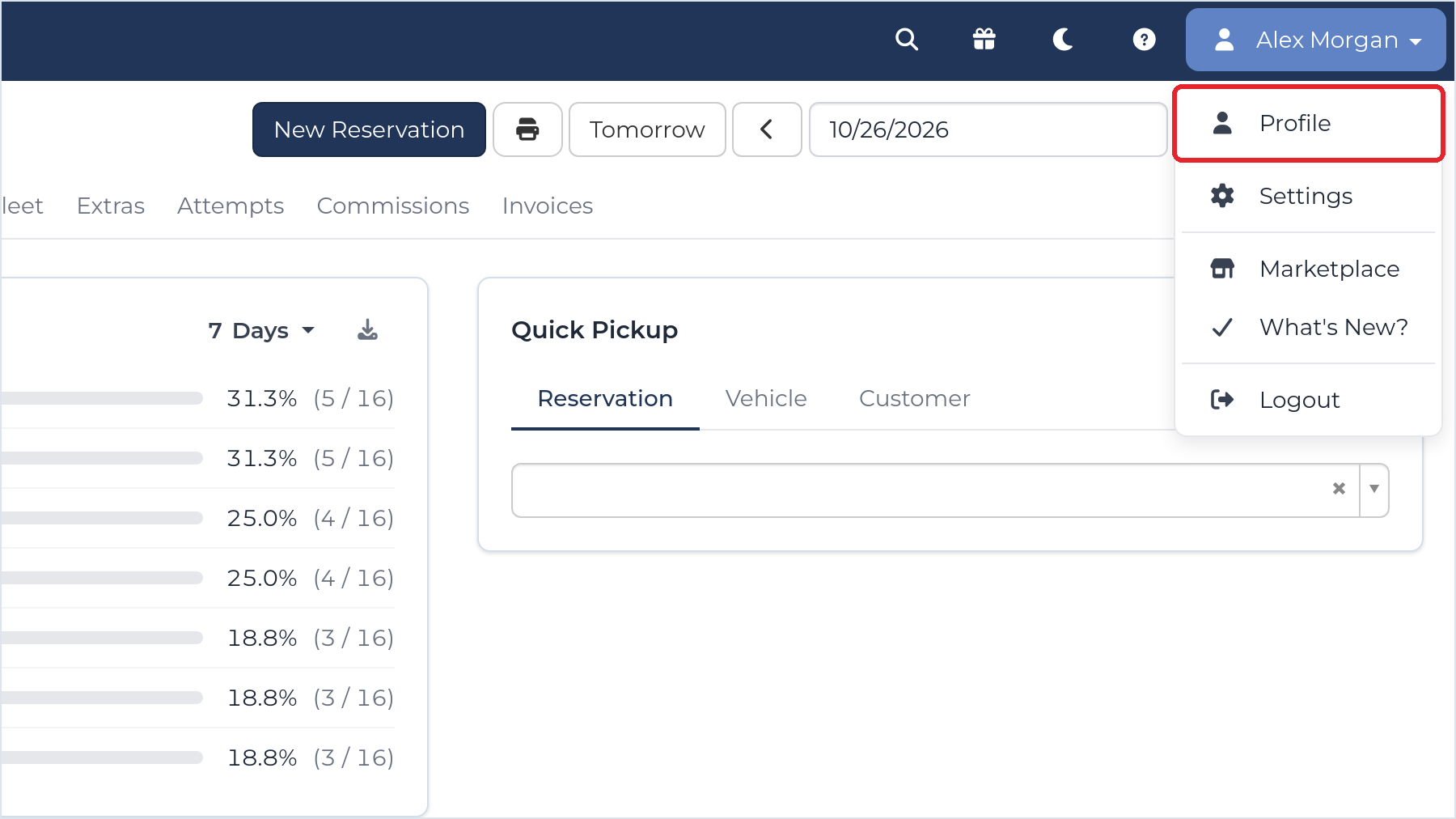
Section titled “Show Hidden Settings”- Click your name in the top right corner, then click Profile.
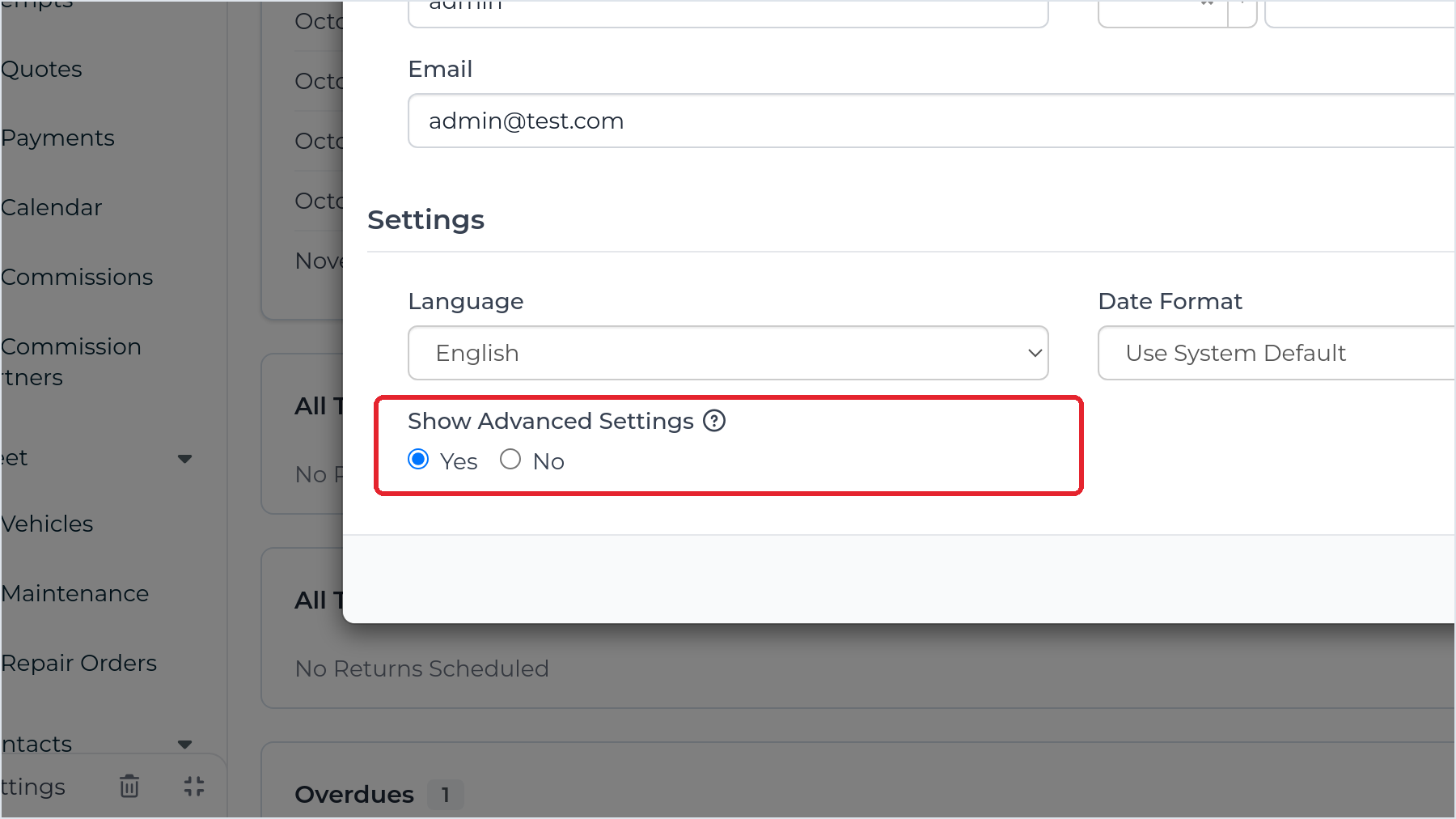
- In the User Profile window, find Show Advanced Settings and choose Yes.
- Click Save at the bottom of the window. Hidden settings now show on every settings page.
Show me where (2 pictures)
How It Works
Section titled “How It Works”Which Currency A Rate Uses
Section titled “Which Currency A Rate Uses”- The rate’s own Currency, when Enable Currencies per Rates is Yes.
- Otherwise, its Branch’s Default Currency, when Allow Different Currencies per Branch is Yes.
- Otherwise, your account’s Default Currency.
Example: Branch Mexico has Default Currency MXN. A rental from Branch Mexico is priced and charged in MXN, unless its rate has its own currency.
Set It Up
Section titled “Set It Up”Give Each Branch Its Own Currency
Section titled “Give Each Branch Its Own Currency”Get There
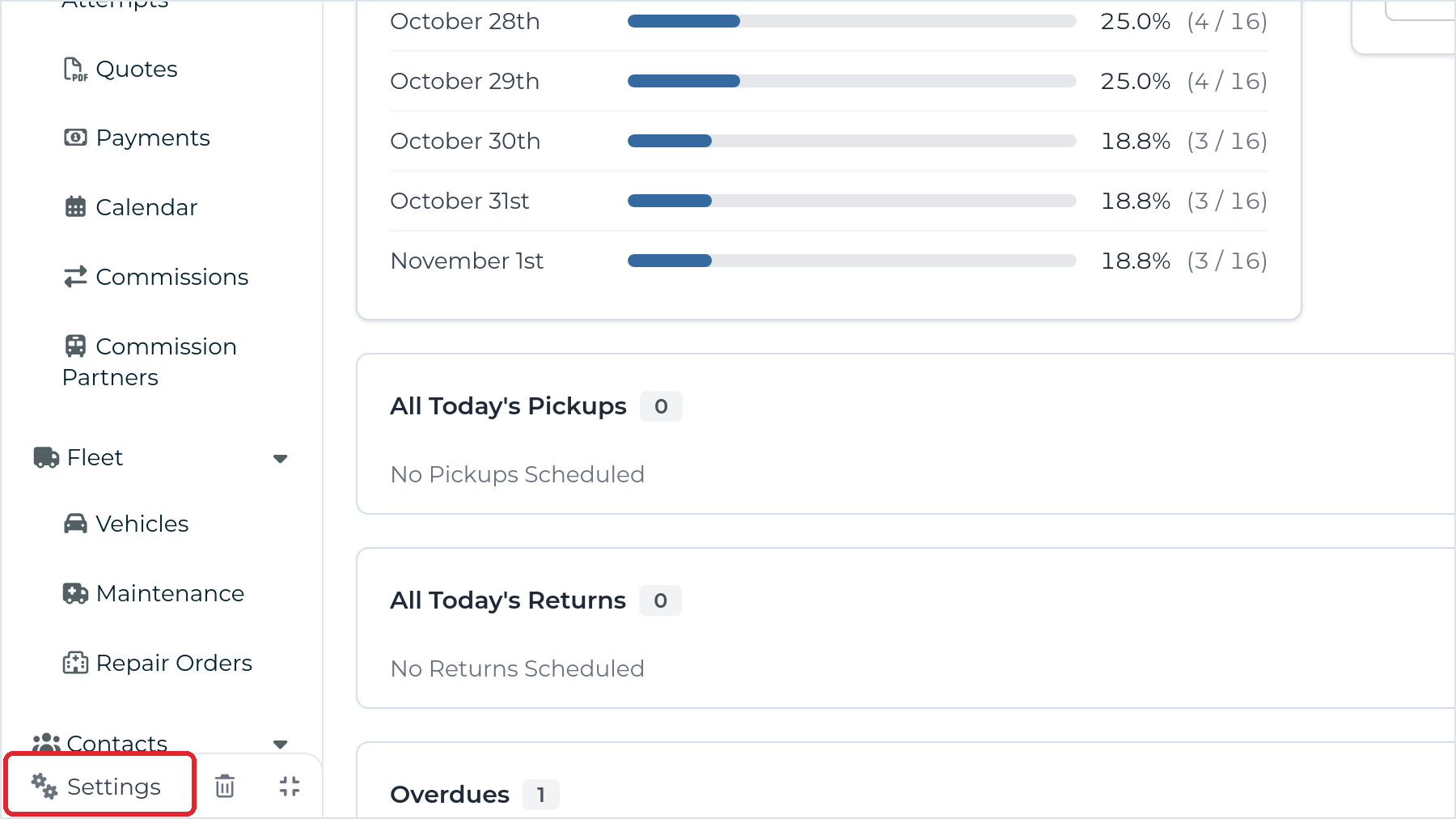
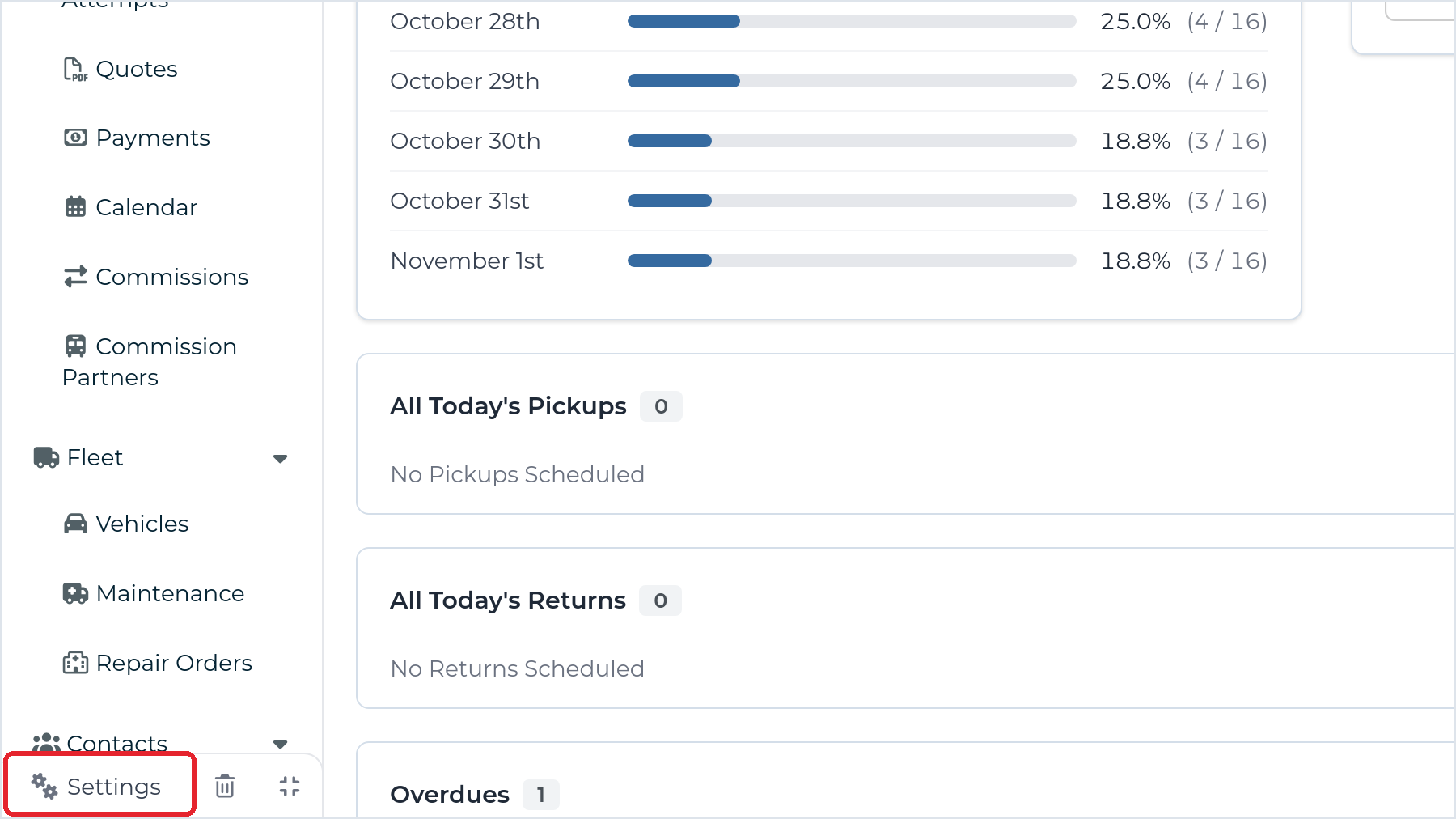
Section titled “Get There”- Click Settings at the bottom of the left menu.
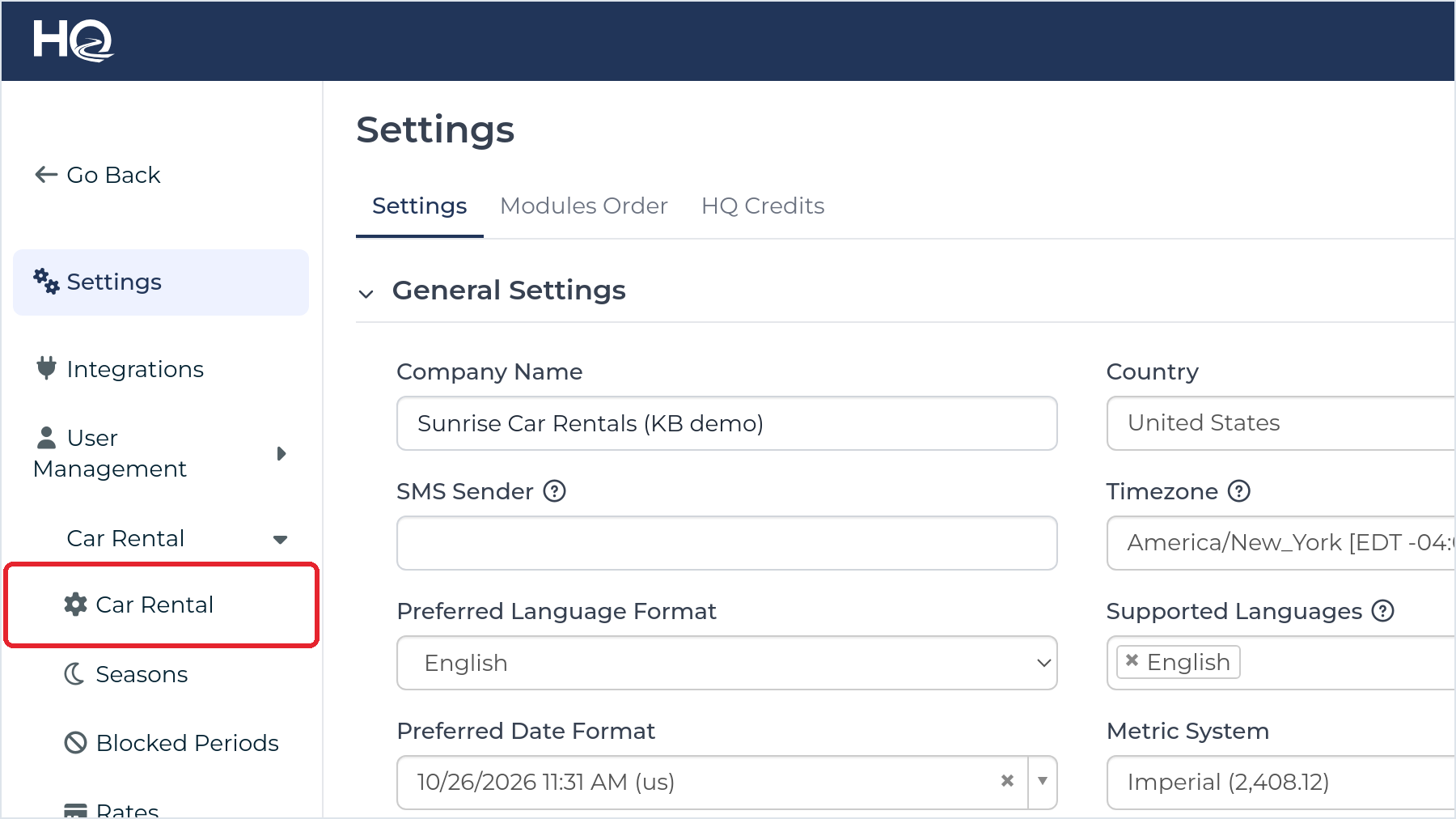
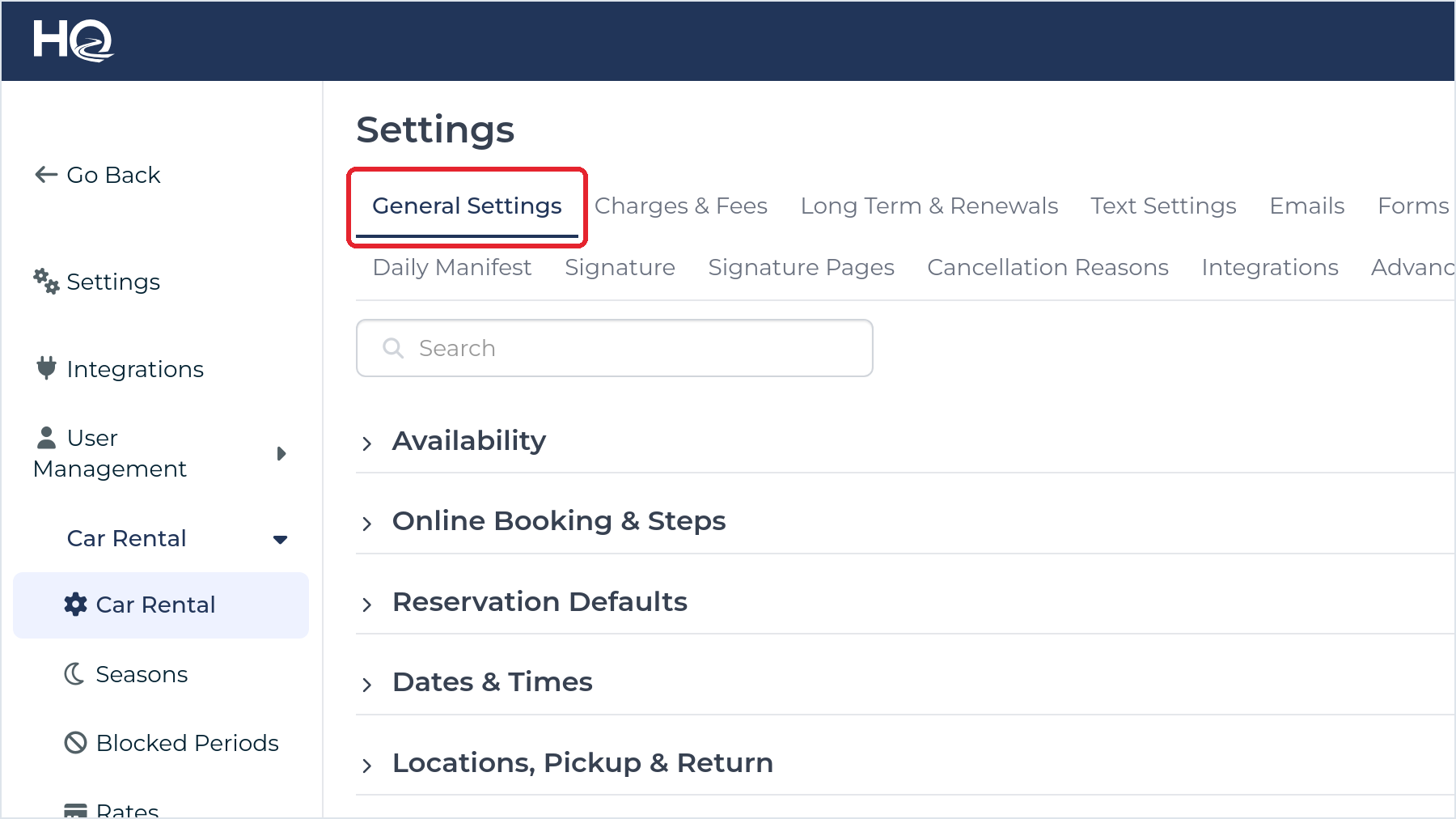
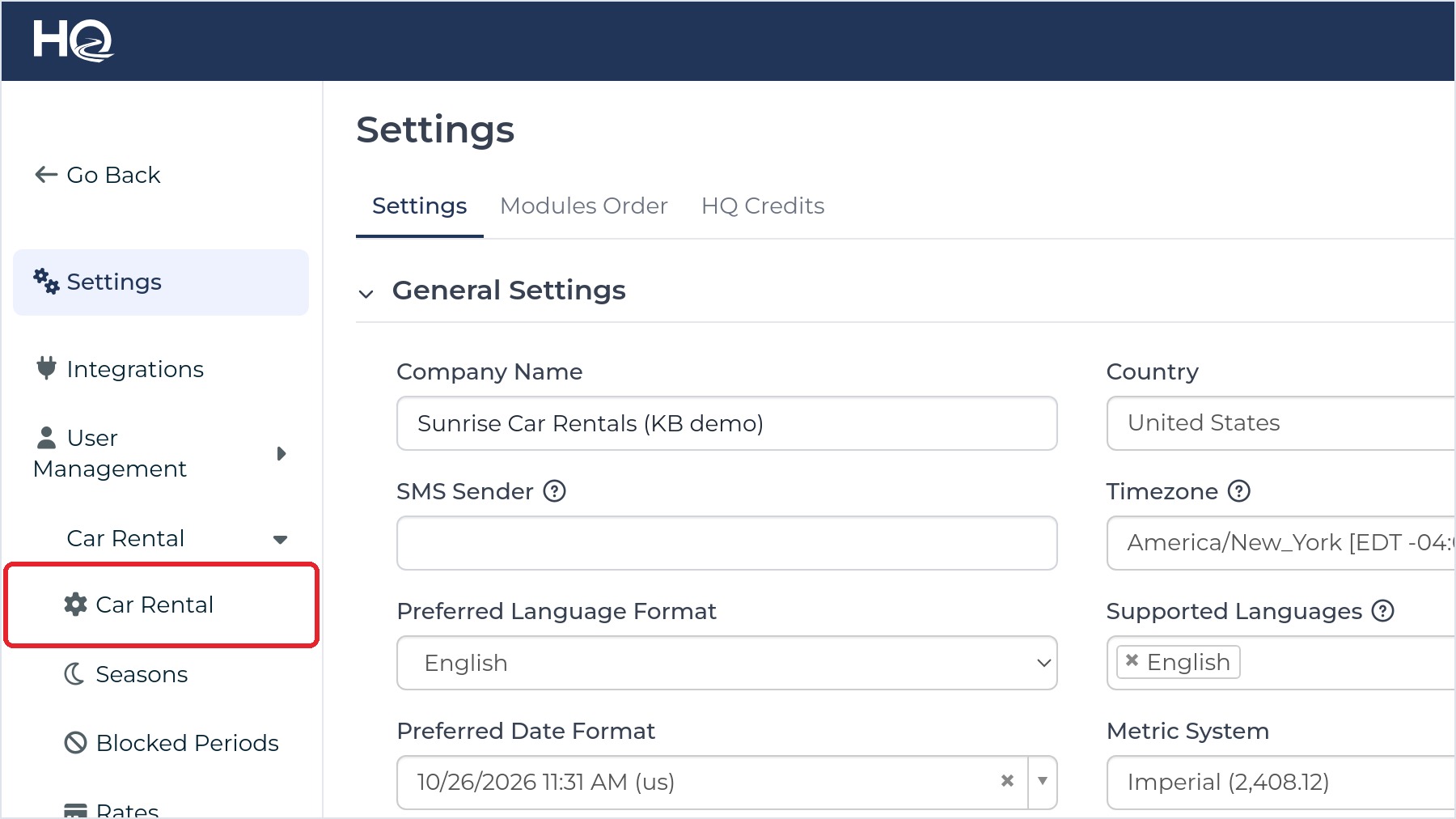
- In the left menu, under the group Car Rental, click Car Rental.
- Stay on the tab General Settings. It opens first.
Show me where (3 pictures)
Page address: /settings/car-rental
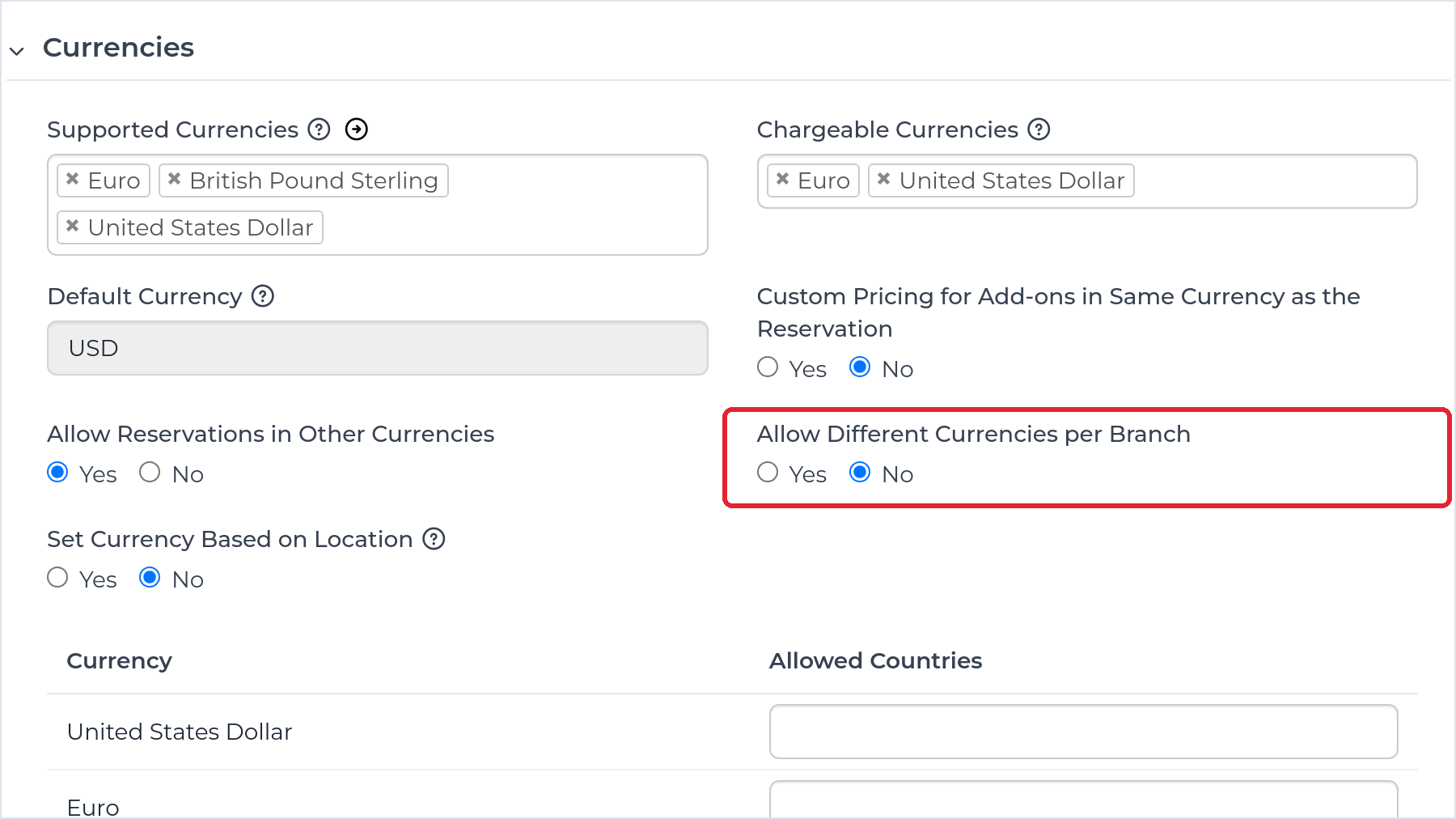
- Click Currencies to open the section.
- Set Allow Different Currencies per Branch to Yes.
- Click Save at the bottom of the page.
Show me where (1 picture)
Set The Currency Of A Branch
Section titled “Set The Currency Of A Branch”Get There
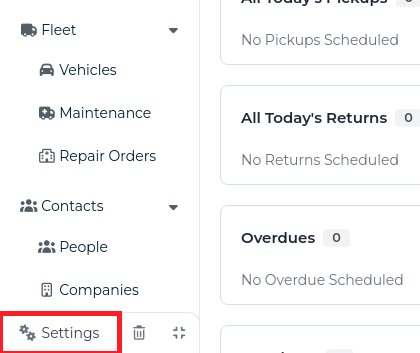
Section titled “Get There”- Click Settings at the bottom of the left menu.
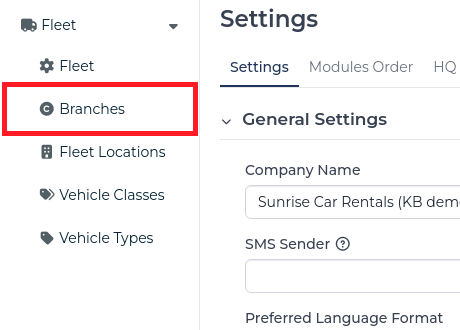
- In the left menu, under the group Fleet, click Branches.
Show me where (2 pictures)
Page address: /settings/fleets/brands
- Click the Branch to open it.
- In Financial Specifications, choose the Default Currency.
- Click Save at the bottom of the page.
Give A Rate Its Own Currency
Section titled “Give A Rate Its Own Currency”Get There
Section titled “Get There”- Click Settings at the bottom of the left menu.
- In the left menu, under the group Car Rental, click Car Rental.
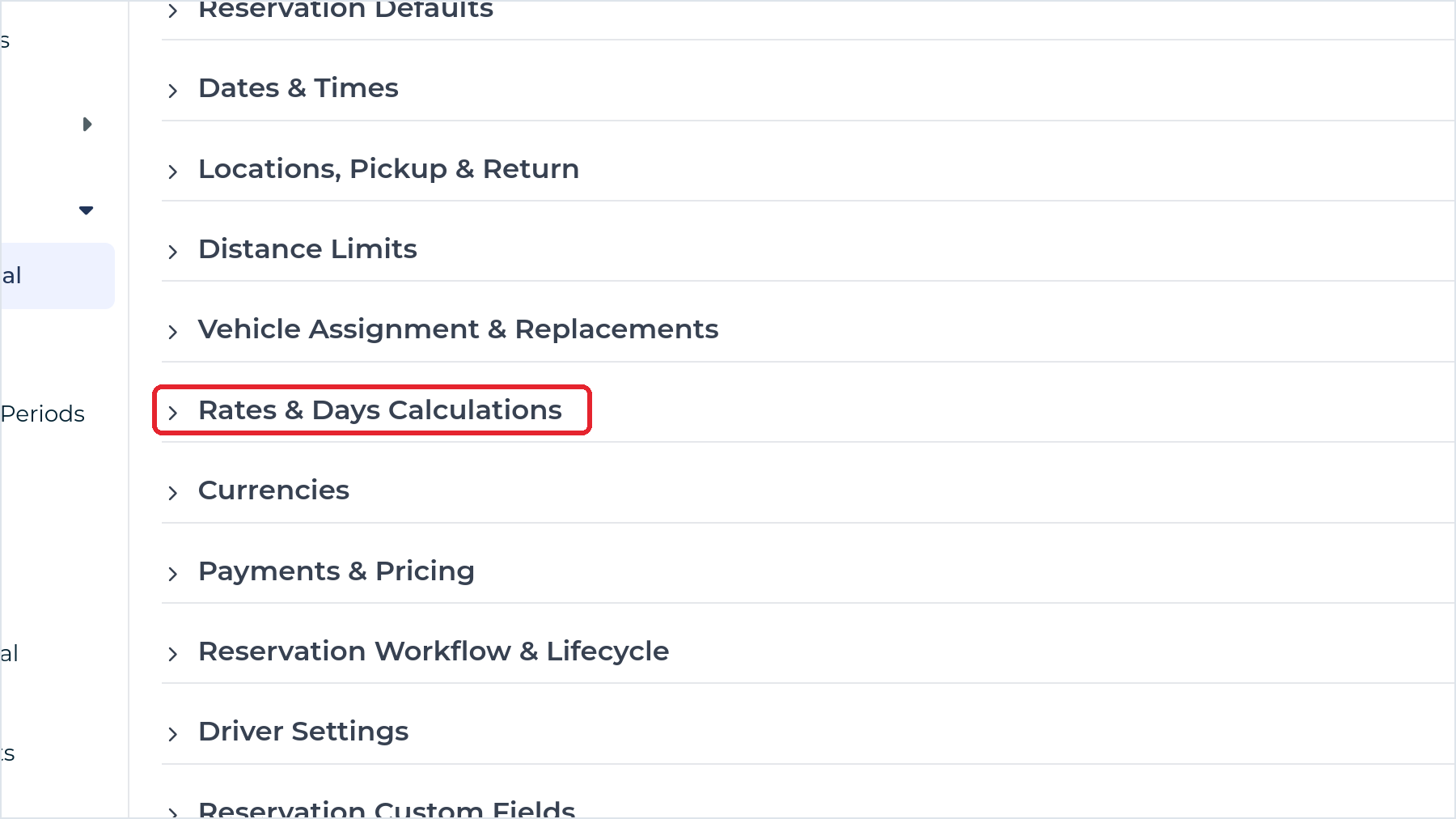
- Stay on the tab General Settings. Click the section Rates & Days Calculations to open it.
Show me where (3 pictures)
Page address: /settings/car-rental
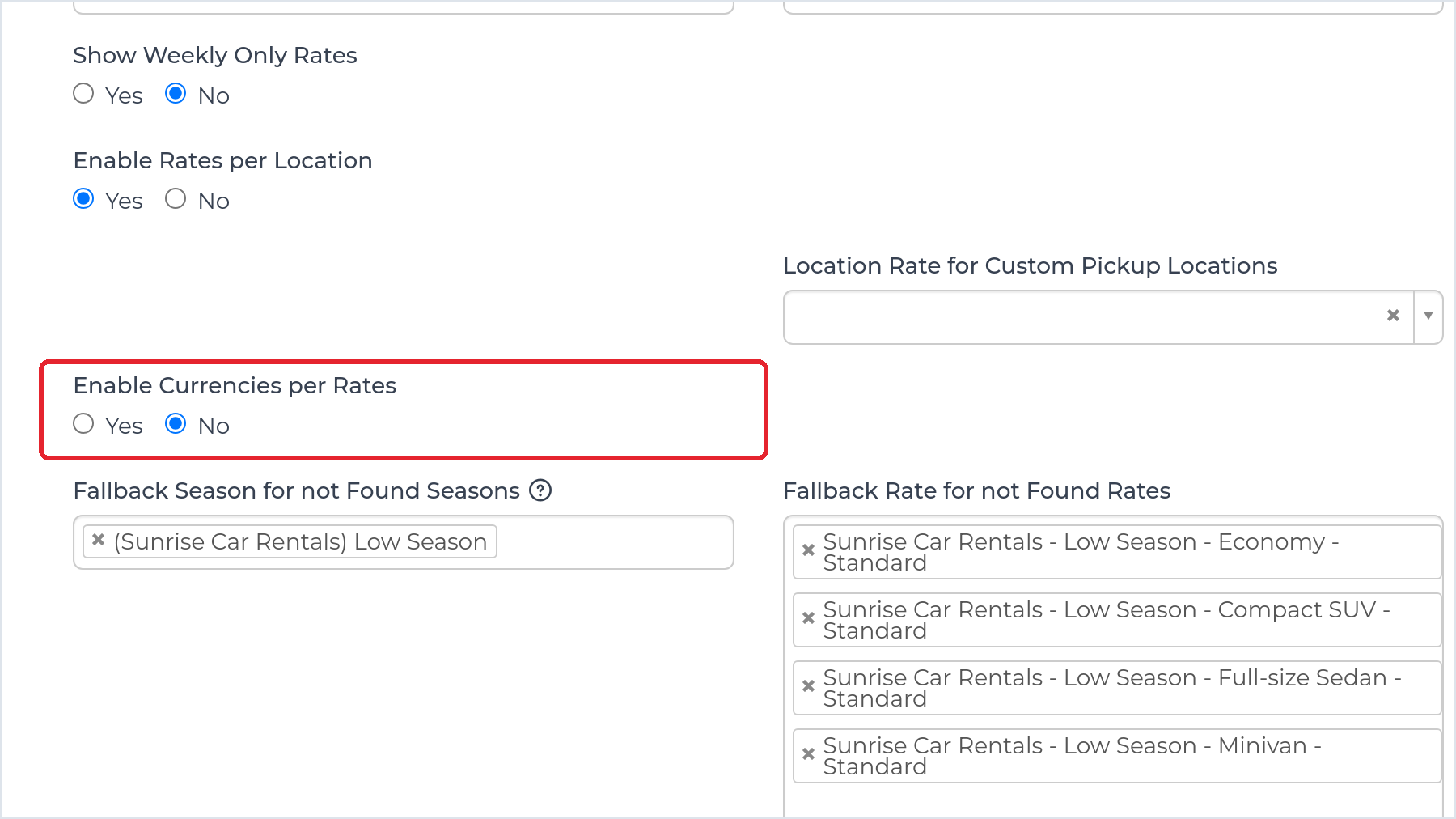
- Set Enable Currencies per Rates to Yes.
- Click Save at the bottom of the page.
- Open the rate in Rates, choose its Currency and click Save.
Show me where (1 picture)
Good To Know
Section titled “Good To Know”- Enter the Branch’s rates and Additional Charge prices in the Branch’s currency.
- When Branches use different currencies, a change of your Default Currency takes longer. See Change The Default Currency.
Settings Used In This Article
Section titled “Settings Used In This Article”- Allow Different Currencies per Branch: adds Default Currency to each Branch. Hidden setting in Settings, under Car Rental, tab General Settings, section Currencies.
- Enable Currencies per Rates: adds Currency to each rate. Hidden setting in the same tab, section Rates & Days Calculations.