Change The Distance Limits Of One Reservation
Before You Start
Section titled “Before You Start”- Plan or add-on: All plans, Car Rental module.
- Who can do it: on a new reservation, roles with Can Update Distance Limits in Summary.
How It Works
Section titled “How It Works”Your Changes Are Kept At Return
Section titled “Your Changes Are Kept At Return”At return, HQ reads the limits again from the customer, Vehicle Class, Rate Type and settings. Limits changed in step 10 are kept.
Example: You set 300 miles a day in step 10 on a 3 day rental. At return the allowance is 900 miles, not 600 miles.
Set It Up
Section titled “Set It Up”On A New Reservation
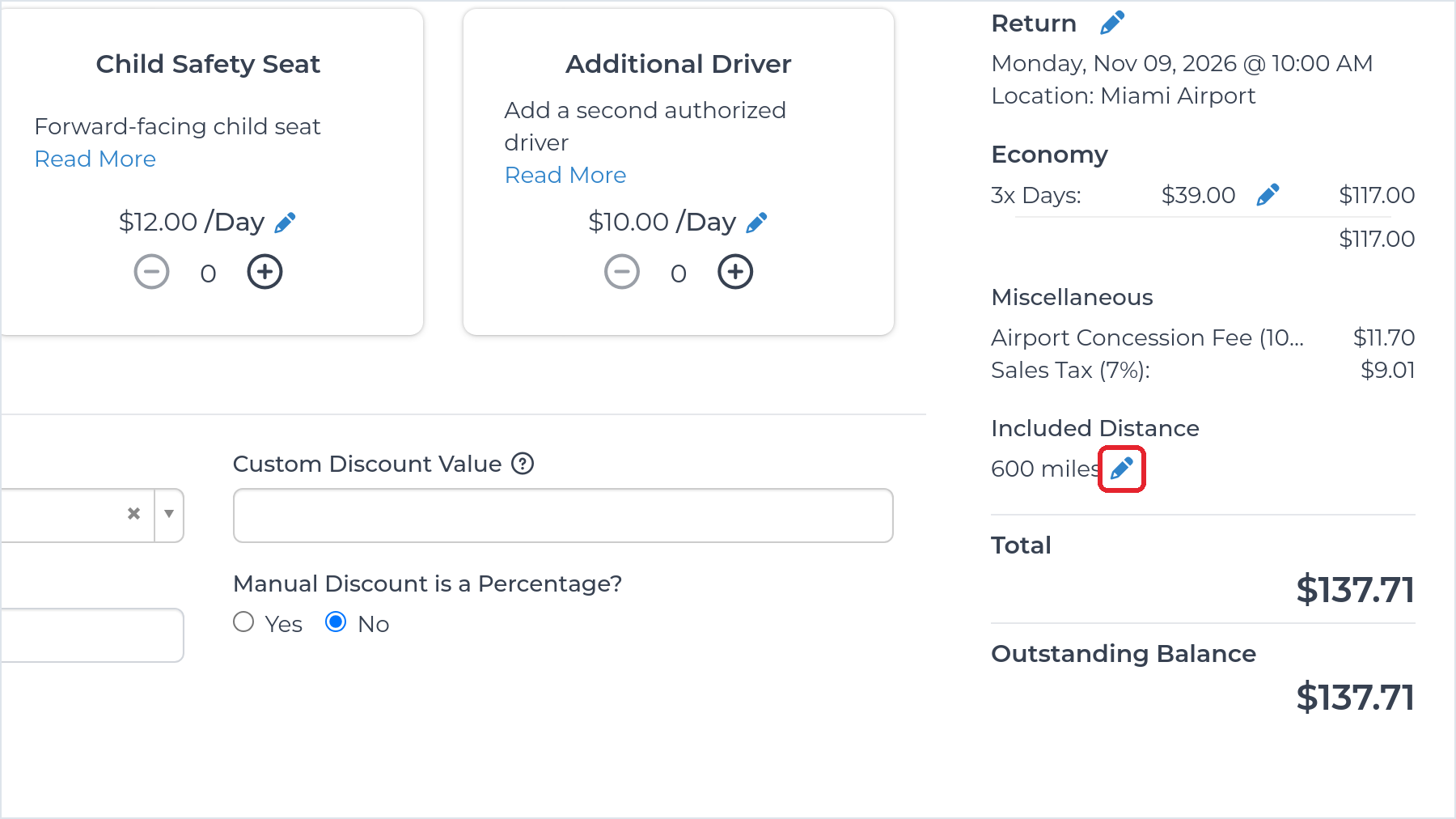
Section titled “On A New Reservation”- In the summary, click the pencil next to Included Distance.
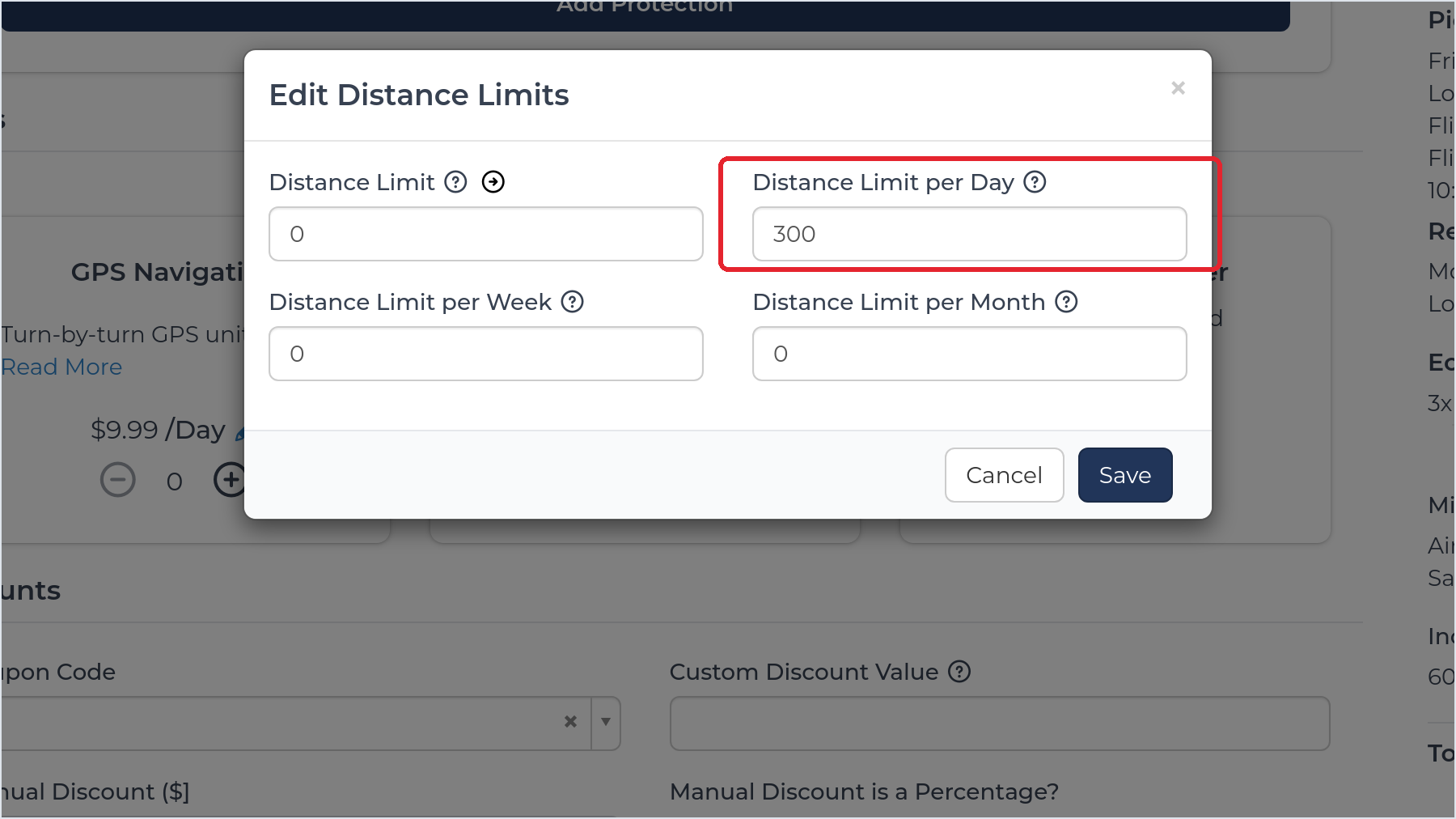
- Change the limits, for example Distance Limit per Day, and click Save.
- Continue with the reservation.
Show me where (2 pictures)
On An Existing Reservation
Section titled “On An Existing Reservation”- Open the reservation and go to step 10 Changes.
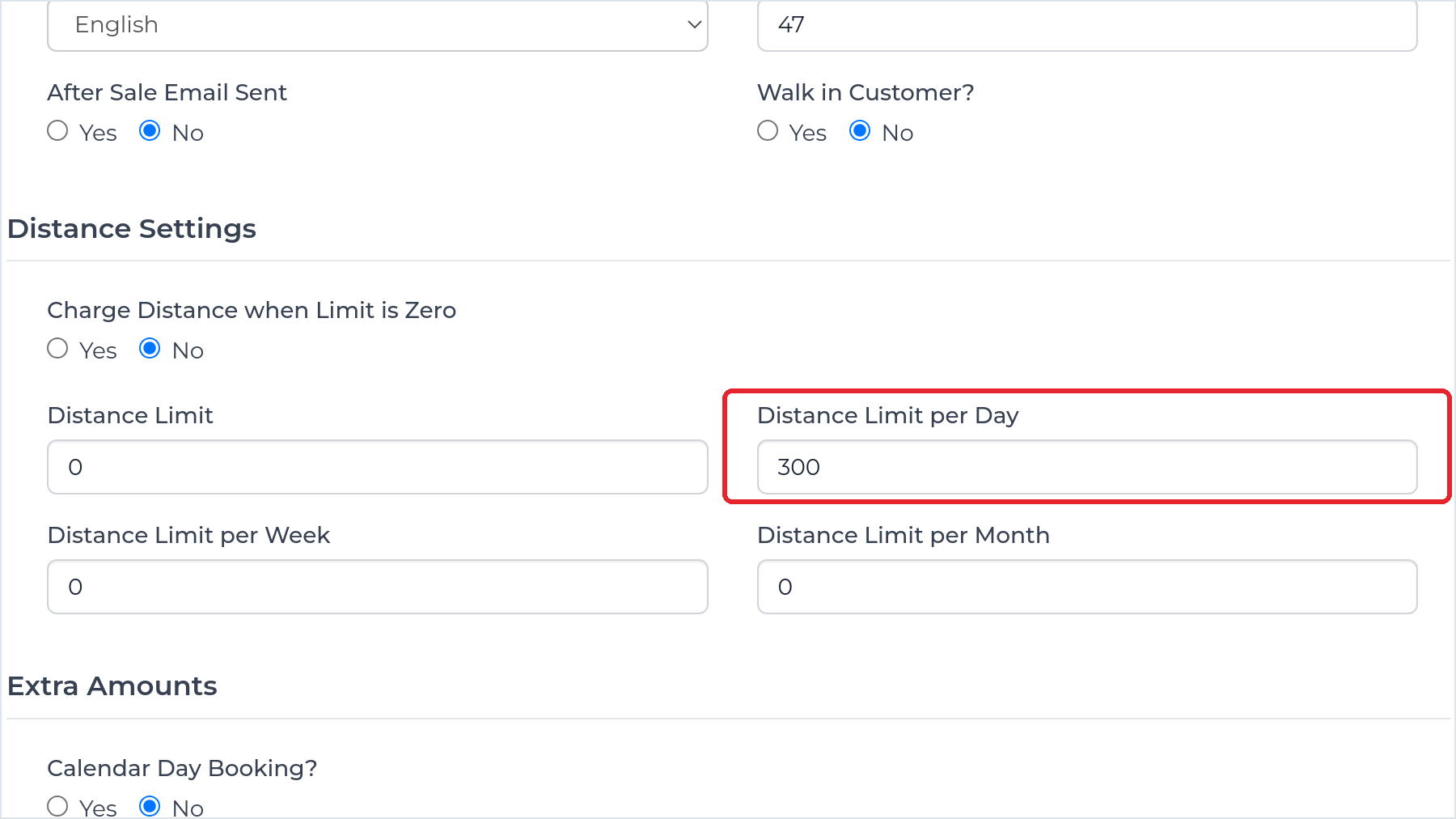
- In Distance Settings, change the limits, or Charge Distance when Limit is Zero.
- Click Save changes.
Show me where (1 picture)
Good To Know
Section titled “Good To Know”- The pencil shows when Show Total Driven Distance on Summary is Yes and the role has the permission.
Settings Used In This Article
Section titled “Settings Used In This Article”- Can Update Distance Limits in Summary: lets a role change the limits of a new reservation. In Access Control.