Apply A Discount Automatically By Rental Length
Before You Start
Section titled “Before You Start”- Plan or add-on: All plans, Car Rental module.
How It Works
Section titled “How It Works”When It Is Added
Section titled “When It Is Added”A discount is added to a new reservation when all of these are true:
- It is active and has the reservation’s Branch.
- The rental is at least Days to apply this discount, and not longer than Top Days to apply this discount when that is filled.
- Skip Automatic Application Based on Days is No.
- Start Date is empty, or the reservation is created on or after it.
- Its other restrictions pass.
Example: Days 7 and Top Days 13. A 7 day rental gets the discount. A 14 day rental does not. A 6 day rental cannot use it, even with the code.
Code Only With A Minimum
Section titled “Code Only With A Minimum”With Skip Automatic Application Based on Days = Yes, the day limits still apply, but the discount is only added with its code.
Example: Weekly Deal has Days 7 and Skip Yes. A 10 day rental gets it only when someone enters WEEKLY10.
Set It Up
Section titled “Set It Up”Get There
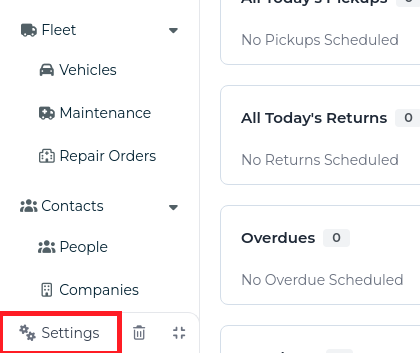
Section titled “Get There”- Click Settings at the bottom of the left menu.
- In the left menu, under the group Car Rental, click Discounts.
Show me where (2 pictures)
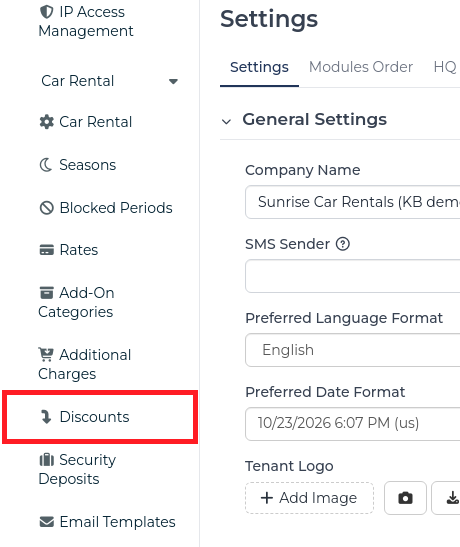
Page address: /settings/car-rental/discounts
Set The Days
Section titled “Set The Days”- Click the discount to open it.
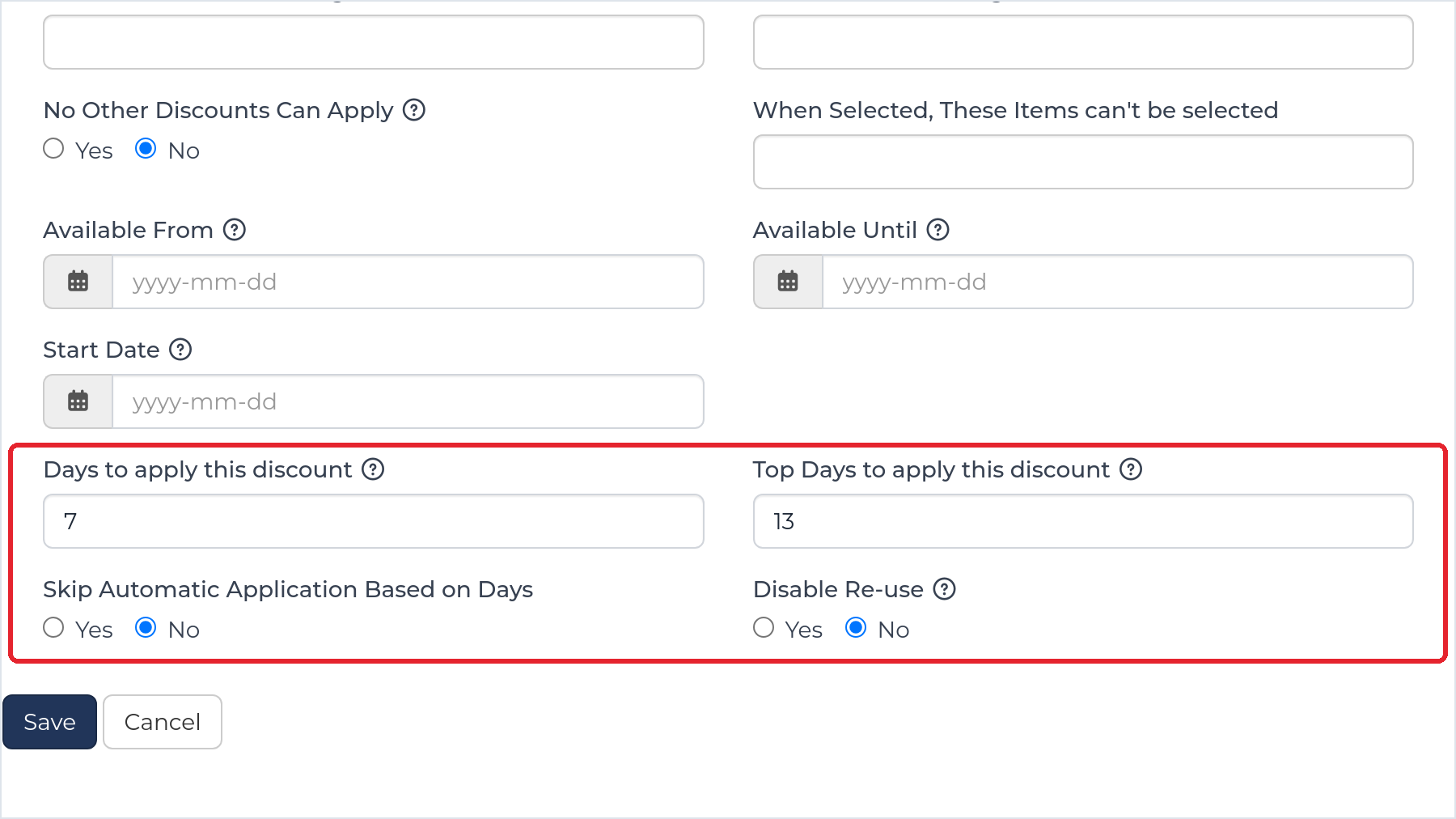
- In Restrictions, enter Days to apply this discount.
- Optional: enter Top Days to apply this discount and a Start Date.
- Set Skip Automatic Application Based on Days to No.
- Click Save at the bottom of the page.
Show me where (1 picture)
Good To Know
Section titled “Good To Know”- Automatic discounts are added to new reservations only.
- A discount you remove from a reservation is not added back.
- Online bookings only get it when Visible For Direct booker? is Yes.
If Something Goes Wrong
Section titled “If Something Goes Wrong”The Discount Was Not Added
Section titled “The Discount Was Not Added”- Why it happens: The discount has another Branch or none, or the reservation already existed. The rental may also be too short, or Start Date later than the booking date.
- What to do: Check those fields on the discount.
The Discount Was Added And I Did Not Want It
Section titled “The Discount Was Added And I Did Not Want It”- Why it happens: Days to apply this discount is filled.
- What to do: Set Skip Automatic Application Based on Days to Yes.