Set Rental Period Limits On The Rate Calendar
Before You Start
Section titled “Before You Start”- Plan or add-on: All plans, Car Rental module. Turned on by our support team.
- For limits on some days: turn on Enable Rental Period Limits per Date Range in the Rate Calendar.
How It Works
Section titled “How It Works”The Strictest Day Wins
Section titled “The Strictest Day Wins”A booking must meet the strictest limit of the days it covers.
Example: December 24 to 31 have a 5 day minimum. A rental from December 30 to January 2 covers December 30 and 31, so it must be at least 5 days long.
Limits Per Vehicle Class
Section titled “Limits Per Vehicle Class”With Enable Minimal Rental Periods per Vehicle Class = Yes, selected days can also get a minimum for some classes only. Those cells show a small mark in the bottom left corner.
Example: Minivan has a 3 day minimum on July 4 weekend, while other classes keep 1 day.
Set It Up
Section titled “Set It Up”Limits For The Whole Calendar
Section titled “Limits For The Whole Calendar”Get There
Section titled “Get There”- Click Settings at the bottom of the left menu.
- In the left menu, under the group Car Rental, click Rate Calendar.
- Click the calendar name.
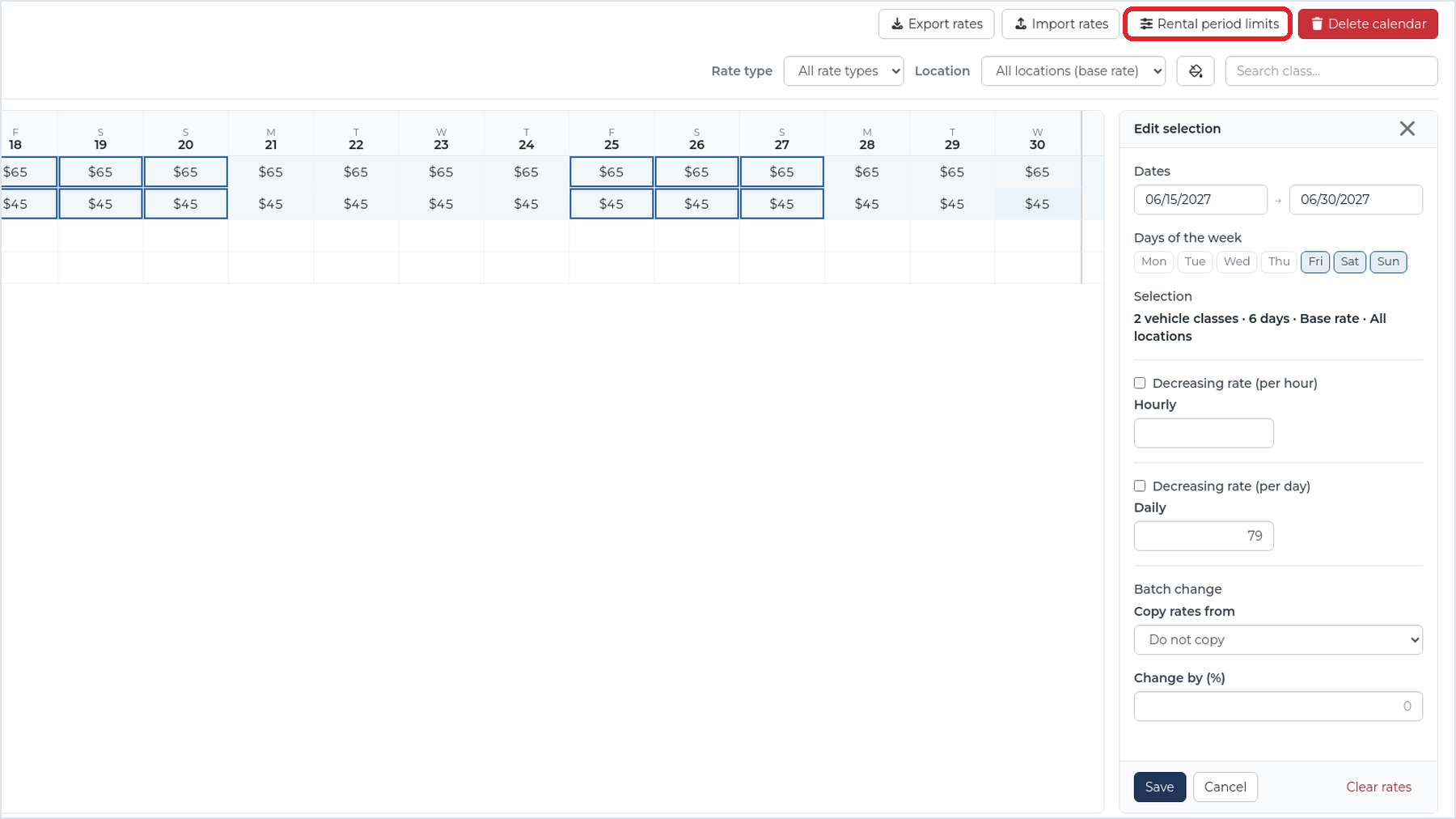
- Click Rental period limits.
- Enter Minimum days, Maximum days, Minimum hours and Maximum hours. Leave a field empty for no limit.
- Click Save.
Show me where (1 picture)
Turn On Limits For Some Days
Section titled “Turn On Limits For Some Days”Get There
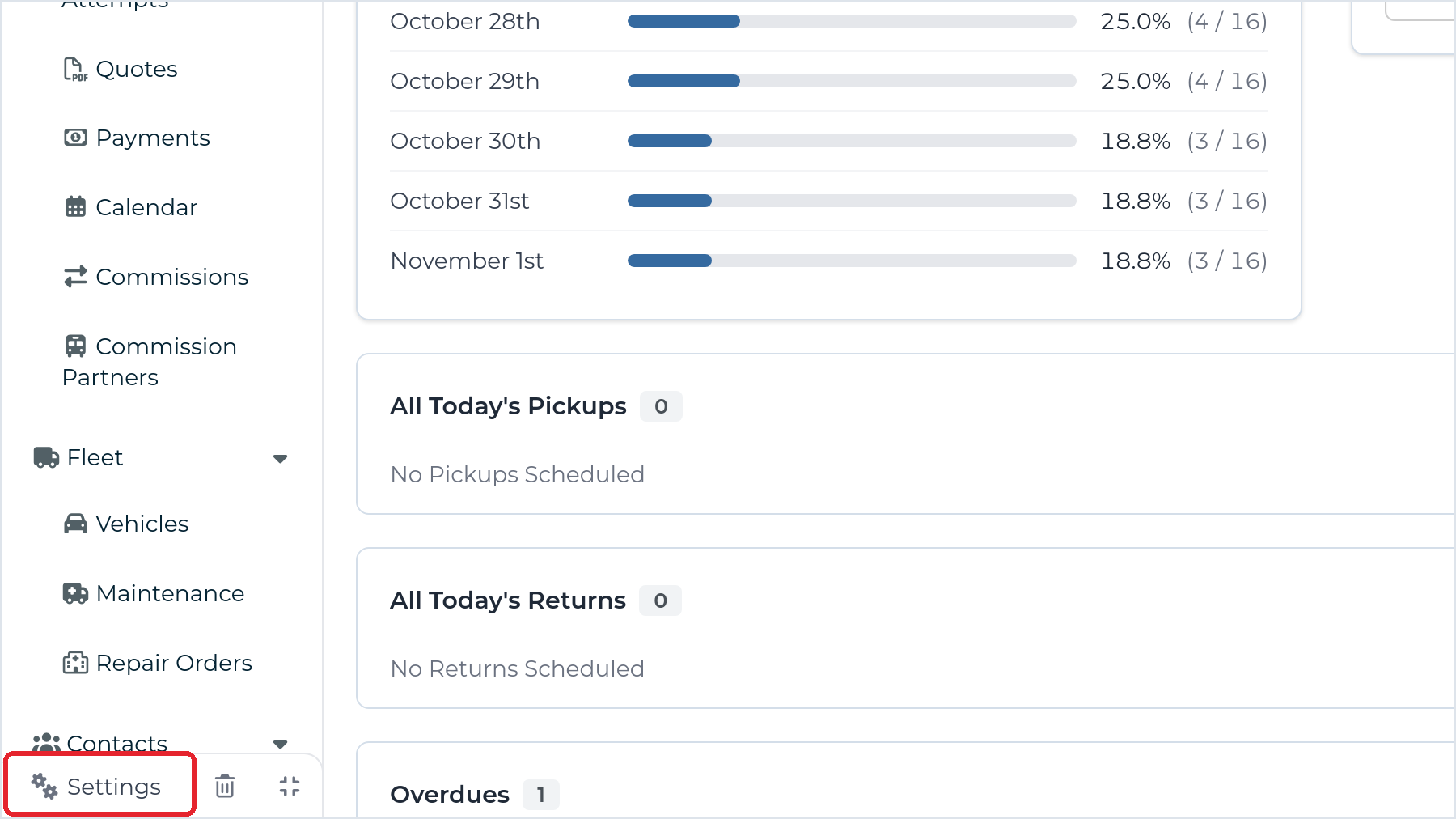
Section titled “Get There”- Click Settings at the bottom of the left menu.
- In the left menu, under the group Car Rental, click Car Rental.
- Stay on the tab General Settings. Click the section Rates & Days Calculations to open it.
Show me where (3 pictures)
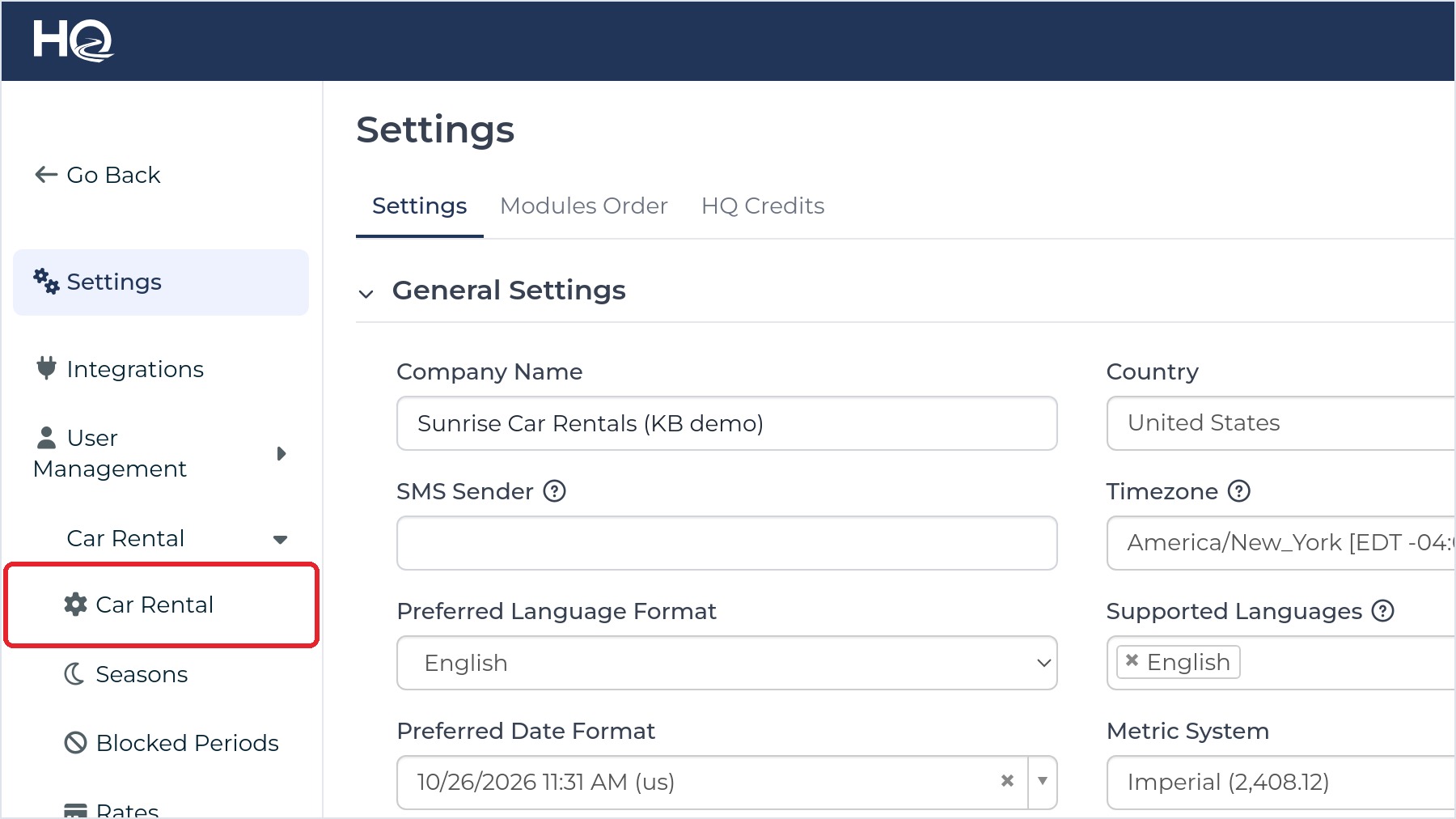
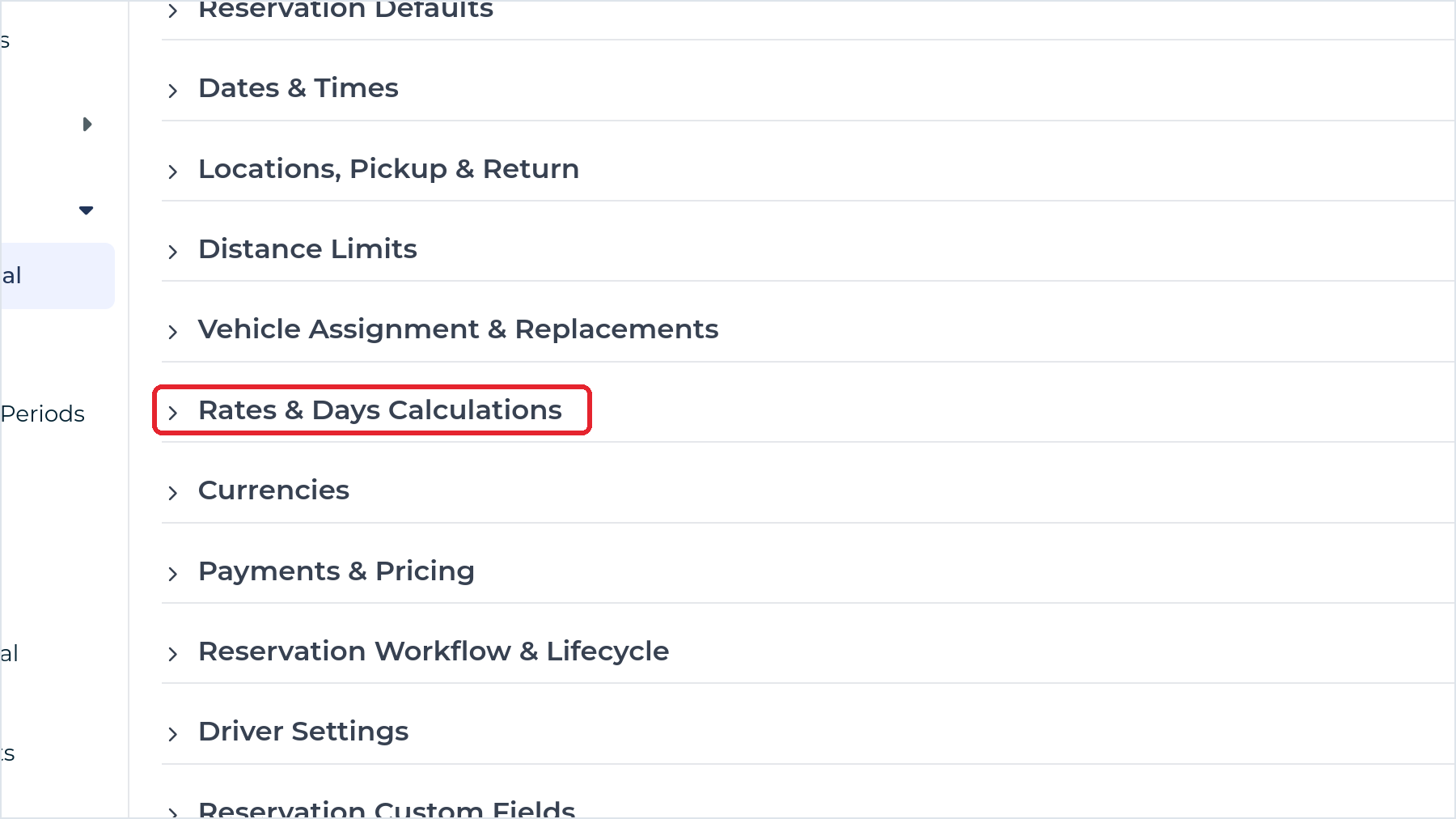
Page address: /settings/car-rental
- Set Enable Rental Period Limits per Date Range in the Rate Calendar to Yes.
- Click Save at the bottom of the page.
Limits For Some Days
Section titled “Limits For Some Days”- On the calendar, select the days.
- In Edit selection, fill in Rental period limits.
- Click Save. Those days get a line under their date.
Good To Know
Section titled “Good To Know”- An empty minimum is saved as 1 day.
- Reset to calendar limits returns selected days to the calendar’s limits.
- When you change the whole calendar’s limits later, HQ asks whether those days Keep their limits or Replace them.
If Something Goes Wrong
Section titled “If Something Goes Wrong”I Cannot Turn The Setting Off
Section titled “I Cannot Turn The Setting Off”- Why it happens: Upcoming days still have limits of their own or a class minimum.
- What to do: Reset those days to the calendar limits and clear the class minimums first.
Settings Used In This Article
Section titled “Settings Used In This Article”Both are in Settings, under Car Rental, tab General Settings. Full details are in General Settings Reference: Rates & Days Calculations Part 1 and General Settings Reference: Availability.
- Enable Rental Period Limits per Date Range in the Rate Calendar: lets selected days have their own limits. Section Rates & Days Calculations, shown only with the Rate Calendar on.
- Enable Minimal Rental Periods per Vehicle Class: lets selected days have a minimum for some classes. Section Availability.