Set Up Taxes On A Branch And Location
Before You Start
Section titled “Before You Start”- Plan or add-on: All plans, Car Rental module.
How It Works
Section titled “How It Works”Empty Versus Zero On A Location
Section titled “Empty Versus Zero On A Location”An empty field on a Location means “use the Branch”. A Location with 0 charges nothing.
Example: Downtown Miami has Tax (%) empty and pays the Branch’s 7%. A Location with Tax (%) 0 pays no Sales Tax.
Set It Up
Section titled “Set It Up”Set The Branch Taxes
Section titled “Set The Branch Taxes”Get There
Section titled “Get There”- Click Settings at the bottom of the left menu.
- In the left menu, under the group Fleet, click Branches.
Show me where (2 pictures)
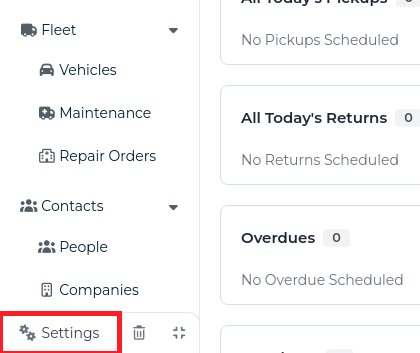
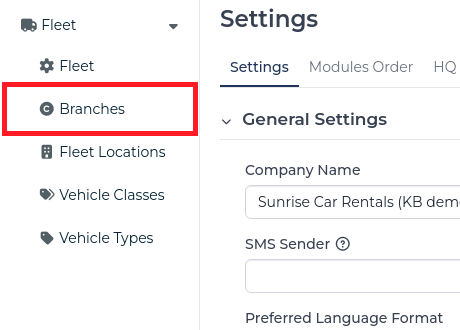
Page address: /settings/fleets/brands
- Click the Branch to open it.
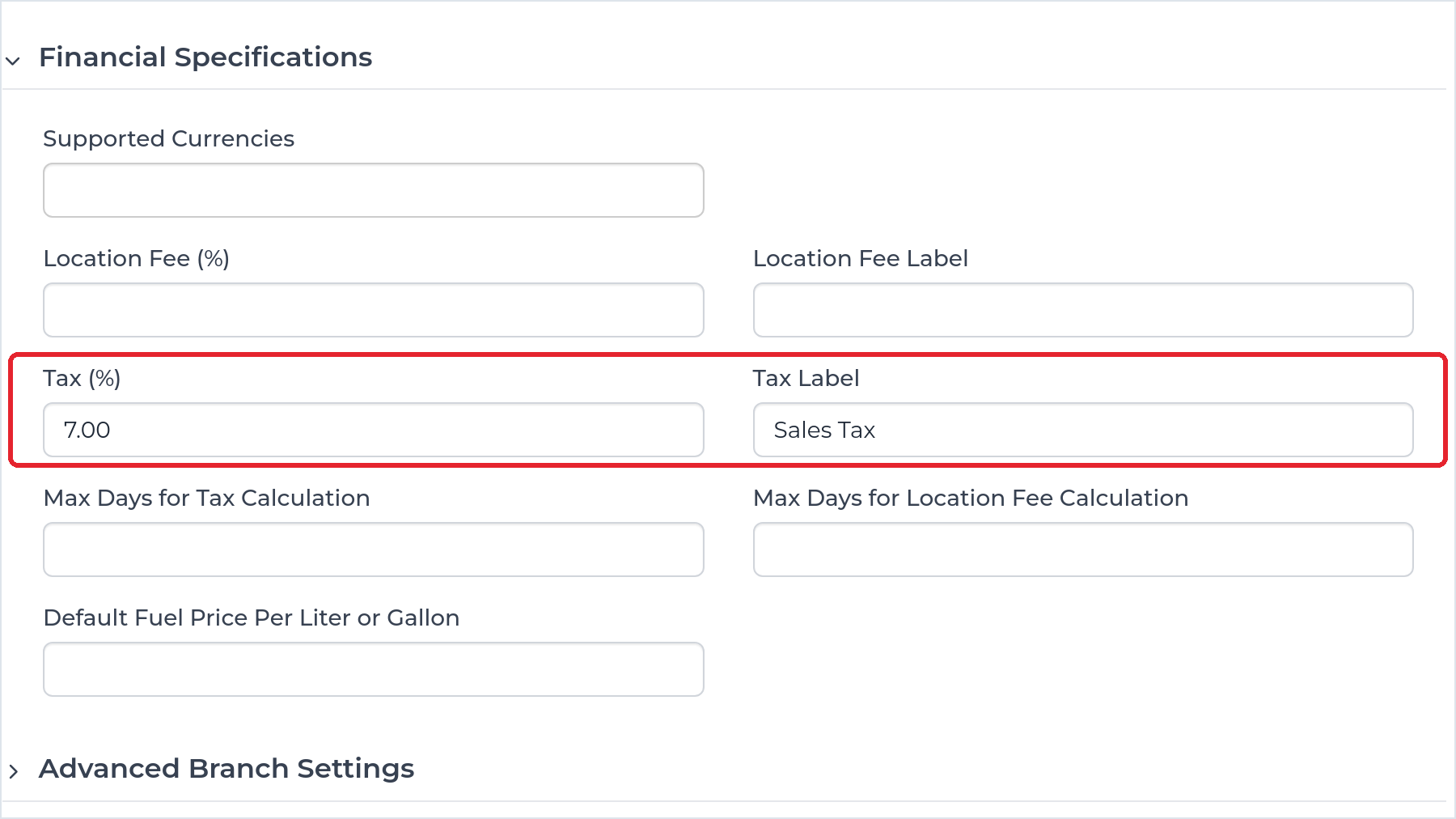
- In Financial Specifications, enter Tax (%) and Tax Label.
- Optional: enter Location Fee (%) and Location Fee Label.
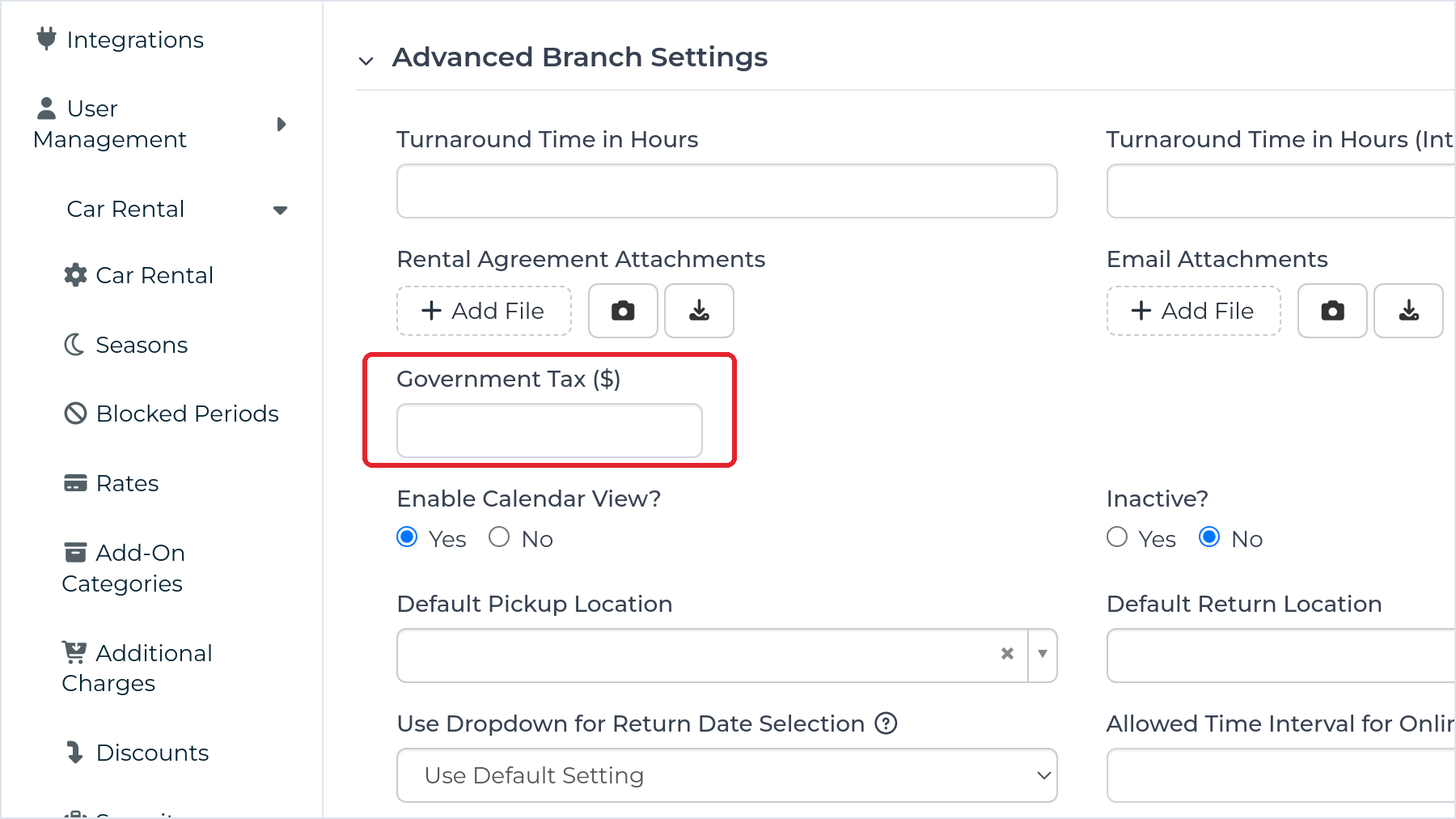
- Optional: open Advanced Branch Settings and enter Government Tax ($).
- Click Save at the bottom of the page.
Show me where (2 pictures)
Set A Different Rate For A Location
Section titled “Set A Different Rate For A Location”Get There
Section titled “Get There”- Click Settings at the bottom of the left menu.
- In the left menu, under the group Fleet, click Fleet Locations.
Show me where (2 pictures)
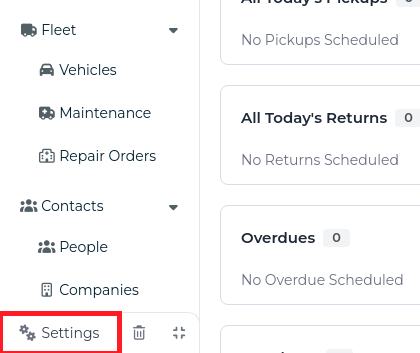
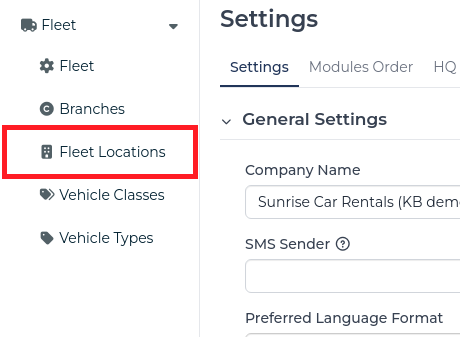
Page address: /settings/fleets/locations
- Click the Location to open it.
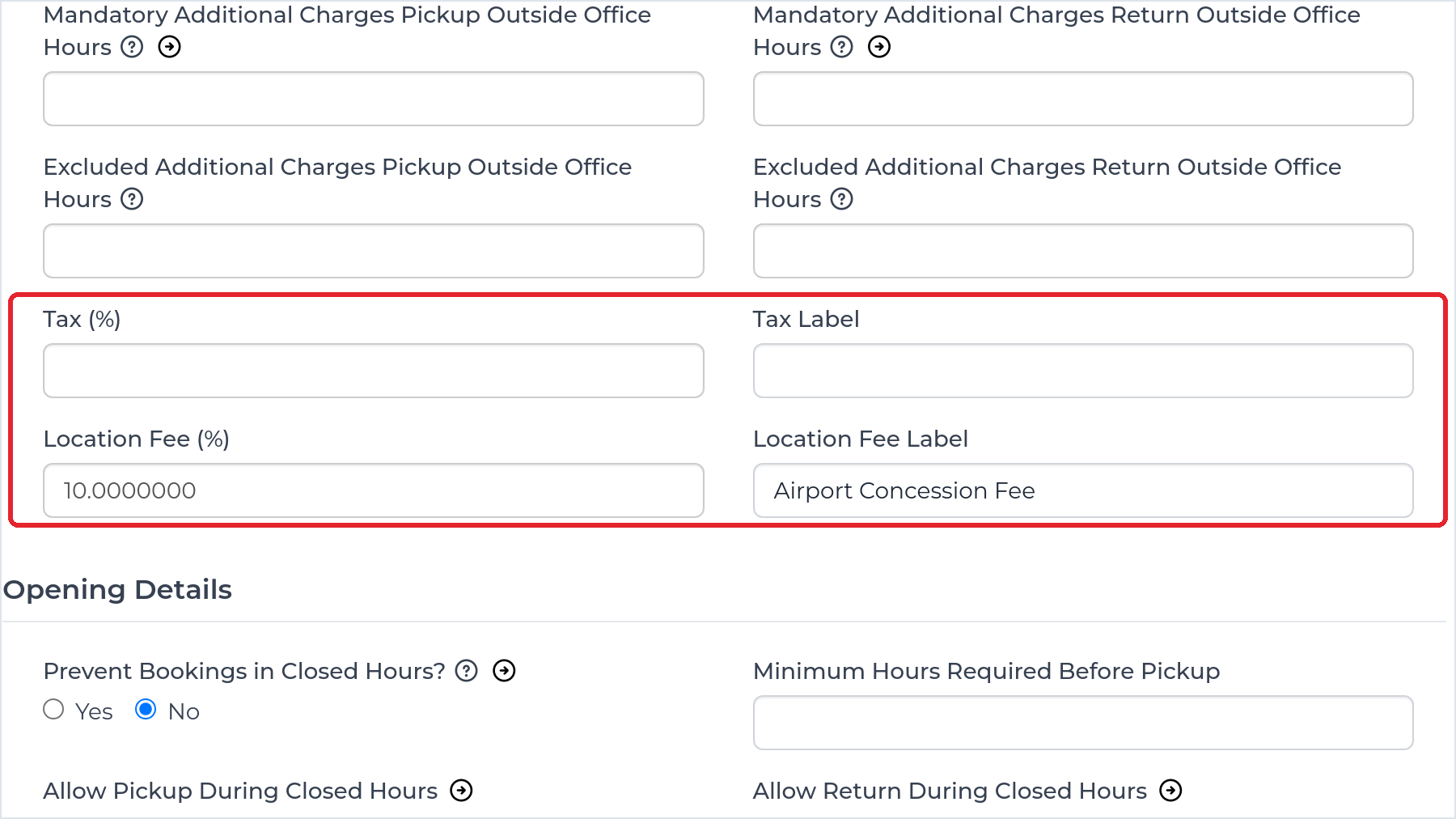
- In Additional Charges & Fees, enter Tax (%) or Location Fee (%) and their labels.
- Click Save at the bottom of the page.
Show me where (1 picture)
Good To Know
Section titled “Good To Know”- If the tax fields are missing on Branches, set Enable Sales Tax, Enable Location Fee or Enable Government Tax to Yes.
- Saving a Branch or Location while a field is hidden saves it as 0.
- With Enable Base Tax Update from Step 3 = Yes, users with Can manually change taxes tax? can change the taxes of a new reservation in Step 3.
If Something Goes Wrong
Section titled “If Something Goes Wrong”The Tax Name Is Not The One On My Branch
Section titled “The Tax Name Is Not The One On My Branch”- Why it happens: Tax Label in Text Settings is filled and replaces the Branch and Location labels.
- What to do: Empty it, or change it there.
Settings Used In This Article
Section titled “Settings Used In This Article”These are in Settings, under Car Rental, tab Charges & Fees, section Taxes & Fees.
- Enable Sales Tax, Enable Location Fee and Enable Government Tax: show the tax fields on Branches, Locations and customers.
- Enable Base Tax Update from Step 3: shows a Taxes box in Step 3 of new reservations.