Change Prices On The Rate Calendar
Before You Start
Section titled “Before You Start”- Plan or add-on: All plans, Car Rental module. Turned on by our support team.
How It Works
Section titled “How It Works”Days Of The Week
Section titled “Days Of The Week”Days of the week limits a selection to some days. An empty field keeps its current price.
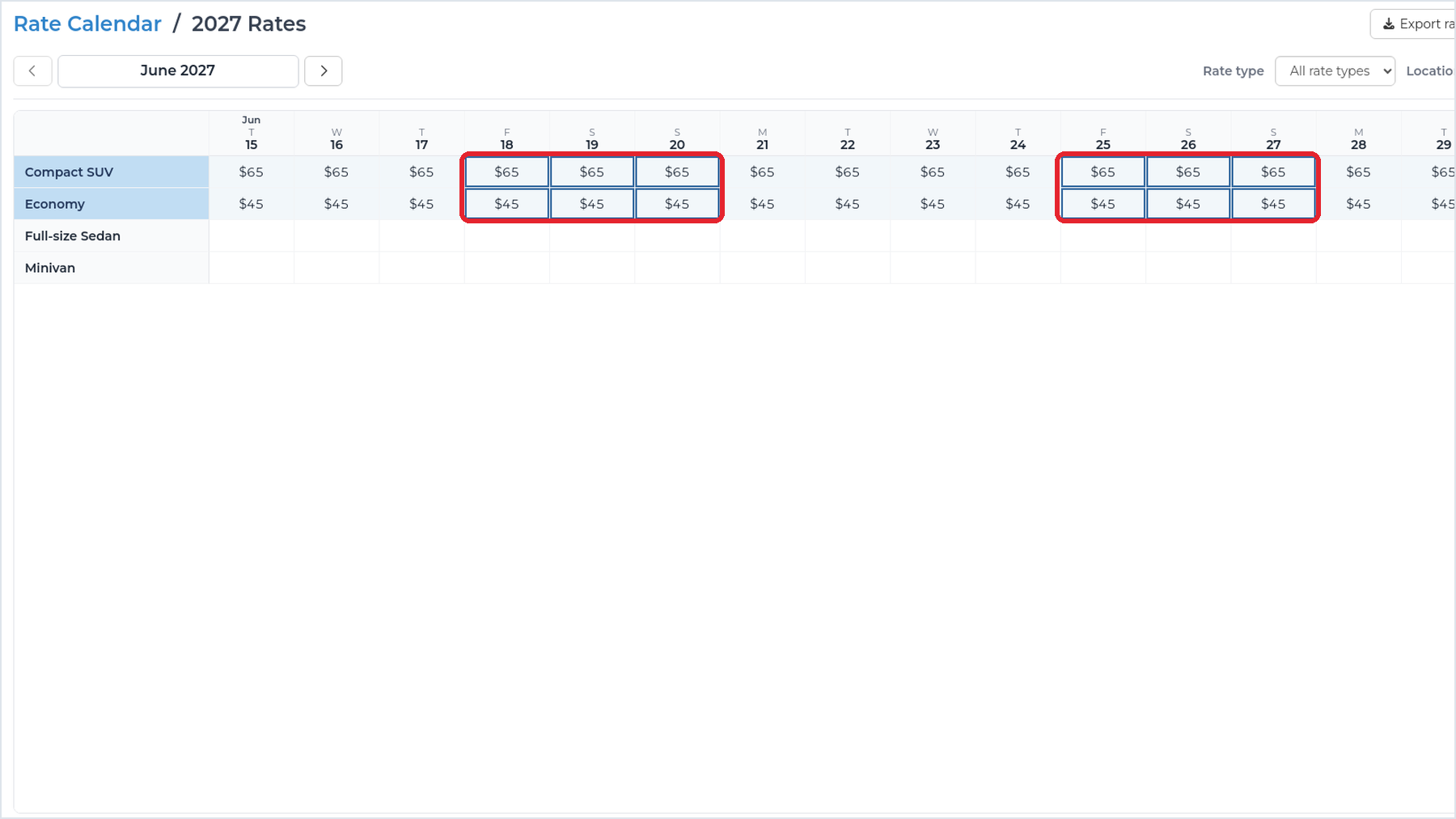
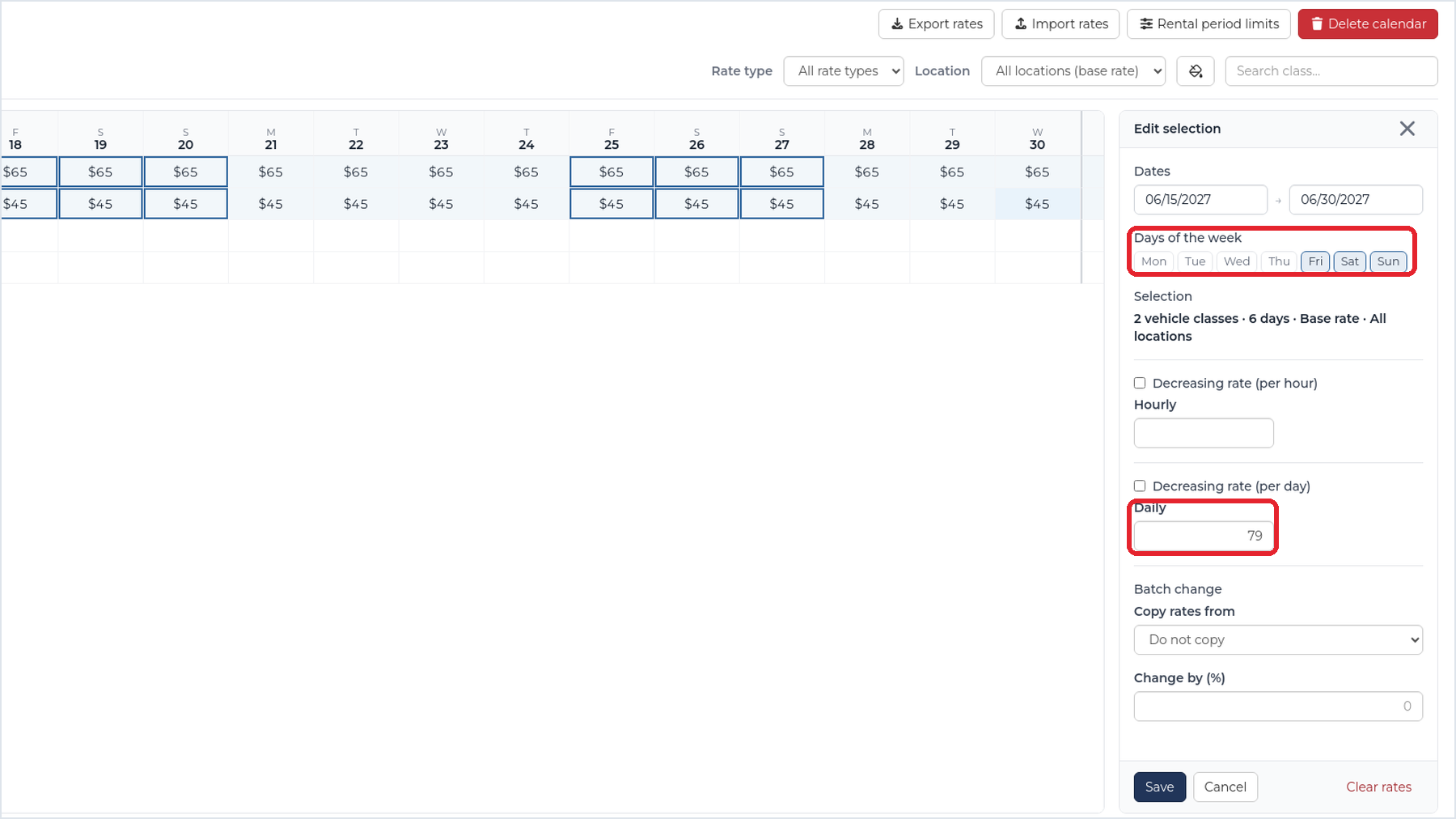
Example: Compact SUV and Economy are selected from June 15 to 30, 2027, with only Fri, Sat and Sun on. Typing 79 in Daily changes 6 days for each class.
Batch Change
Section titled “Batch Change”Copy rates from copies another Rate Type’s prices. Change by (%) moves prices by -100 to 1000 percent. A preview shows what changes before you apply it.
Example: Select the summer weeks and enter 15 in Change by (%). A $100 day becomes $115. Days with a ladder are not changed.
Rate Type And Location
Section titled “Rate Type And Location”The Rate type and Location pickers above the grid choose which prices you see and edit. All rate types saves to the base rate.
Example: Choose Corporate and set July 4 to $90. Other Rate Types still pay the base rate that day.
Busy Days
Section titled “Busy Days”Shade days by how booked they are shades each day by the busiest hour of the class. The scale goes from under 20% booked to 80% or more. It only shows when our support team keeps availability data for your account.
Example: 7 of 10 vehicles are out at 14:00 on Saturday, so Saturday shows as 70% booked.
Set It Up
Section titled “Set It Up”Get There
Section titled “Get There”- Click Settings at the bottom of the left menu.
- In the left menu, under the group Car Rental, click Rate Calendar.
- Click the calendar name.
Change Prices
Section titled “Change Prices”- Click and drag across the grid to select classes and days. Hold Ctrl (Cmd on a Mac) to add another block.
- In Edit selection, check the Dates and the Days of the week.
- Type the new Hourly or Daily price.
- Optional: tick Decreasing rate (per day) and add rows with From, To and Price.
- Click Save.
Show me where (2 pictures)
Remove Prices
Section titled “Remove Prices”- Select the cells.
- Click Clear rates, then Confirm clear.
Good To Know
Section titled “Good To Know”- Past days are grayed out and cannot be edited.
- One save can change up to 50,000 prices (classes × days).
If Something Goes Wrong
Section titled “If Something Goes Wrong”“Enter A Daily Rate … So This Class Can Be Priced”
Section titled ““Enter A Daily Rate … So This Class Can Be Priced””- Why it happens: A day has an hourly price but no daily price.
- What to do: Add a Daily price or a Decreasing rate (per day).
The Save Covers More Than 50,000 Prices
Section titled “The Save Covers More Than 50,000 Prices”- Why it happens: The selection is too large.
- What to do: Save fewer days or classes at a time.