Copy Rates From One Vehicle Class To Another
Before You Start
Section titled “Before You Start”- Plan or add-on: All plans, Car Rental module.
How It Works
Section titled “How It Works”Where Each Rate Goes
Section titled “Where Each Rate Goes”- Same Branch: the copy goes to the same Season.
- Other Branch: it goes to the active Season with the same name. No Season with that name means the rate is skipped.
- If the To class already has a rate in that Season, the rate is skipped.
- A copy keeps everything: prices, intervals, Rate Type, Locations and Commission Partners.
Example: Economy has High Season $50 and Low Season $35. Compact already has High Season $45. After the copy, Compact gets Low Season $35 and keeps $45.
Set It Up
Section titled “Set It Up”Copy The Rates
Section titled “Copy The Rates”Get There
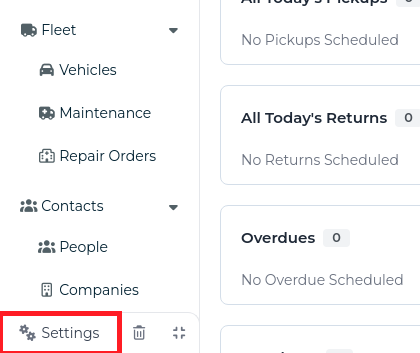
Section titled “Get There”- Click Settings at the bottom of the left menu.
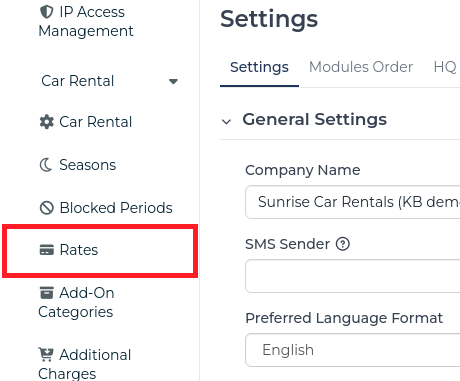
- In the left menu, under the group Car Rental, click Rates.
Show me where (2 pictures)
Page address: /settings/car-rental/rates
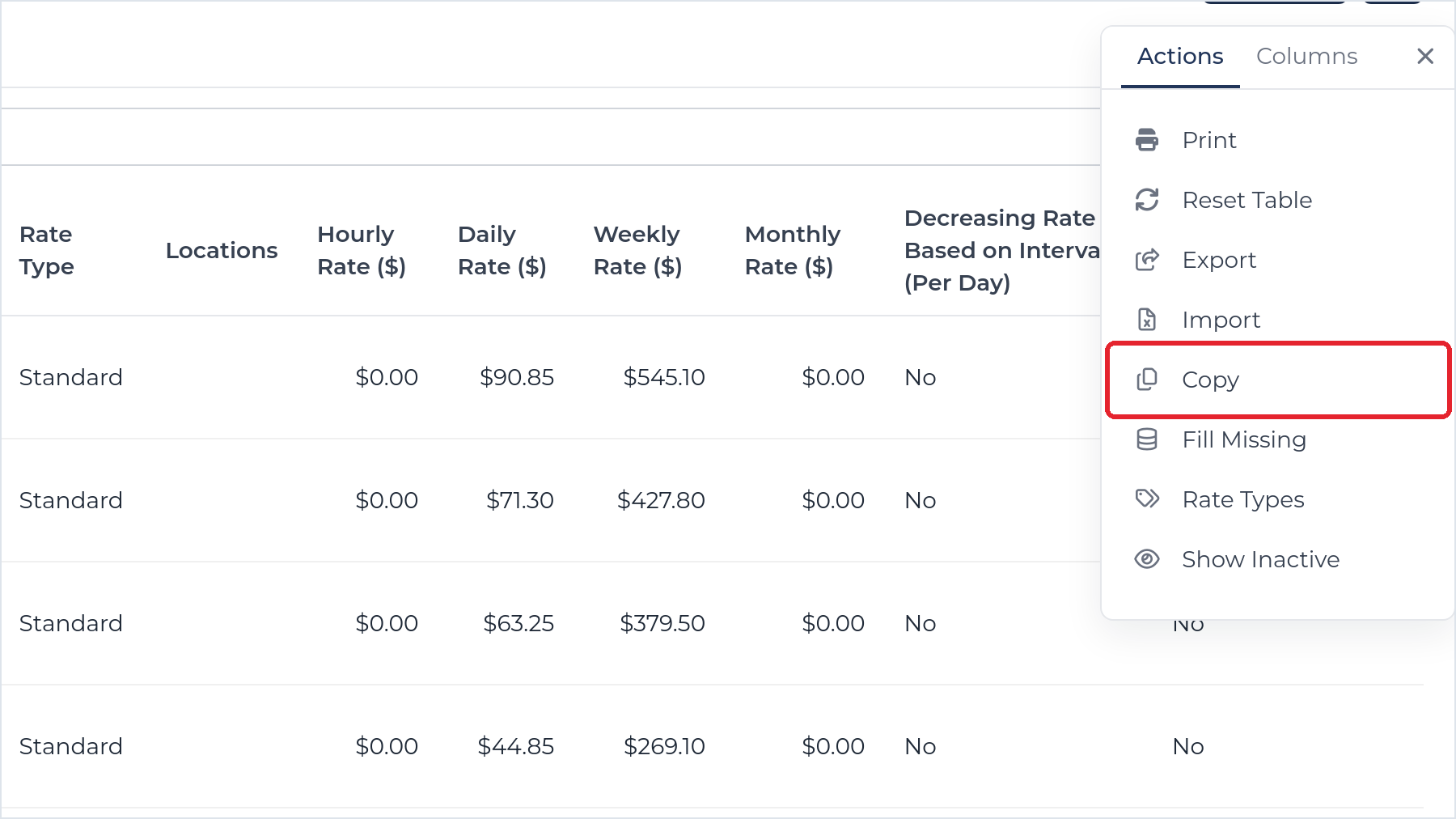
- Click ☰ at the top right of the list, then click Copy.
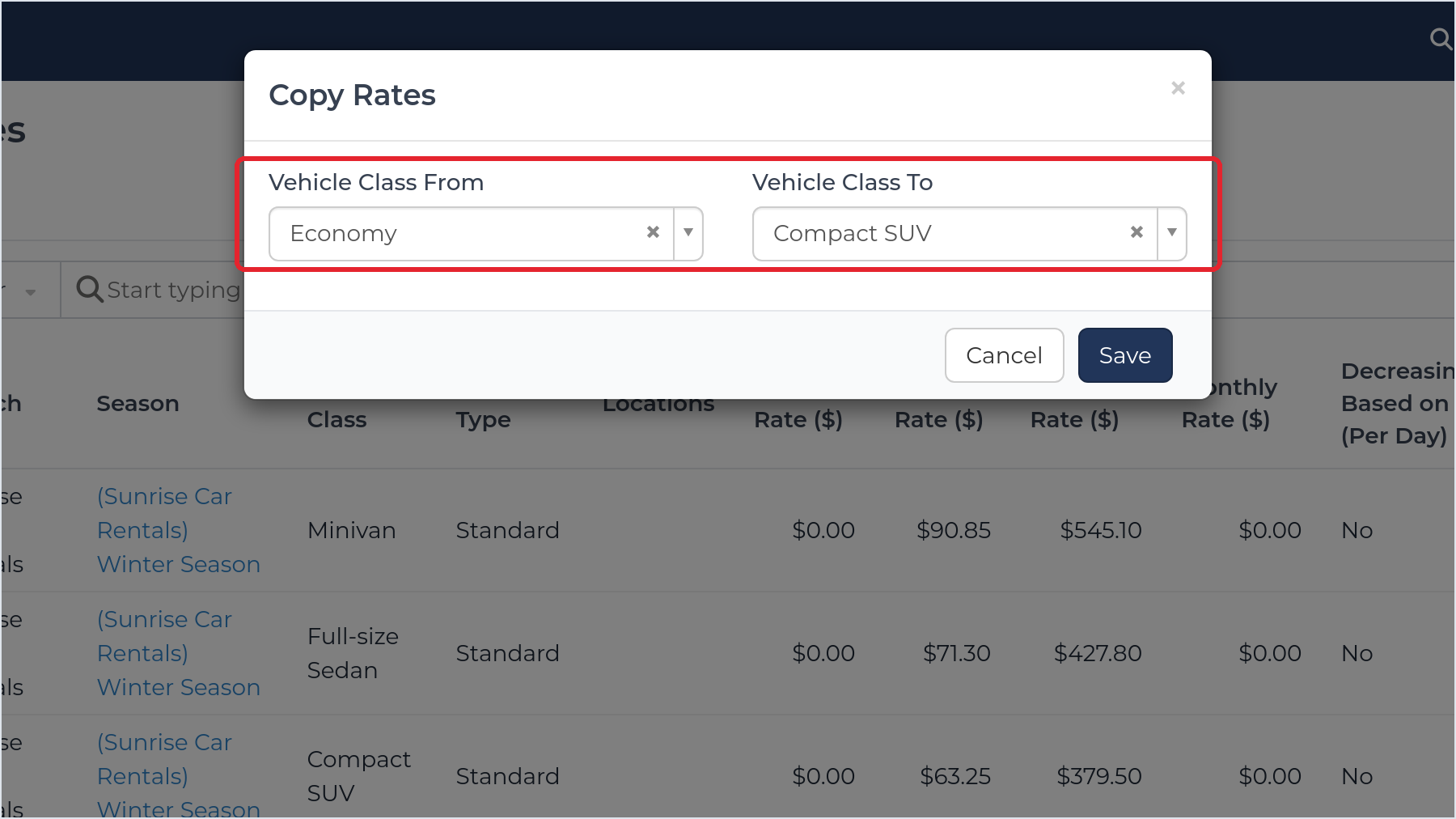
- Choose Vehicle Class From and Vehicle Class To.
- Click Save.
- Filter the list by the To class and adjust the prices of the new rates.
Show me where (2 pictures)
Good To Know
Section titled “Good To Know”- If the From class has several rates in one Season, only the first is copied. Create the others with Clone.
- After a copy between Branches, check that the Locations of the new rates belong to the new Branch.
If Something Goes Wrong
Section titled “If Something Goes Wrong”Copy Did Nothing
Section titled “Copy Did Nothing”- Why it happens: The To class already has a rate in every Season. Or, between Branches, no Season has the same name.
- What to do: Use Clone or Fill Missing, or check the Season names.
Only Some Rates Were Copied
Section titled “Only Some Rates Were Copied”- Why it happens: The To class already had rates in some Seasons, or the From class has several rates in one Season.
- What to do: Create the other rates with Clone.