How HQ Calculates A Price, Step By Step
Before You Start
Section titled “Before You Start”- Plan or add-on: All plans, Car Rental module.
How It Works
Section titled “How It Works”Rate Type, Location And Days
Section titled “Rate Type, Location And Days”- Step 1, Rate Type: website bookings use the Rate Type with Default for Public Reservations. Staff and API reservations use the one that lists the user in Apply Automatically for this Users, or else the one with Default?. A Commission Partner’s Default Rate Type, a booking link, customer rules or a change in the Rate Type box can replace it.
- Step 2, Location: rates per Location use the pickup Location. The return Location never changes the rate. A custom pickup address uses the Location in Location Rate for Custom Pickup Locations.
- Step 3, days: see How Chargeable Days Are Counted.
Example: A customer picks up at Airport and returns Downtown. HQ uses the Airport rates.
Season And Rate
Section titled “Season And Rate”- Step 4, Season: HQ uses the active Seasons of the Branch that overlap the rental. On a Rate Calendar every day is its own Season. The fallback Season is used only when no Season covers any day.
- More than one Season: with Enable Multiple Seasons Bookings = Yes, each part uses its own Season. With No, the first Season prices the whole rental, unless Enable Rates per day of the Week is Yes. Booking channel reservations use the first Season.
- Step 5, rate: HQ looks for the Vehicle Class rate in this order. First the Rate Type for the pickup Location. Then any Rate Type for that Location, only when Hide Vehicle Classes Without Rates on The Selected Rate Type is No. Then the Rate Type with no Locations, the Commission Partner’s fallback rates and Fallback Rate for not Found Rates. With no rate, the Vehicle Class is not offered.
- Step 6, price per part: each Season part is split into months, weeks, days, hours and minutes, each at its own price. Special rate types and Check Value Pricing on Daily vs Weekly Rates can adjust it.
- Step 7, rental price: the sum of all Season parts.
Example: Summer ends on Tuesday. With Enable Multiple Seasons Bookings = Yes, a Monday to Friday rental gets 2 Summer days and 2 days in the next Season.
Charges And Discounts
Section titled “Charges And Discounts”- Step 8, Additional Charges: each charge is priced by its Charge Type, plus the Minimal Rental Charge when it applies. Charges made free by rules cost 0.
- Step 9, discounts: each discount is calculated on the rental price before any discount, and the amounts are added together. A Percentage discount also covers the charges included in it.
- Step 10, Percent charges: calculated on the rental price after discounts. With Calculate Additional Charges Based on Percentage on Base Rate = Yes, on the price before discounts.
- Step 11, Commission Partner discount: % Discount from Commission is one more discount line. It comes after step 10, so it does not lower Percent charges.
Example: Rental price $400 with a 10% discount and a $20 discount. Both use $400: $40 + $20 = $60 off, so $340.
Taxes And Total
Section titled “Taxes And Total”- Step 12, taxes: first the Location Fee, on the rental price after discounts plus charges with Include in Location Fee and Vehicle Damages. Then the Sales Tax, on the rental price after discounts plus charges with Include in Tax, Vehicle Damages and the Location Fee. Last, the Government Tax, an amount per chargeable day.
- Step 13, Total: everything is added up and rounded to 2 decimals. A reservation in another currency uses its saved exchange rate.
Example:
- After a $40 discount the rental price is $360, so a 10% Location Fee is $36, not $40.
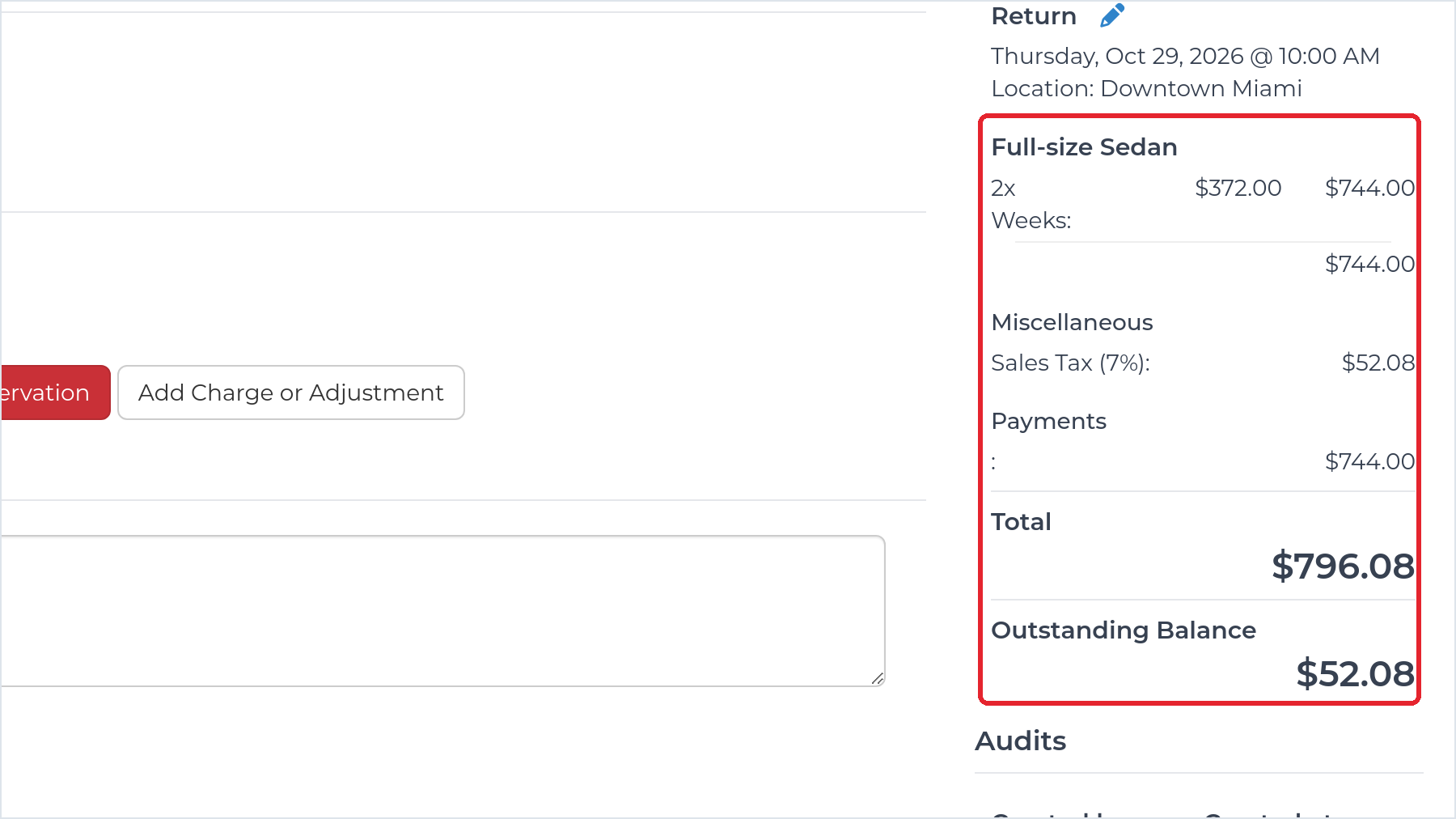
- A 2 week rental at $372.00 a week, with no discount or charges, costs $744.00. Sales Tax 7% of $744.00 = $52.08, so the Total is $796.08.
Good To Know
Section titled “Good To Know”- Amount and Amount per Day discounts never take more than the rental price and never reduce Additional Charges.
- The Government Tax is a plain amount per day and is not converted between currencies.
If Something Goes Wrong
Section titled “If Something Goes Wrong”A Vehicle Class Is Not Offered
Section titled “A Vehicle Class Is Not Offered”- Why it happens: HQ found no rate in step 5 for that Rate Type, Location and Season.
- What to do: Add the rate, or set Fallback Rate for not Found Rates. See Rate Types And Rates Per Location.