Set Your Own Exchange Rate
Before You Start
Section titled “Before You Start”- Plan or add-on: All plans, Car Rental module.
How It Works
Section titled “How It Works”The Rate Is Per 1 US Dollar
Section titled “The Rate Is Per 1 US Dollar”Enter how many units of the currency equal 1 US Dollar, even if your Default Currency is not USD. HQ converts between two currencies through their rates to the dollar.
Example: Your Default Currency is EUR. The daily rates are 0.85 EUR and 0.74 GBP per USD. You set GBP to 0.80. €100 now becomes 100 × 0.80 ÷ 0.85 = £94.12.
Set It Up
Section titled “Set It Up”Set The Rate
Section titled “Set The Rate”Get There
Section titled “Get There”- Click Settings at the bottom of the left menu.
- In the left menu, click the group Items to open it. Skip this step if its items already show.
- Under the group Items, click Currencies.
Show me where (3 pictures)
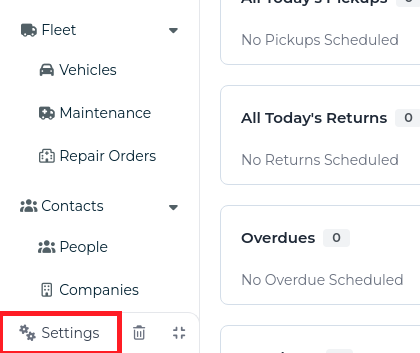
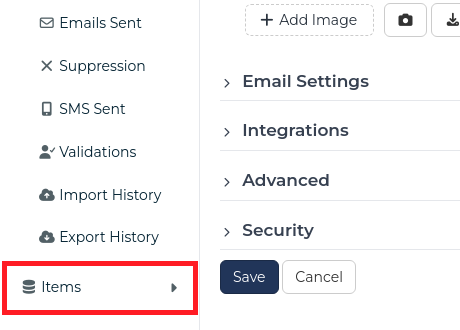
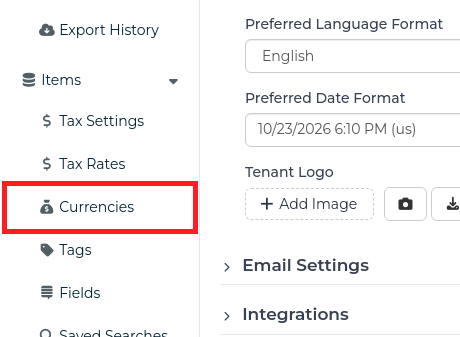
Page address: /settings/currencies
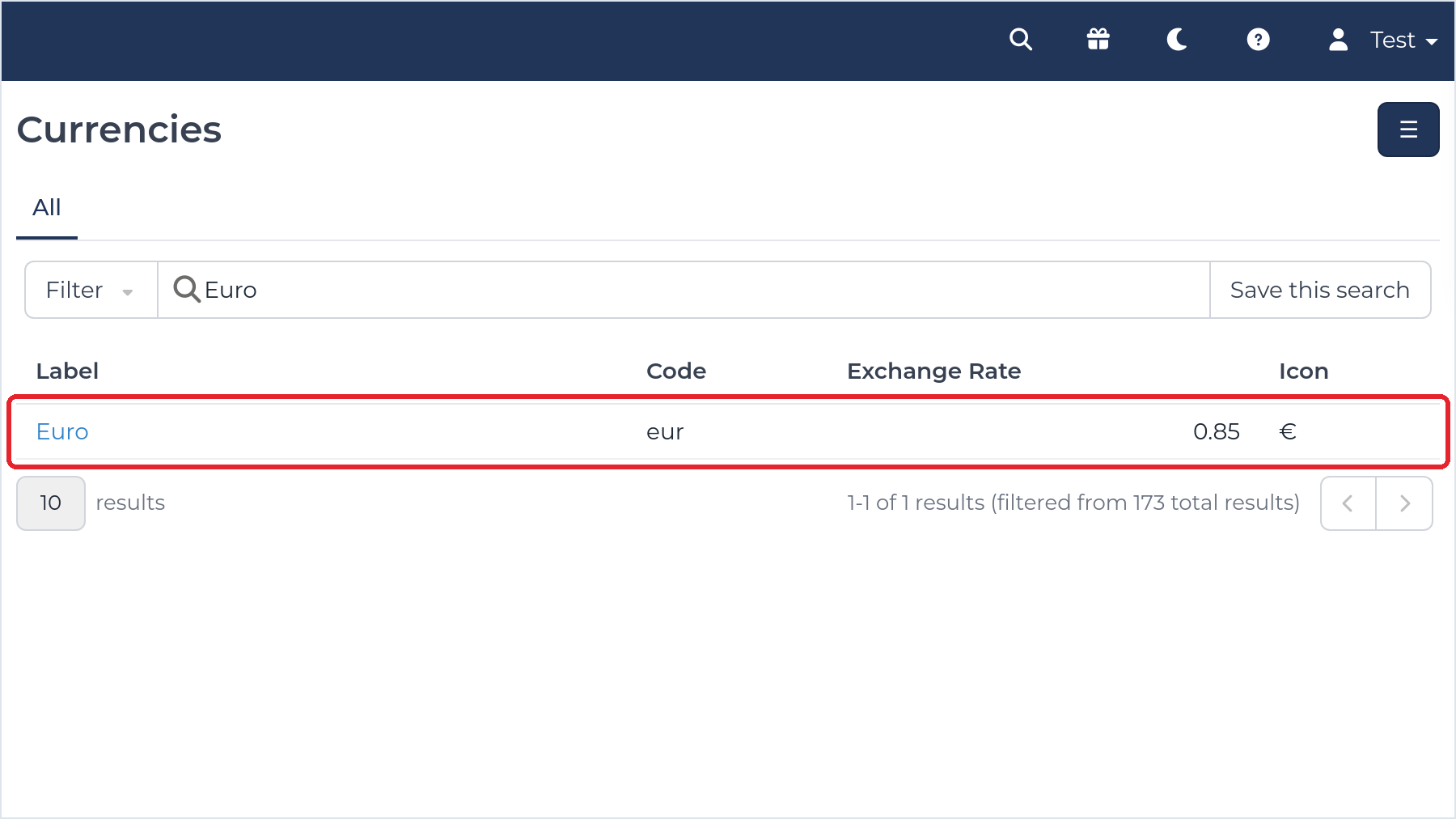
- Type the currency name in the search box.
- Click the currency to open it.
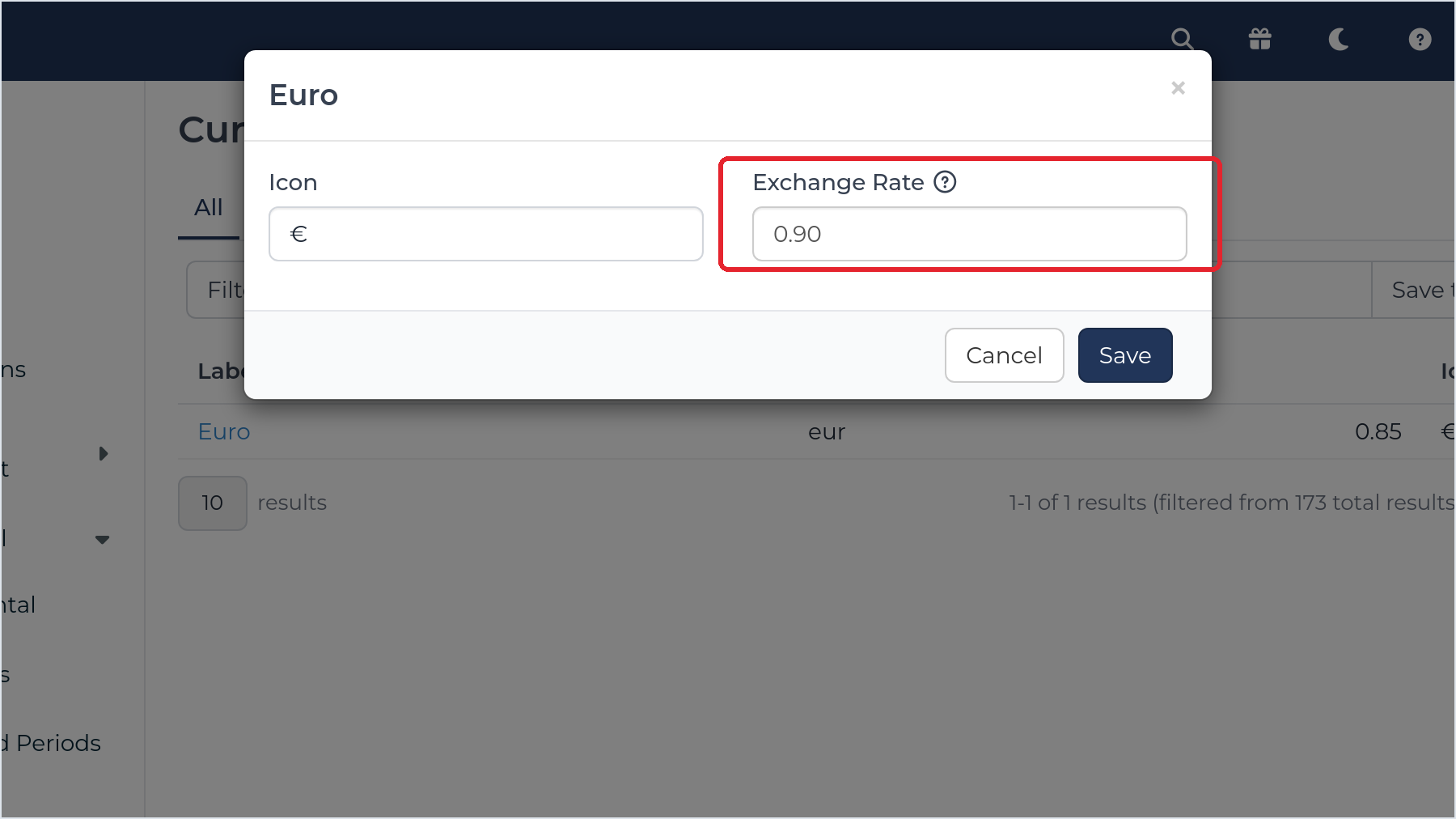
- In Exchange Rate, enter the units per 1 US Dollar.
- Click Save.
Show me where (2 pictures)
Good To Know
Section titled “Good To Know”- Leave Exchange Rate empty to go back to the daily rate.
- The Exchange Rate column shows the rate HQ uses today.
- Existing reservations keep their saved rate. Your rate applies to new reservations.
If Something Goes Wrong
Section titled “If Something Goes Wrong”Converted Prices Look Wrong
Section titled “Converted Prices Look Wrong”- Why it happens: The rate was entered per 1 unit of your Default Currency, not per 1 US Dollar.
- What to do: Enter the units per 1 US Dollar.
Settings Used In This Article
Section titled “Settings Used In This Article”These are in Settings, under Items, in Currencies, in the window of each currency.
- Exchange Rate: replaces the daily rate of that currency.
- Icon: the symbol shown with amounts in that currency.