Price A Package Item
Before You Start
Section titled “Before You Start”- Plan or add-on: Car Rental module, with Packages turned on by our support team.
- Who can do it: roles with Can view Package Items.
How It Works
Section titled “How It Works”Picking The Price Per Day
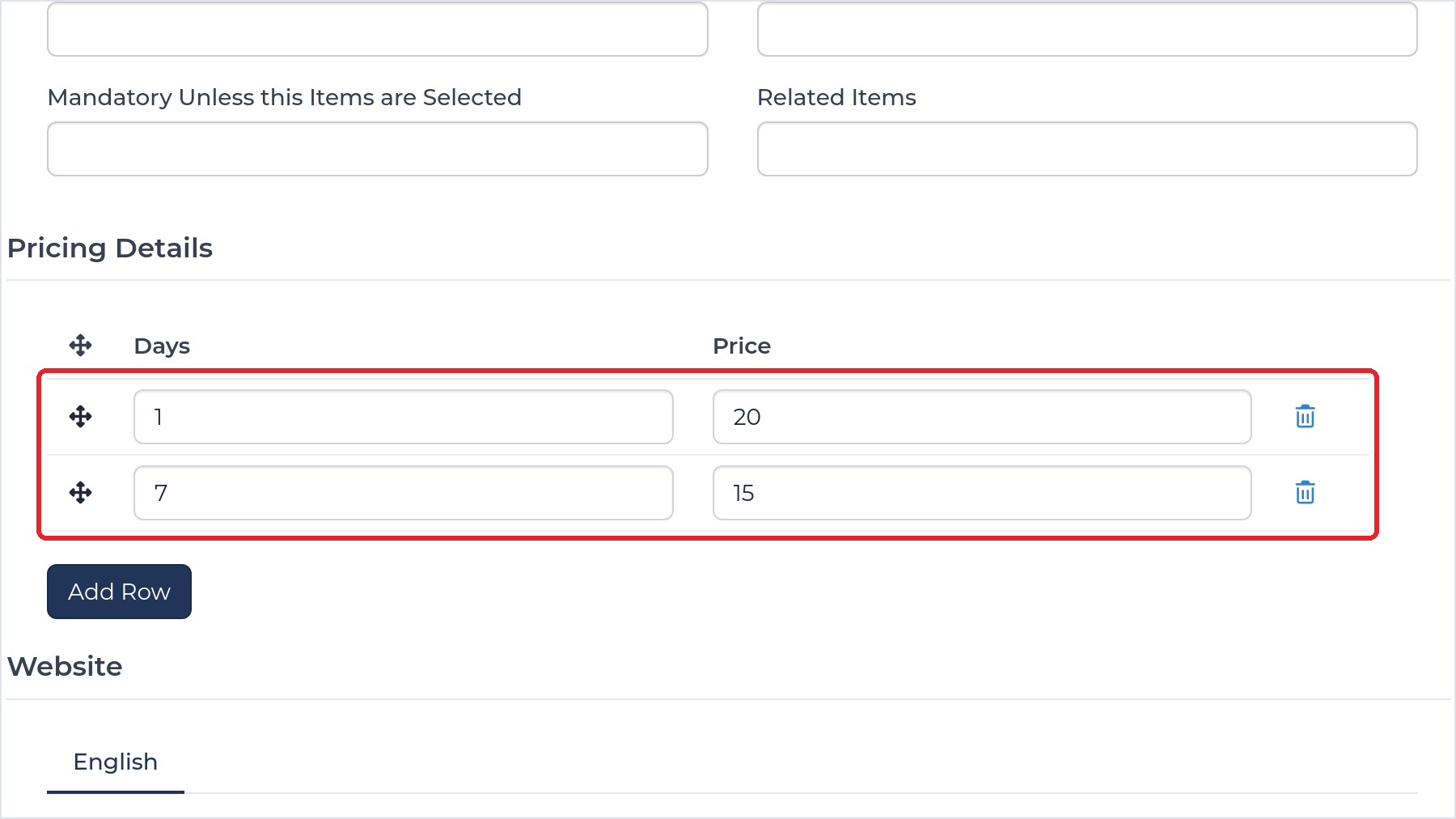
Section titled “Picking The Price Per Day”HQ uses the row with the highest Days that is not more than the booking’s days. Two rows with the same Days: the lower one wins.
Example: Rows 1 day at $20 and 7 days at $15, quantity 1. A 2 day booking is 2 × $20 = $40. A 10 day booking is 10 × $15 = $150.
Set It Up
Section titled “Set It Up”Price The Item
Section titled “Price The Item”Get There
Section titled “Get There”- Click Settings at the bottom of the left menu.
- Under Car Rental, click Package Items.
Page address: /settings/car-rental/package-items
- Click the item to open it.
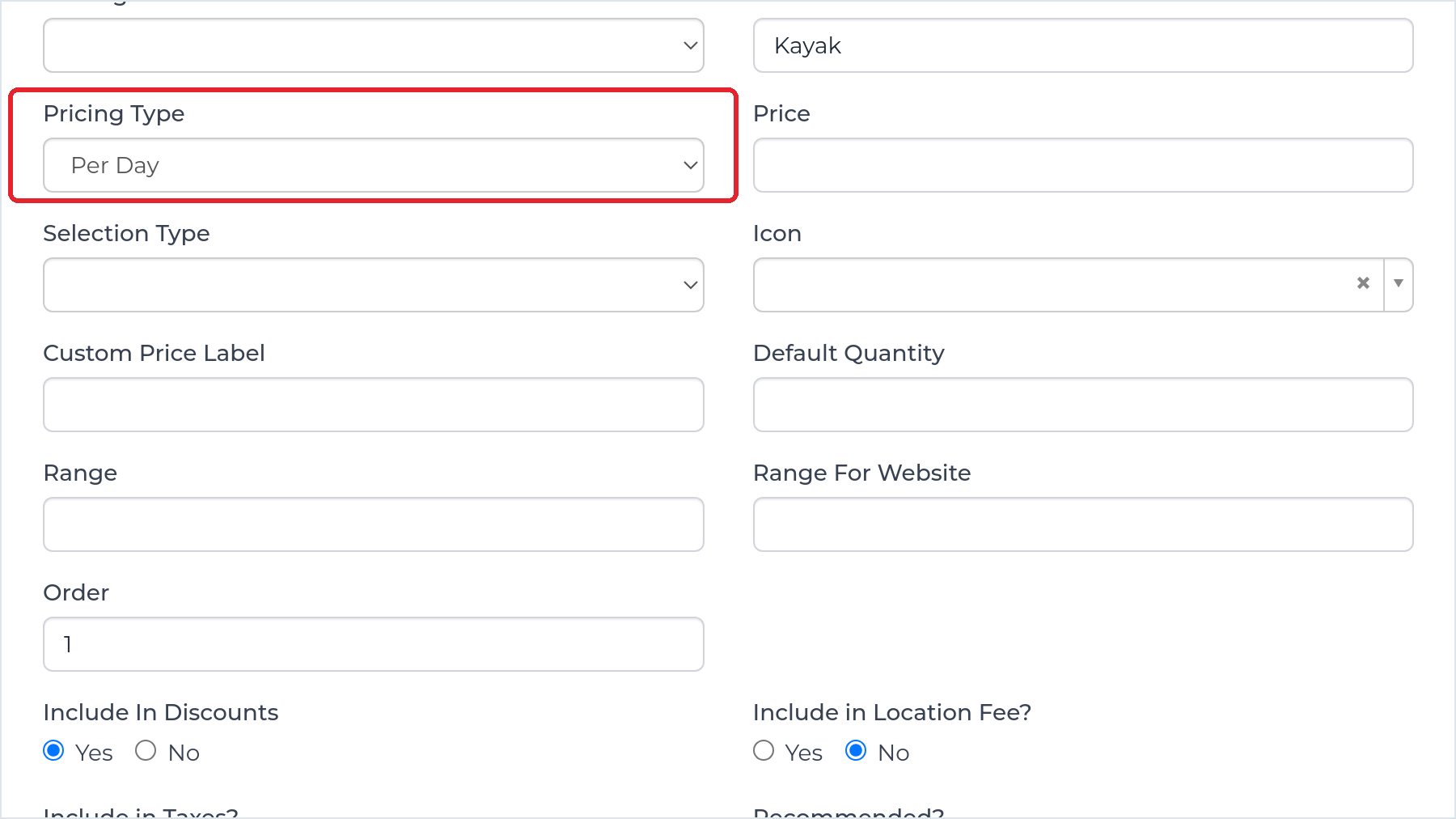
- Choose the Pricing Type: Fixed or Per Day.
- For a Fixed item, enter the Price.
- For a Per Day item, click Add Row in Pricing Details for each price, starting with Days 1.
- Set Include In Discounts, Include in Taxes? and Include in Location Fee?.
- Click Save at the bottom of the page.
Show me where (2 pictures)
Good To Know
Section titled “Good To Know”- Enable Days Selection for this Item lets the customer choose how many days they want the item. The price uses those days.
- Create a test package reservation and check the total.
Settings Used In This Article
Section titled “Settings Used In This Article”These are on each Package Item.
- Pricing Type: Fixed or Per Day.
- Price: the price of a Fixed item.
- Pricing Details: the price per day of a Per Day item, by booking length.
- Enable Days Selection for this Item: the customer chooses the days.
- Include In Discounts, Include in Taxes? and Include in Location Fee?: what applies to the item.
Related Articles
Section titled “Related Articles”- Package Pricing
- Set Date Based Package Prices
- Set Up Advanced Package Pricing
- How Package Reservation Totals Are Calculated