Set Up A Fallback Season And Fallback Rates
Before You Start
Section titled “Before You Start”- Plan or add-on: All plans, Car Rental module.
How It Works
Section titled “How It Works”Fallback Season
Section titled “Fallback Season”- HQ uses it only when no active Season of the Branch covers any day of the rental. It is never used for part of a rental.
- HQ prices the whole rental with its rates, and its rental limits apply.
- Without one, HQ shows “Seasons for the the interval [dates] time is not set up”.
Example: The Seasons cover only June to August. A 3 day Economy rental from September 10 uses the fallback Season, with a Daily Rate of $40: 3 × $40 = $120.
Fallback Rate
Section titled “Fallback Rate”- HQ uses it when the Season has no rate for the Vehicle Class. It first tries the other rates of the Season and the Commission Partner’s fallback rates.
- HQ uses the chosen rate of the same Branch and Vehicle Class. The rental keeps its own Season and limits.
- Without one, the Vehicle Class is not offered.
- A fallback rate keeps the Vehicle Class available, even when Hide Vehicle Classes Without Rates on The Selected Rate Type is Yes.
Example: Holidays has no Van rate. The fallback Van rate is $90 a day, so a 4 day Van rental costs $360.
Set It Up
Section titled “Set It Up”Create The Fallback Season
Section titled “Create The Fallback Season”Get There
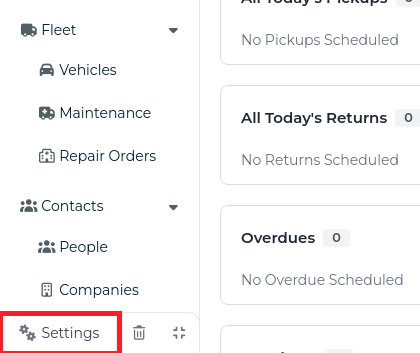
Section titled “Get There”- Click Settings at the bottom of the left menu.
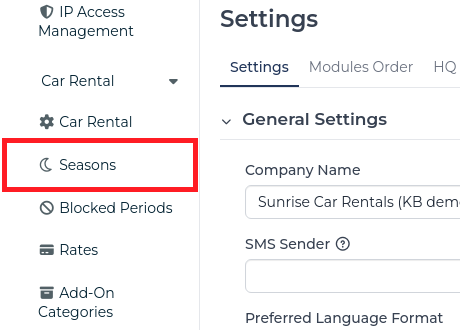
- In the left menu, under the group Car Rental, click Seasons.
Show me where (2 pictures)
Page address: /settings/car-rental/seasons
- Click Add Season and create a Season called, for example, “Fallback” for the Branch.
- Set its Date Start and Date End to one day in the past, the day before your first Season starts.
- Add a rate for every Vehicle Class, in Base rates or on the Rates page.
- Click Save at the bottom of the page.
Choose The Fallbacks
Section titled “Choose The Fallbacks”Get There
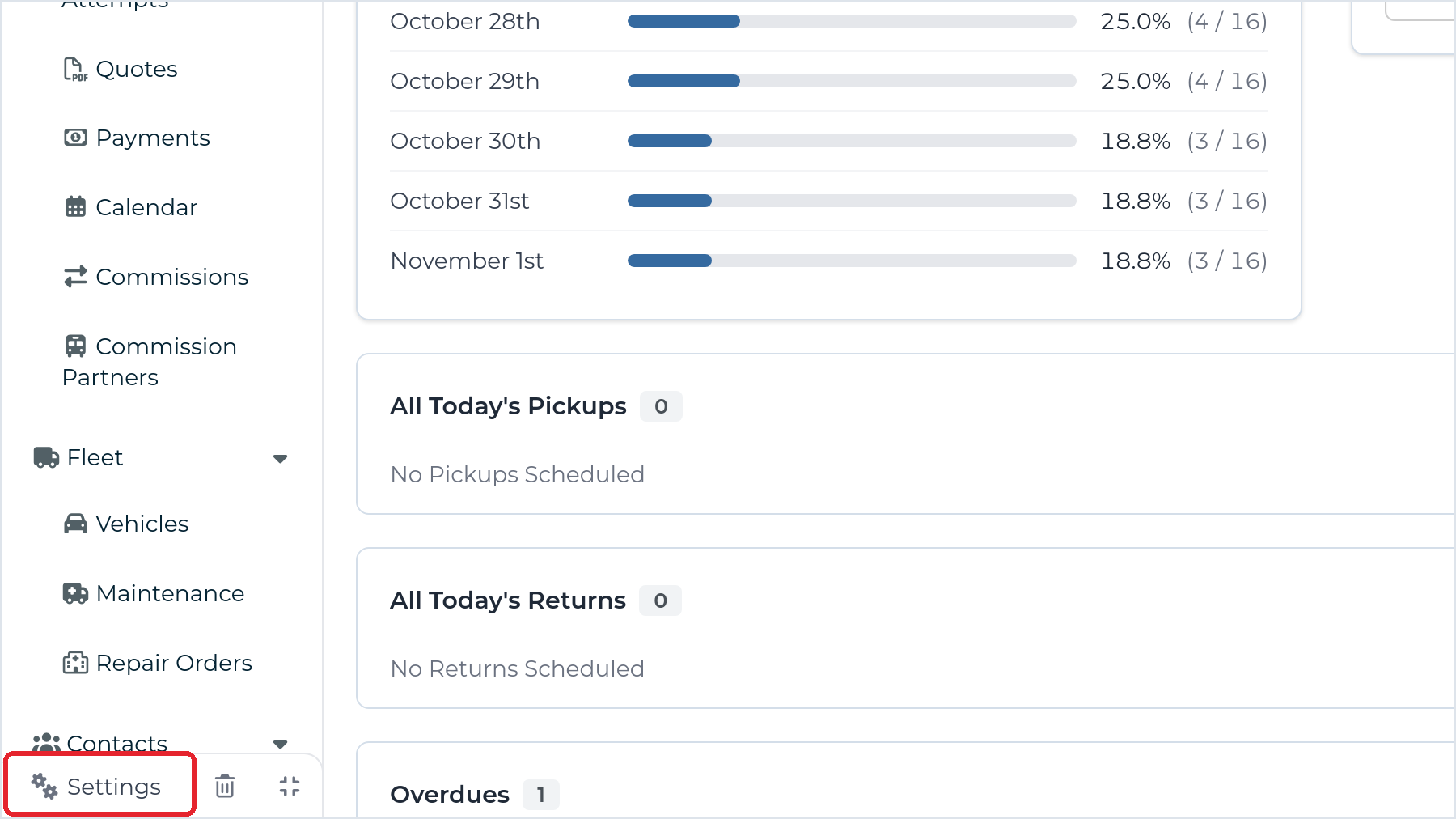
Section titled “Get There”- Click Settings at the bottom of the left menu.
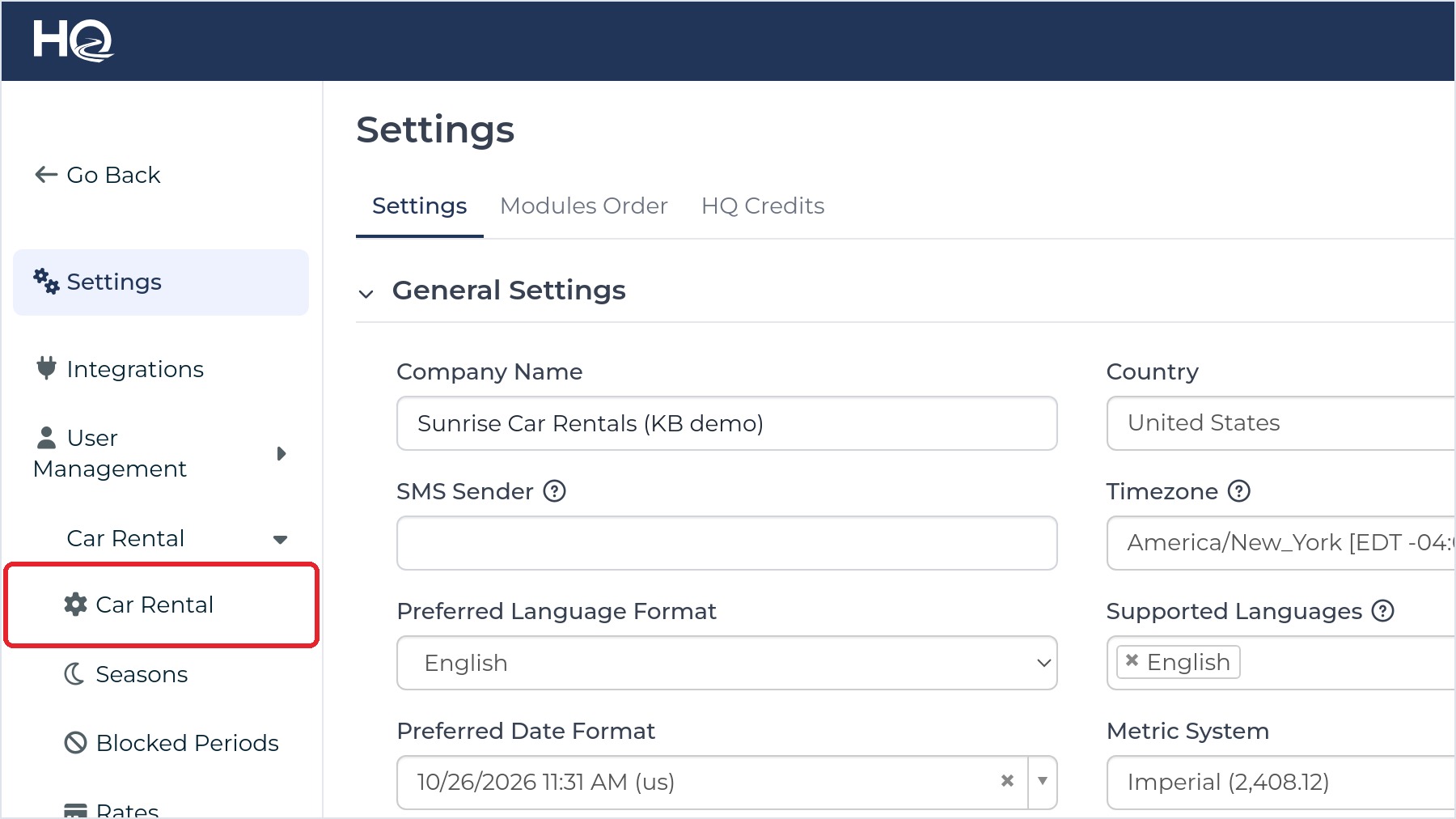
- In the left menu, under the group Car Rental, click Car Rental.
- Stay on the tab General Settings. Click the section Rates & Days Calculations to open it.
Show me where (3 pictures)
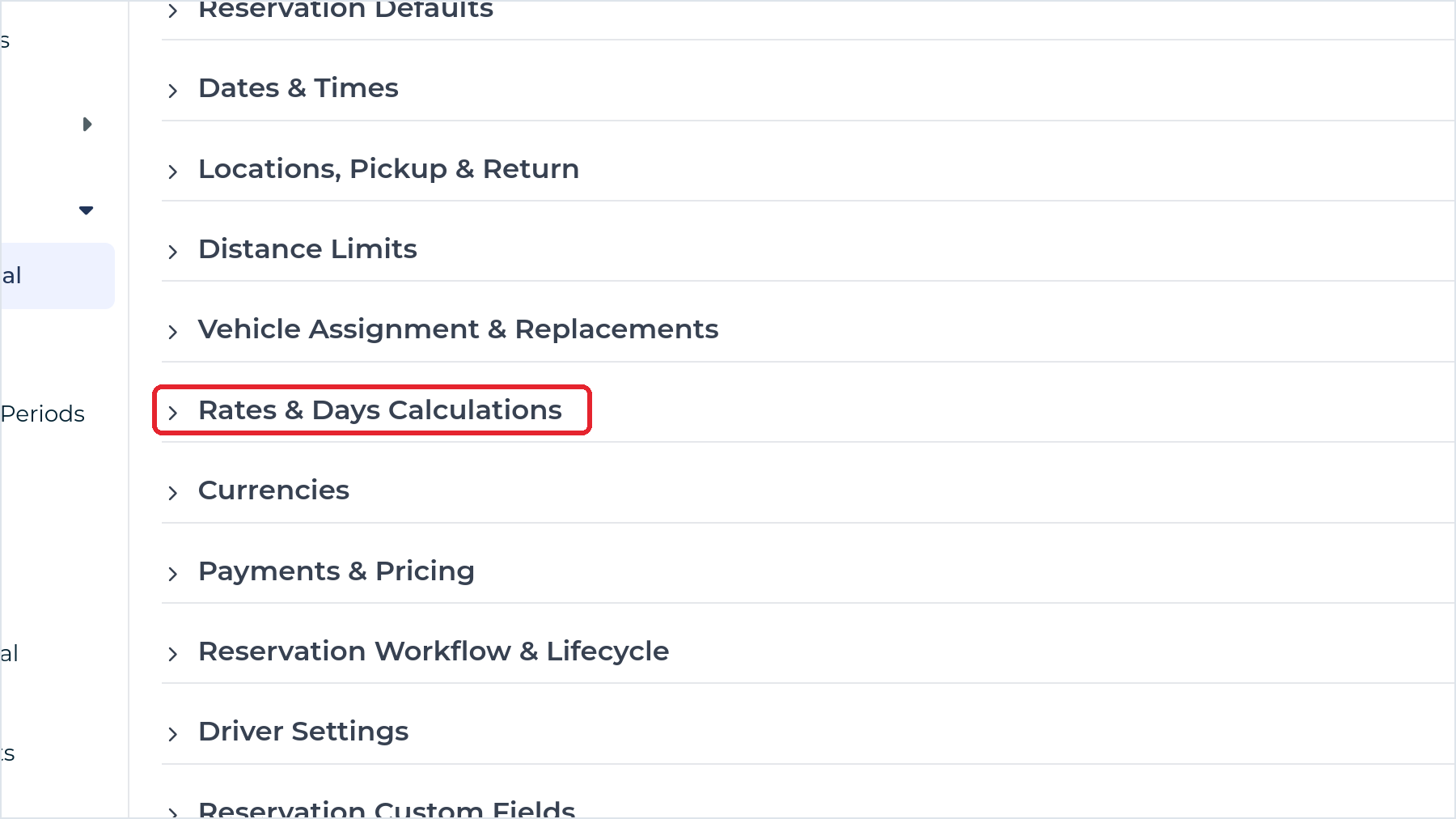
Page address: /settings/car-rental
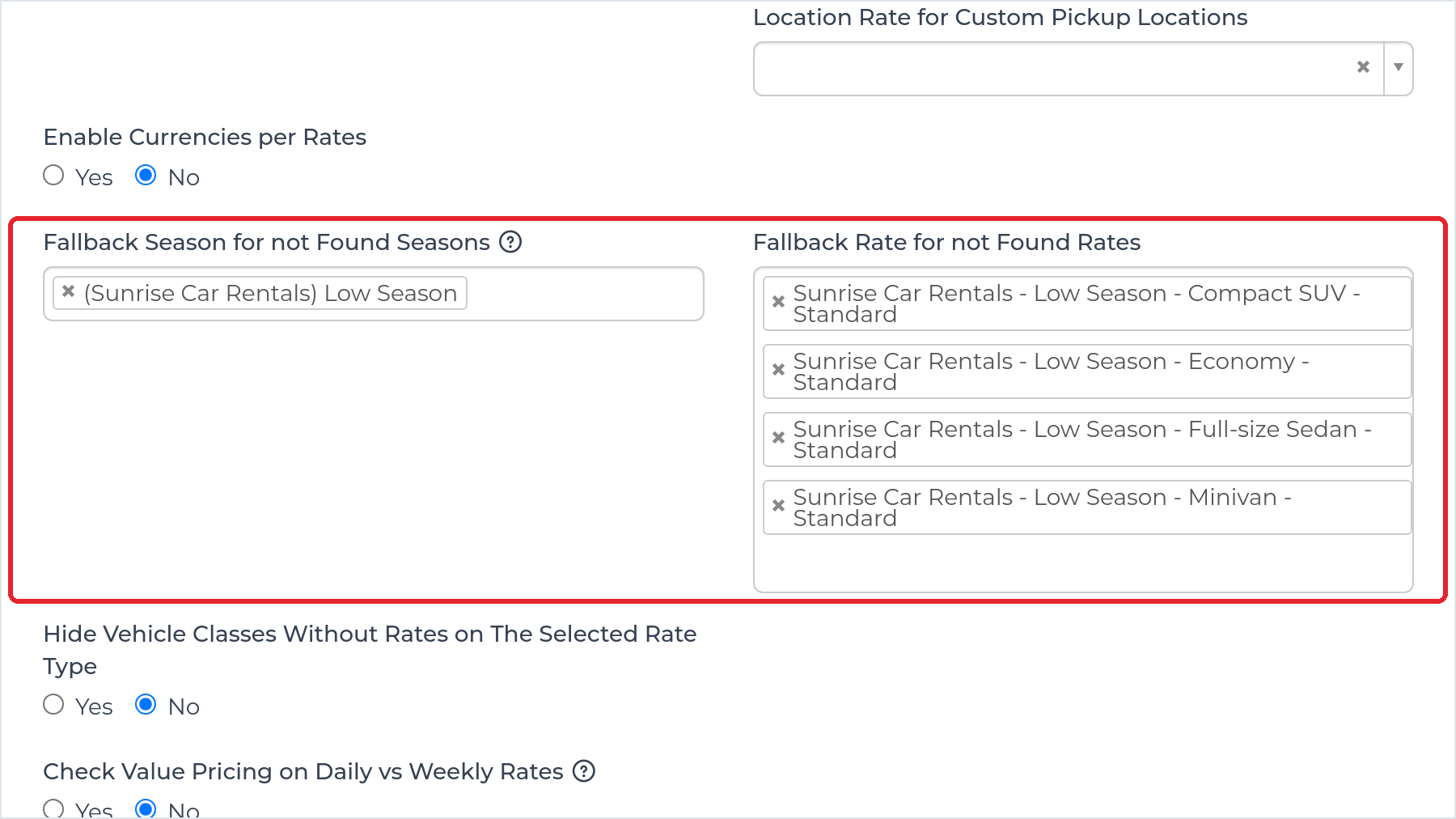
- In Fallback Season for not Found Seasons, choose the fallback Season of each Branch.
- In Fallback Rate for not Found Rates, choose one rate for each Vehicle Class of each Branch.
- Click Save at the bottom of the page.
Show me where (1 picture)
If Something Goes Wrong
Section titled “If Something Goes Wrong”“Seasons For The Interval Is Not Set Up” Error
Section titled ““Seasons For The Interval Is Not Set Up” Error”- Why it happens: No active Season covers the rental days, and the Branch has no fallback Season.
- What to do: Create a Season for those dates, or choose a fallback Season.
A Vehicle Class Is Missing From The Available Vehicles
Section titled “A Vehicle Class Is Missing From The Available Vehicles”- Why it happens: The Season has no rate for that Vehicle Class, and no fallback rate exists for it.
- What to do: Add the rate, or add one for that class in Fallback Rate for not Found Rates.
Settings Used In This Article
Section titled “Settings Used In This Article”Both are in Settings, under Car Rental, tab General Settings, section Rates & Days Calculations. Full details are in General Settings Reference Part 2.
- Fallback Season for not Found Seasons: the Season used when none covers the rental. One per Branch.
- Fallback Rate for not Found Rates: the rates used when a Season has none for a Vehicle Class.