Rate Radar
Before You Start
Section titled “Before You Start”- Plan or add-on: Paid add-on. You can see the price in Billing or ask our support team.
- Turned on by: our support team. Create a support ticket to turn on Rate Radar for your account.
- Who can do it: roles with Can view Rate Radar in Access Control.
- Enrollment: our support team connects each of your Locations to its market.
How It Works
Section titled “How It Works”Two Tabs
Section titled “Two Tabs”Rate Radar is in the left menu, under Car Rental. It only shows data. It never changes your rates or reservations.
- Rates: the market next to your rates.
- Class mapping: which of your Vehicle Classes each market vehicle code stands for.
Example: Our support team enrolls Miami Airport in the market MIA. You map the code ECMR to Economy, then compare Economy on the Rates tab.
Markets And Snapshots
Section titled “Markets And Snapshots”- A market is the area competitor rates are collected for, usually named by an airport code such as MIA.
- Competitor rates arrive once a day as a snapshot. HQ checks for a new one every hour.
- A snapshot covers rentals of 1, 3, 7 and 14 days, paid Prepaid or Pay At Counter.
- Market rates stay in the market’s own currency. They are never converted.
Example: The MIA snapshot arrives at 06:00. By about 07:00 the new rates show in your account.
Your Position Against The Market
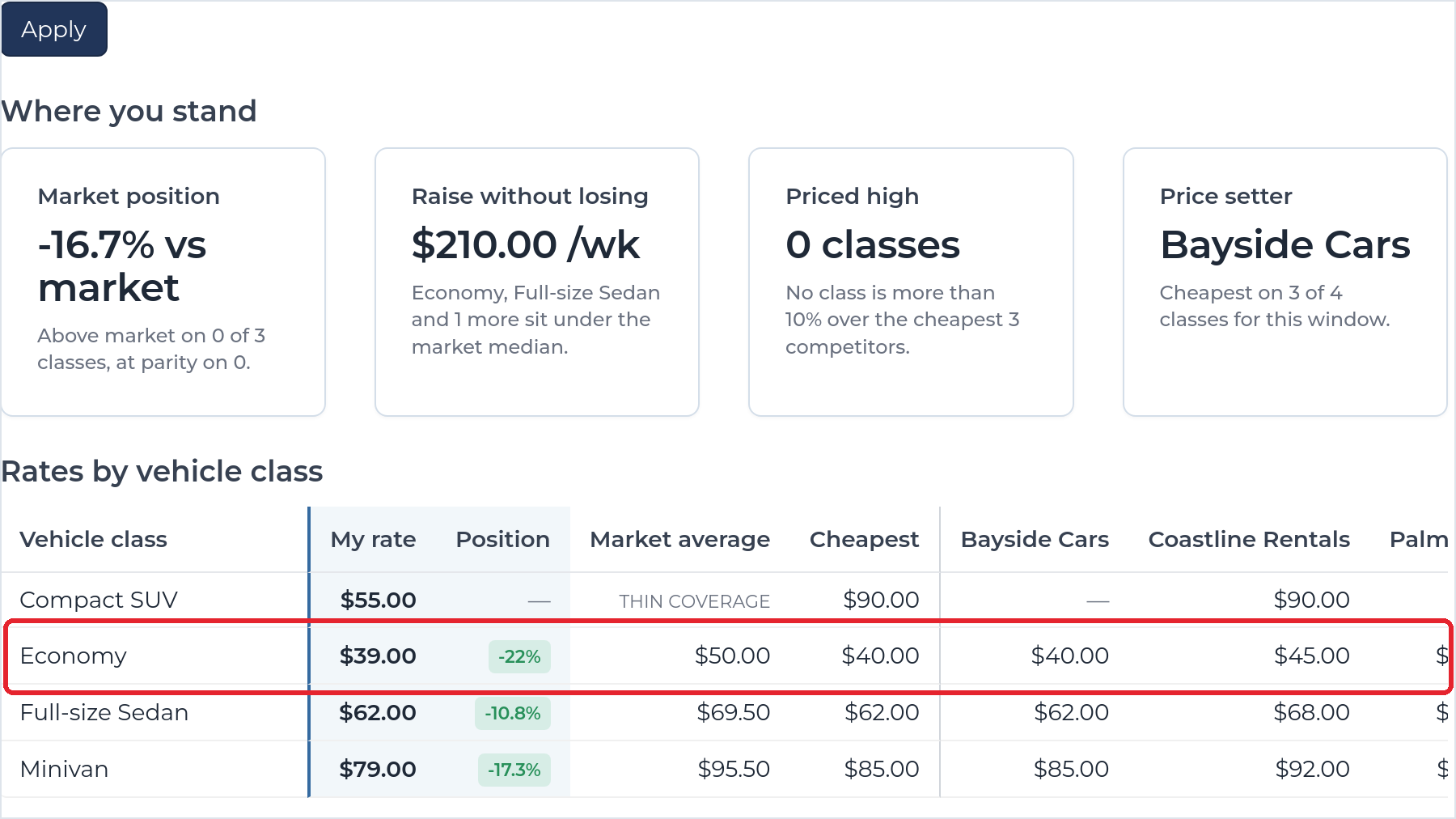
Section titled “Your Position Against The Market”Each Vehicle Class gets a label from how far your rate is from the market average:
- Within 5% above or below: Competitive (gray).
- More than 5% above: Above market (red).
- More than 5% below: Below market (green).
Example: The Economy market average is $50. Your $39 is 22% below, so Below market. $52 would be 4% above, so Competitive.
Good To Know
Section titled “Good To Know”- You only see the Locations your role can access.
- To enroll another Location, or to switch one off, contact our support team.
- A class priced by fewer than 3 competitors shows Thin coverage, with no average and no position.
If Something Goes Wrong
Section titled “If Something Goes Wrong”I Do Not See Rate Radar In The Menu
Section titled “I Do Not See Rate Radar In The Menu”- Why it happens: Rate Radar is not on for your account, or your role does not have Can view Rate Radar.
- What to do: See Turn On Rate Radar For Your Team.
A Banner Says The Rates Are Not Today’s
Section titled “A Banner Says The Rates Are Not Today’s”- Why it happens: No new snapshot arrived in the last 24 hours, so the table shows the latest one.
- What to do: If it lasts more than a day, contact our support team.