Set Up Demand-Based Prices
Before You Start
Section titled “Before You Start”- Plan or add-on: All plans, Car Rental module.
- Hidden settings: Enable Utilization Based Pricing is hidden until you turn on Show Advanced Settings.
Show Hidden Settings
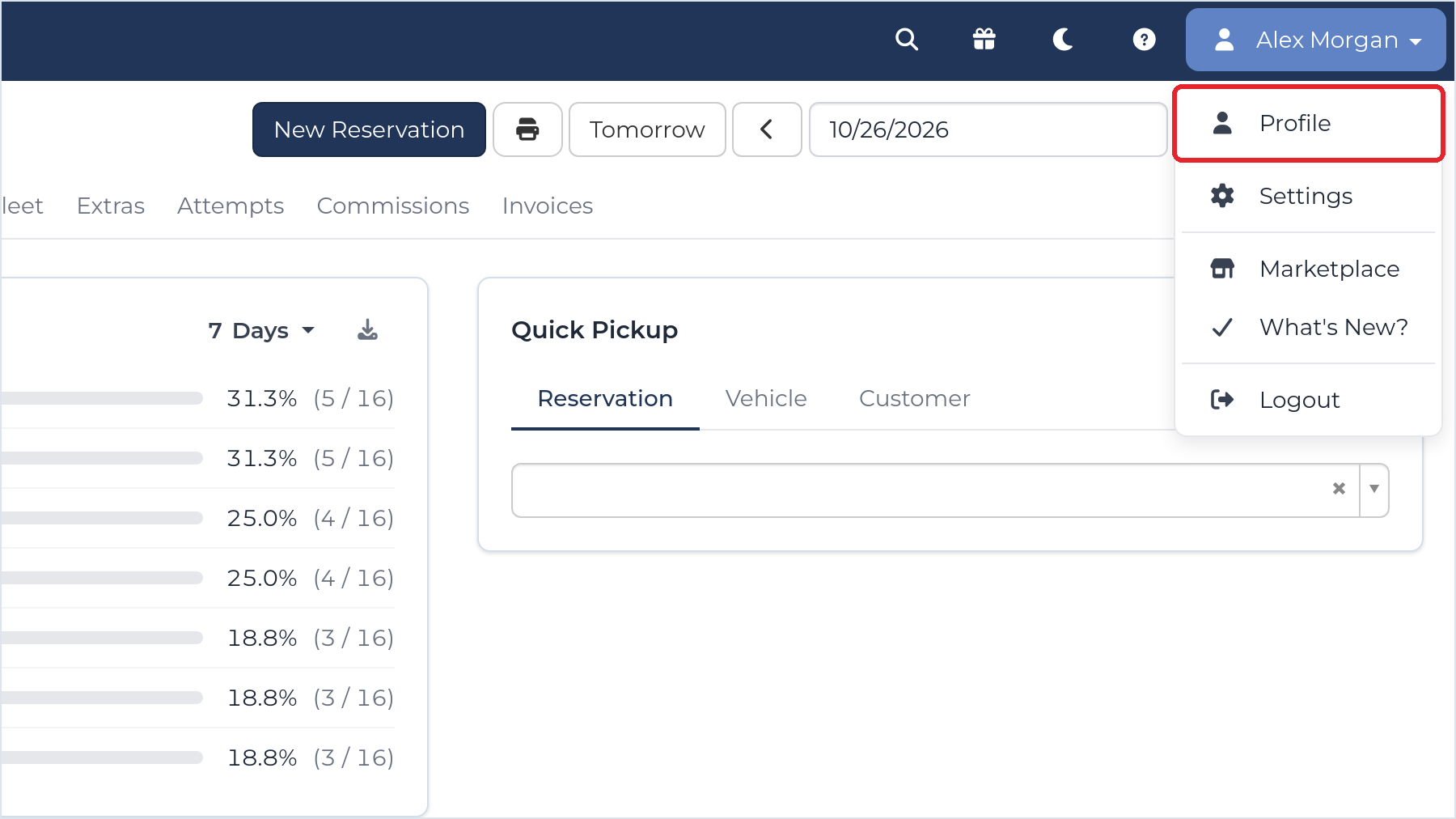
Section titled “Show Hidden Settings”- Click your name in the top right corner, then click Profile.
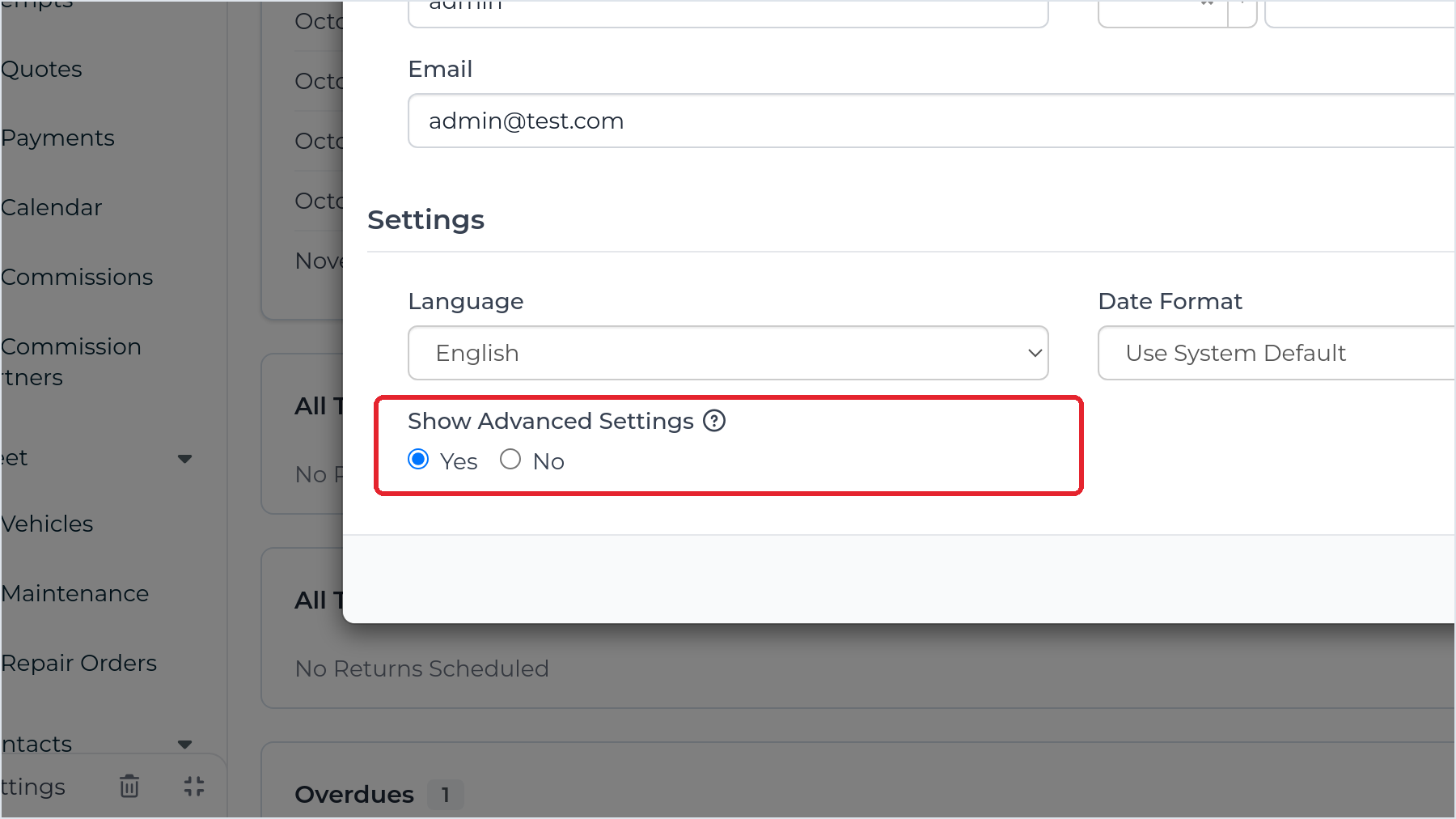
- In the User Profile window, find Show Advanced Settings and choose Yes.
- Click Save at the bottom of the window. Hidden settings now show on every settings page.
Show me where (2 pictures)
How It Works
Section titled “How It Works”Bands Without Gaps
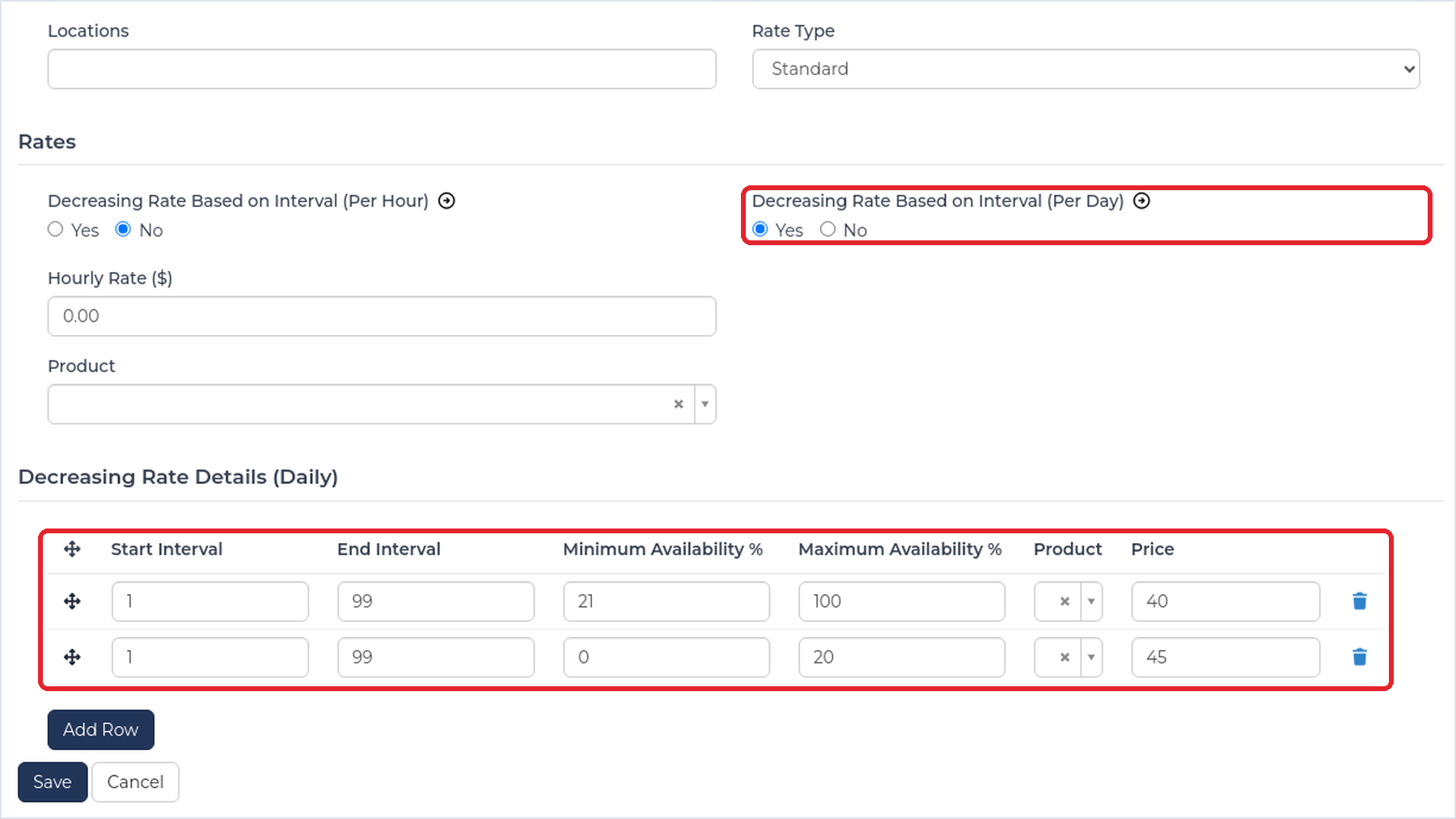
Section titled “Bands Without Gaps”Bands are checked as whole numbers. Make each band start one above where the last one ends.
Example: 0 to 20 and 21 to 100 cover every case. 0 to 20 and 30 to 100 leave 21 to 29 open, and those bookings get the first line’s price.
Set It Up
Section titled “Set It Up”Turn It On
Section titled “Turn It On”Get There
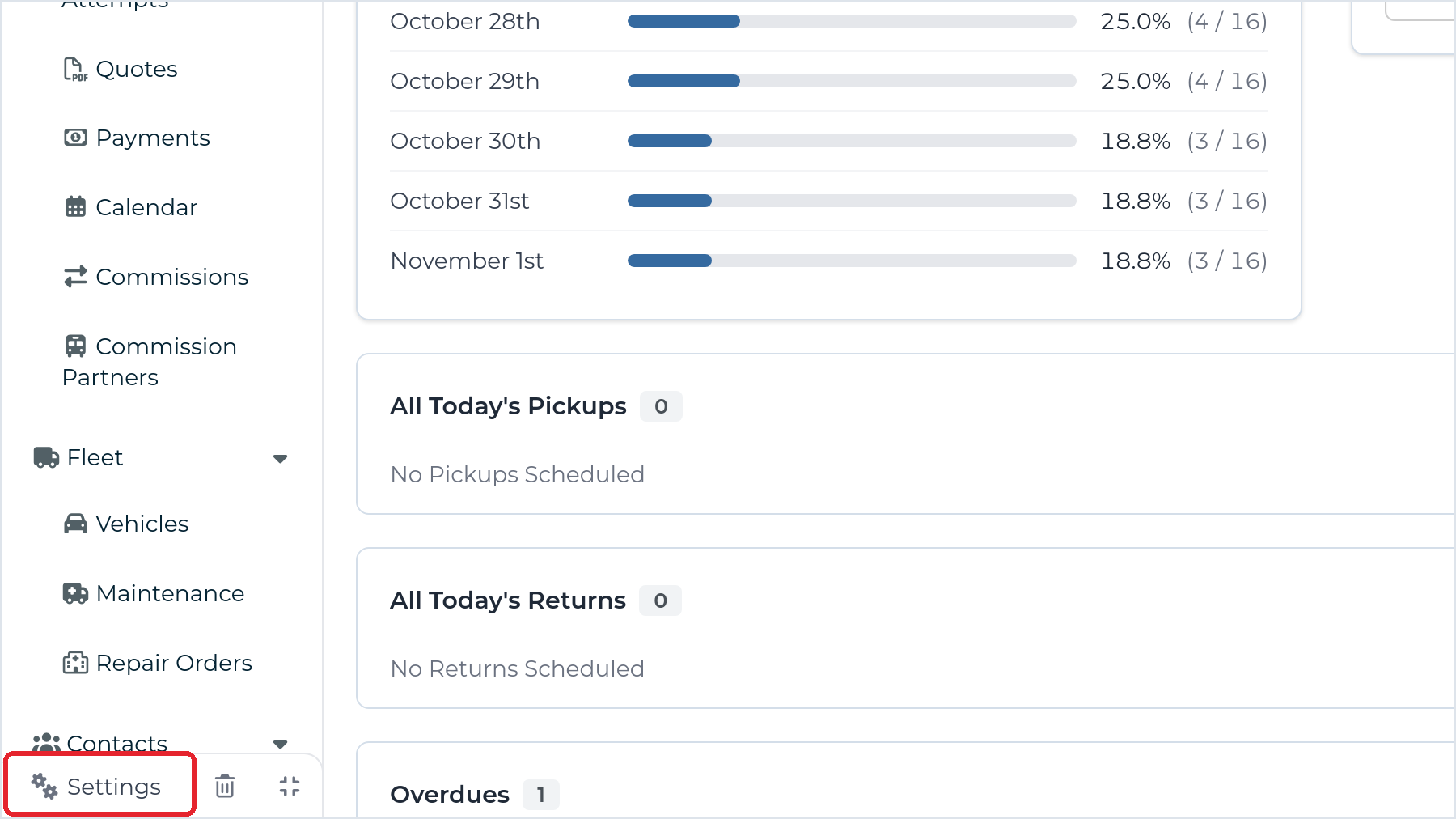
Section titled “Get There”- Click Settings at the bottom of the left menu.
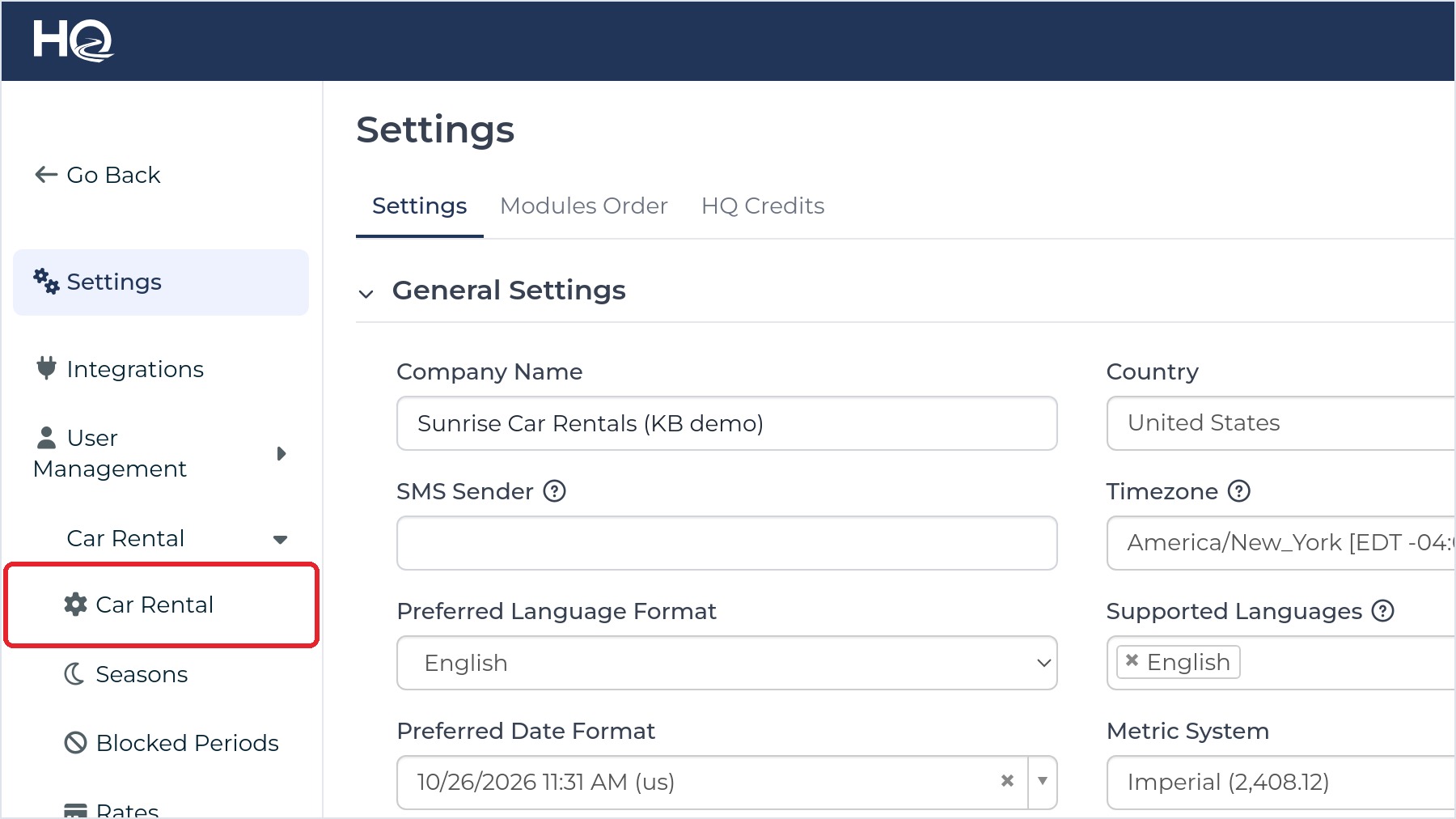
- In the left menu, under the group Car Rental, click Car Rental.
- Stay on the tab General Settings. Click the section Rates & Days Calculations to open it.
Show me where (3 pictures)
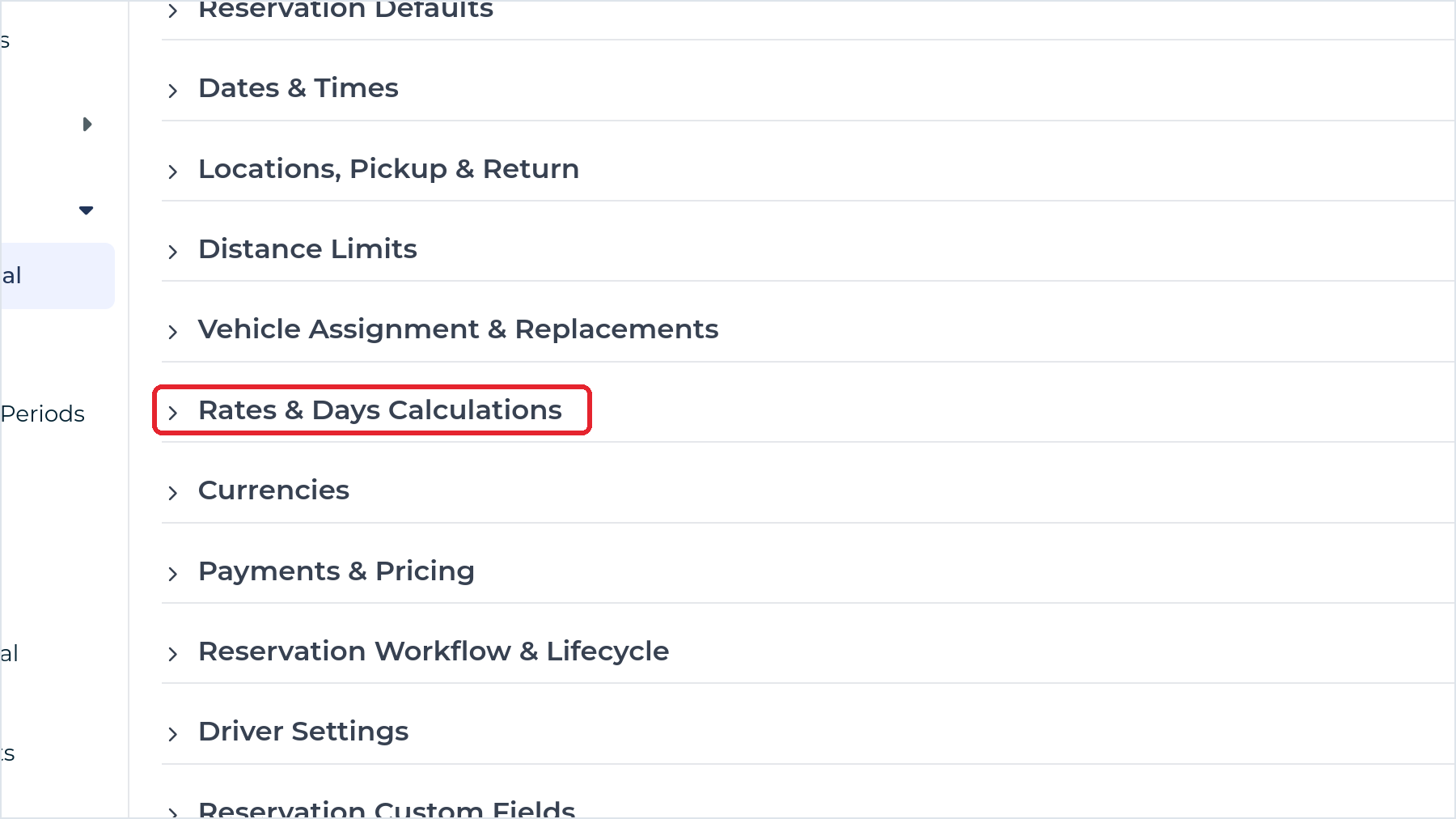
Page address: /settings/car-rental
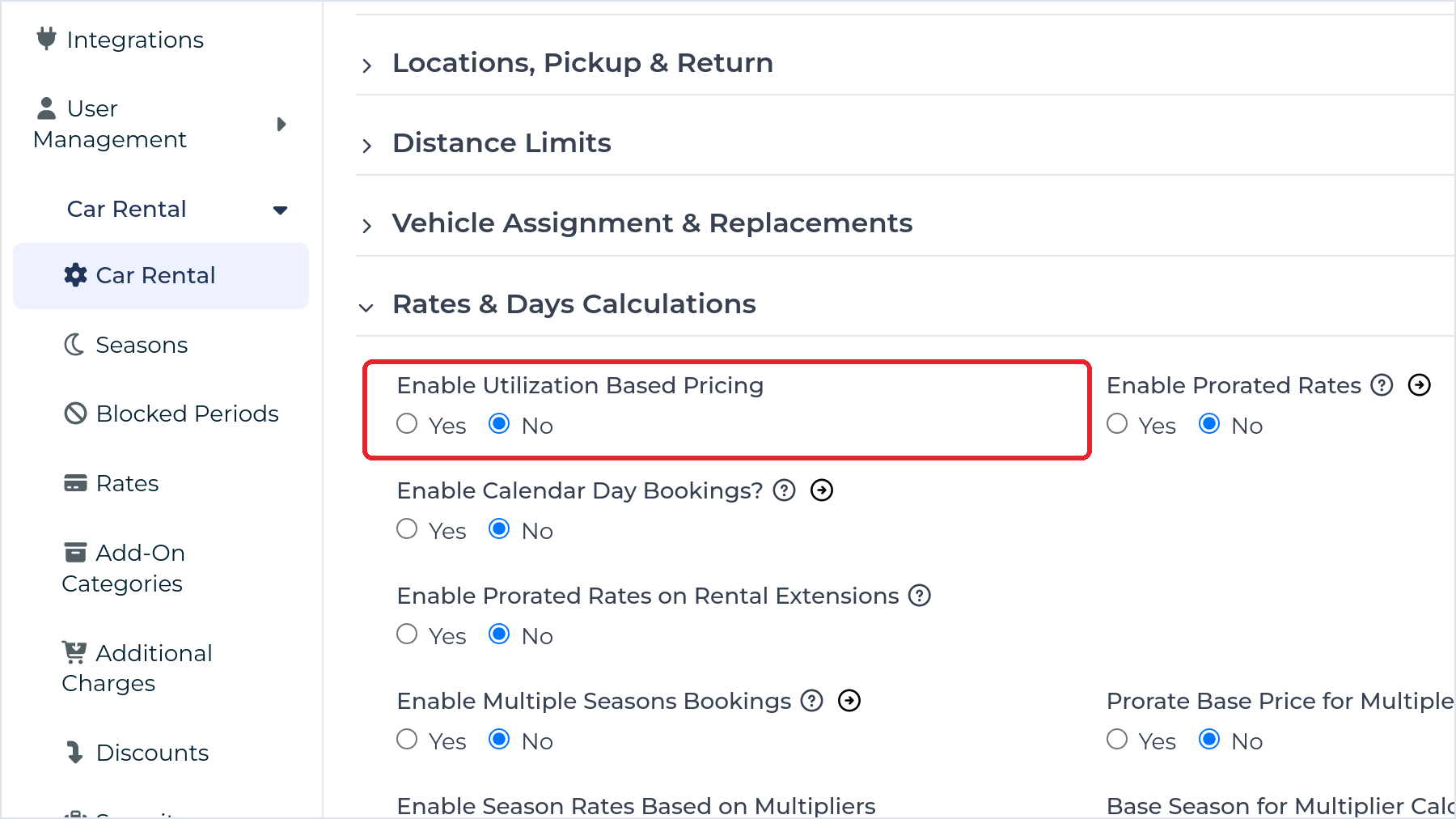
- Set Enable Utilization Based Pricing to Yes.
- Click Save at the bottom of the page. New rates now start with interval lines on.
Show me where (1 picture)
Add Bands To A Rate
Section titled “Add Bands To A Rate”Get There
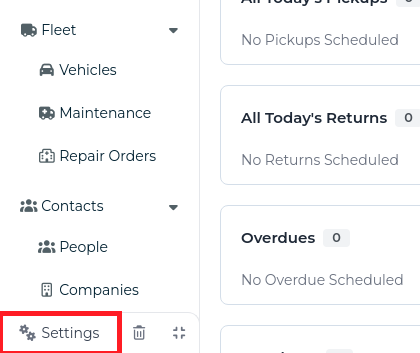
Section titled “Get There”- Click Settings at the bottom of the left menu.
- In the left menu, under the group Car Rental, click Rates.
Show me where (2 pictures)
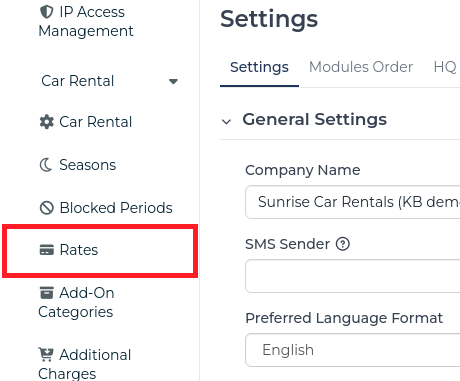
Page address: /settings/car-rental/rates
- Click the rate to open it, or click Add Rate.
- Set Decreasing Rate Based on Interval (Per Day) to Yes.
- In Decreasing Rate Details (Daily), fill in Start Interval, End Interval, Minimum Availability %, Maximum Availability % and Price.
- Click Add Row for each other band.
- Drag the lines so the one to check first is on top.
- Click Save at the bottom of the page.
Show me where (1 picture)
Good To Know
Section titled “Good To Know”- For hourly rentals, use Decreasing Rate Based on Interval (Per Hour) and Decreasing Rate Details (Hourly) the same way.
If Something Goes Wrong
Section titled “If Something Goes Wrong”Minimum Availability % Is Not On The Rate
Section titled “Minimum Availability % Is Not On The Rate”- Why it happens: The setting is No, or the rate does not use interval lines.
- What to do: Do both parts above, in order.
Settings Used In This Article
Section titled “Settings Used In This Article”- Enable Utilization Based Pricing: adds availability bands to the interval lines of every rate. Hidden setting in Settings, under Car Rental, tab General Settings, section Rates & Days Calculations.