Add A Manual Charge To A New Reservation
Before You Start
Section titled “Before You Start”- Plan or add-on: All plans, Car Rental module.
- You need: an Additional Charge (an extra or fee on a reservation) made for manual charges, for example Extra Services. See Create An Additional Charge.
How It Works
Section titled “How It Works”How HQ Prices The Amount
Section titled “How HQ Prices The Amount”The amount you enter replaces the price of the chosen Additional Charge. HQ then prices it by that charge’s Charge Type. Taxes and the location fee follow that charge’s settings. See How Each Charge Type Is Calculated.
Example: A 3 day rental. Extra Services has Charge Type Amount, and you enter 75.
- Amount: the price goes up by $75 once.
- With Daily Amount it would go up by 3 × $75 = $225.
When The Button Shows
Section titled “When The Button Shows”The button shows only while you create a new reservation in the back office, and only when Manual Rental Charge is set. Entering 0 removes the manual charge.
Example: You open step 3 of saved reservation 43. There is no Manual Charge button.
Set It Up
Section titled “Set It Up”Choose The Manual Rental Charge
Section titled “Choose The Manual Rental Charge”Get There
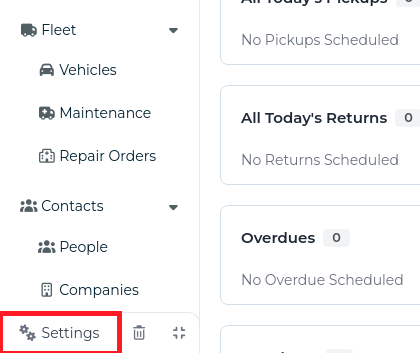
Section titled “Get There”- Click Settings at the bottom of the left menu.
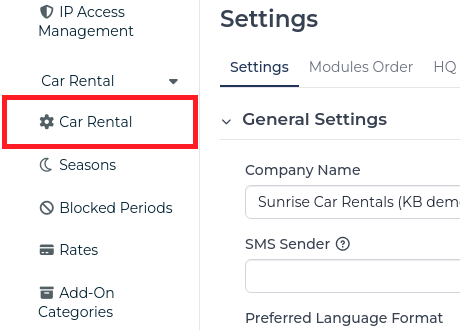
- In the left menu, under the group Car Rental, click Car Rental.
- Click the tab Charges & Fees at the top of the page.
Show me where (3 pictures)

Page address: /settings/car-rental/charges-and-fees
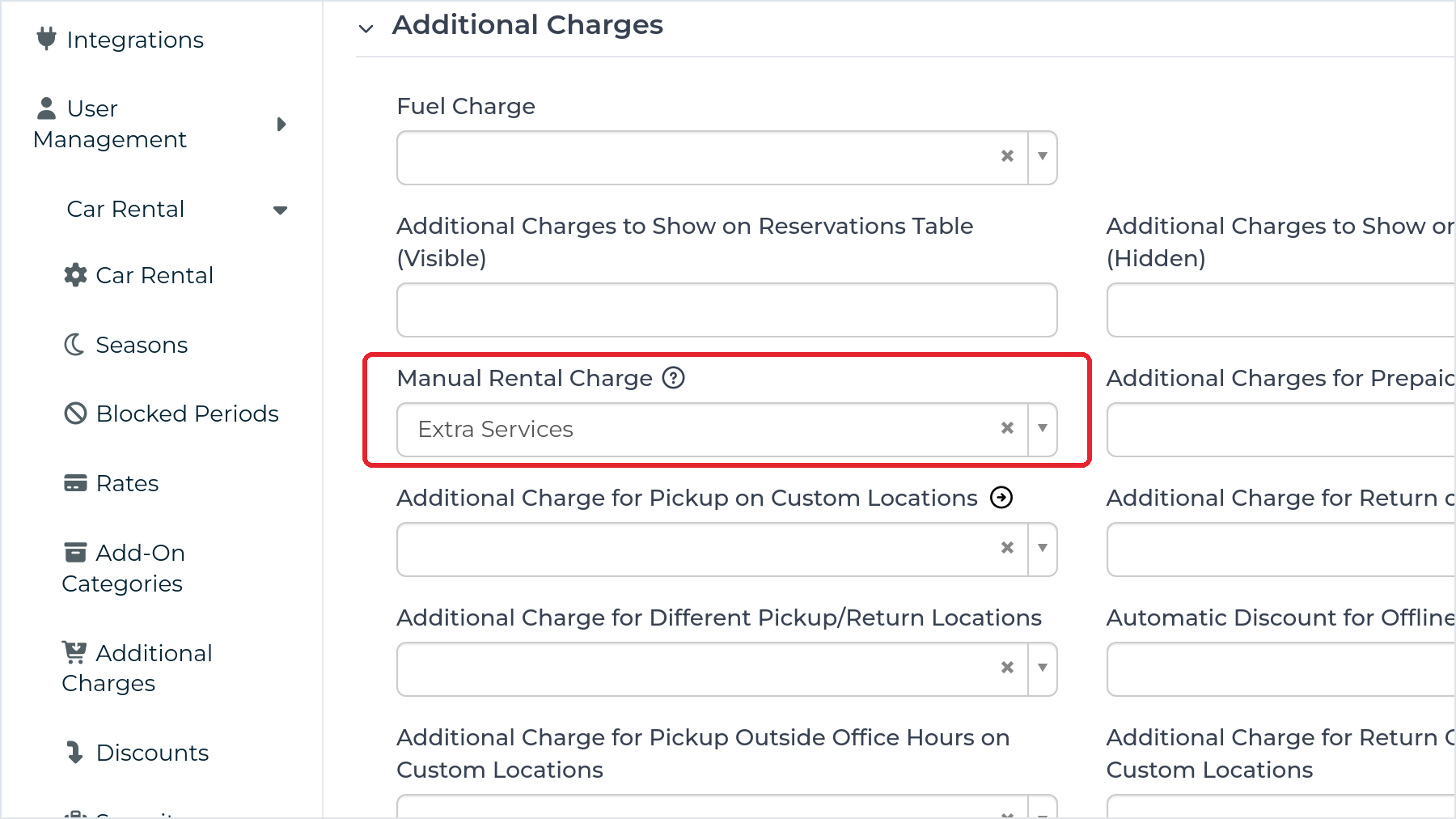
- Click the section Additional Charges to open it.
- In Manual Rental Charge, choose the Additional Charge to use, for example Extra Services.
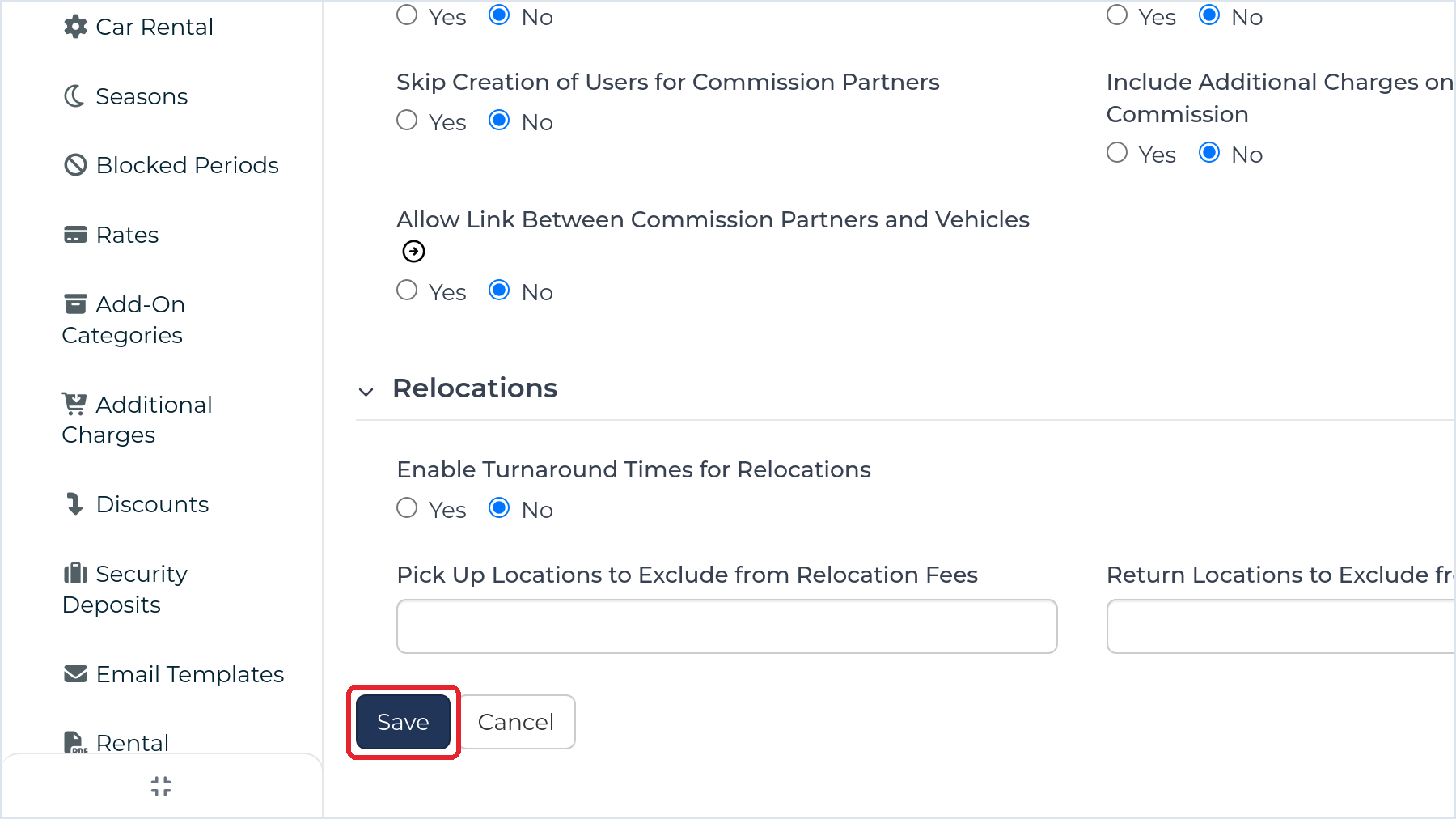
- Click Save at the bottom of the page.
Show me where (2 pictures)
Add The Manual Charge
Section titled “Add The Manual Charge”Get There
Section titled “Get There”- In the left menu, under the group Car Rental, click Reservations.
Show me where (1 picture)
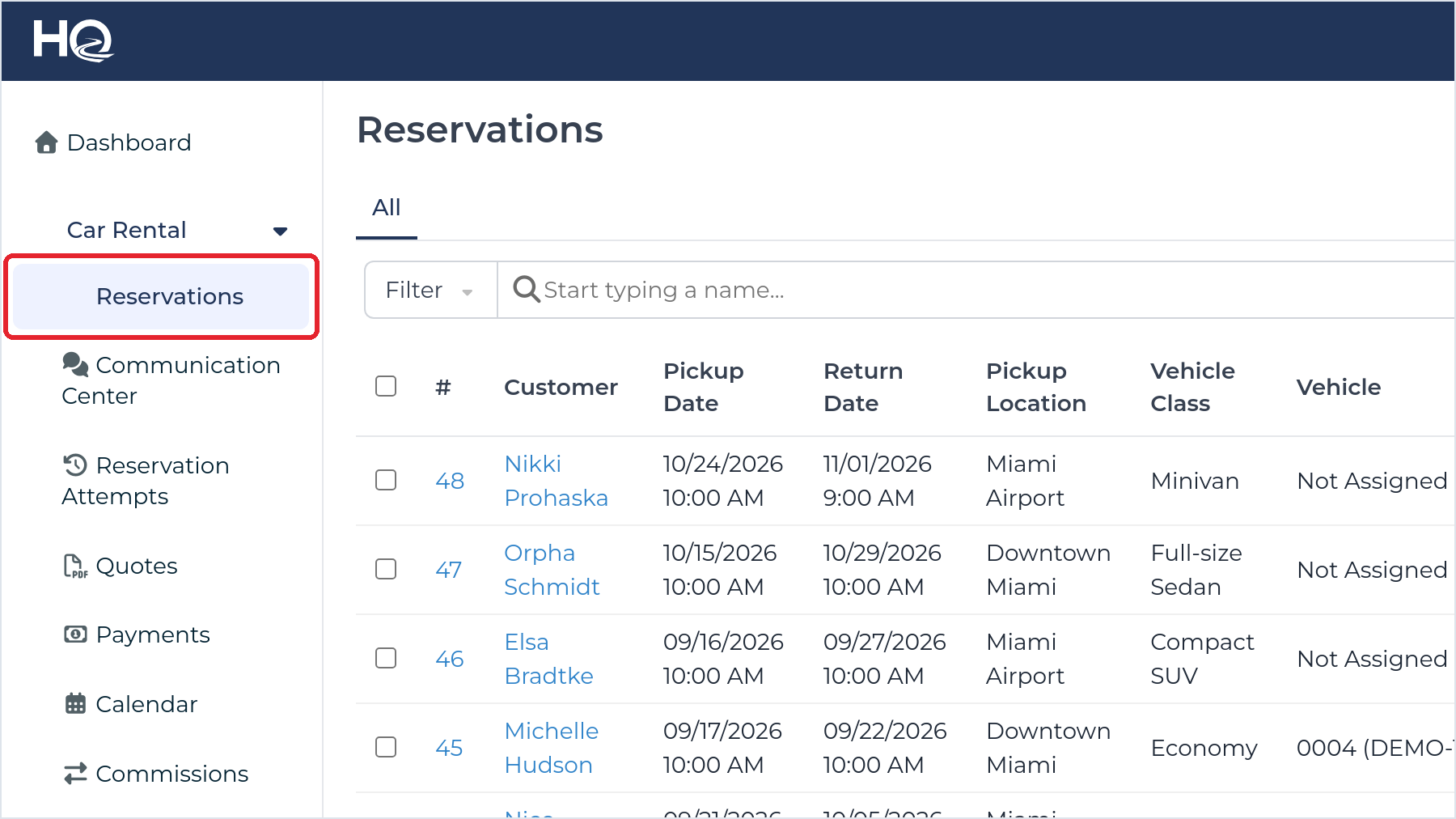
Page address: /car-rental/reservations
- Click New Reservation in the top right corner, and fill in steps 1 and 2 as usual.
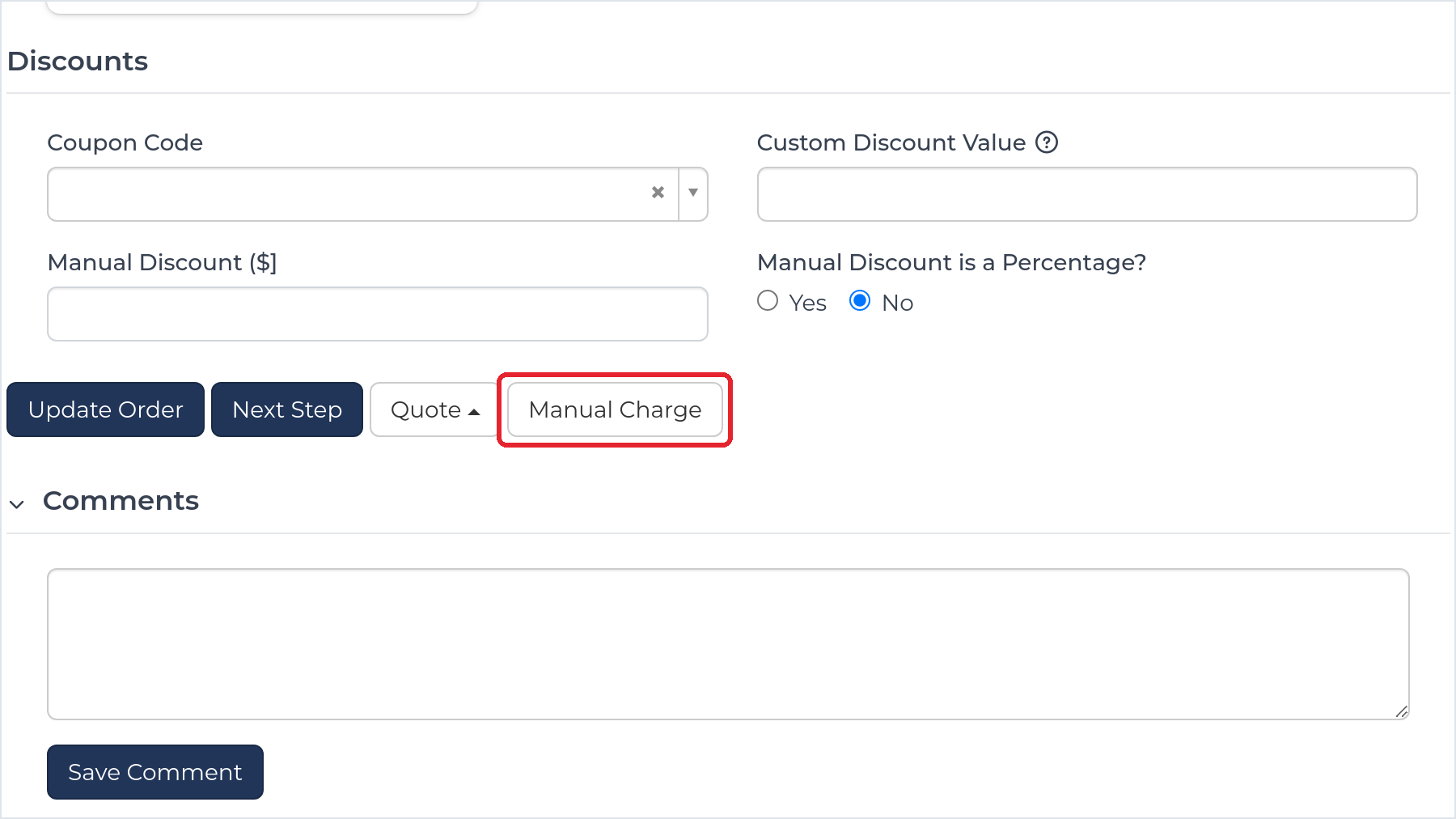
- In step 3, click Manual Charge below the box Discounts.
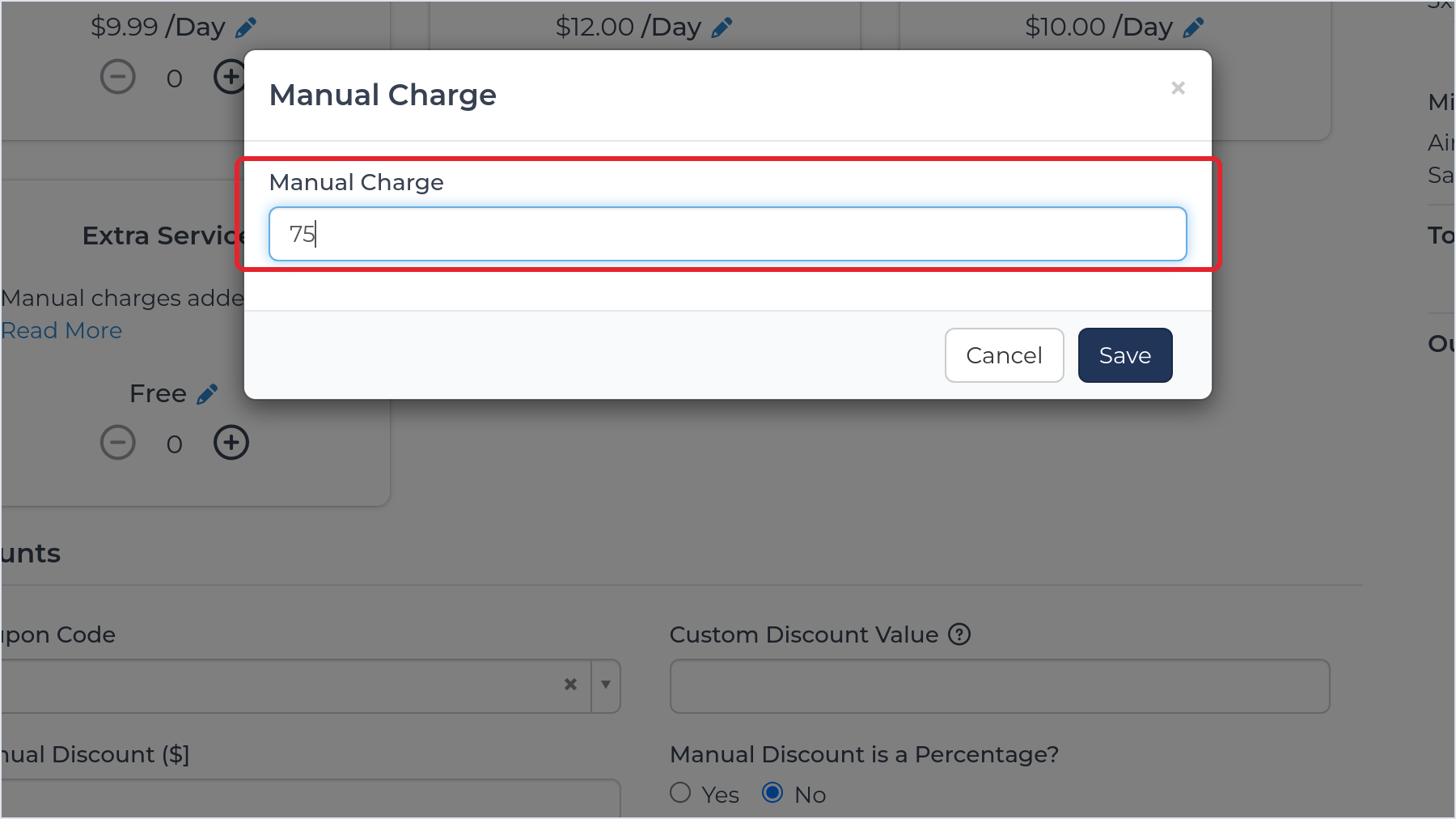
- In the Manual Charge window, enter the amount.
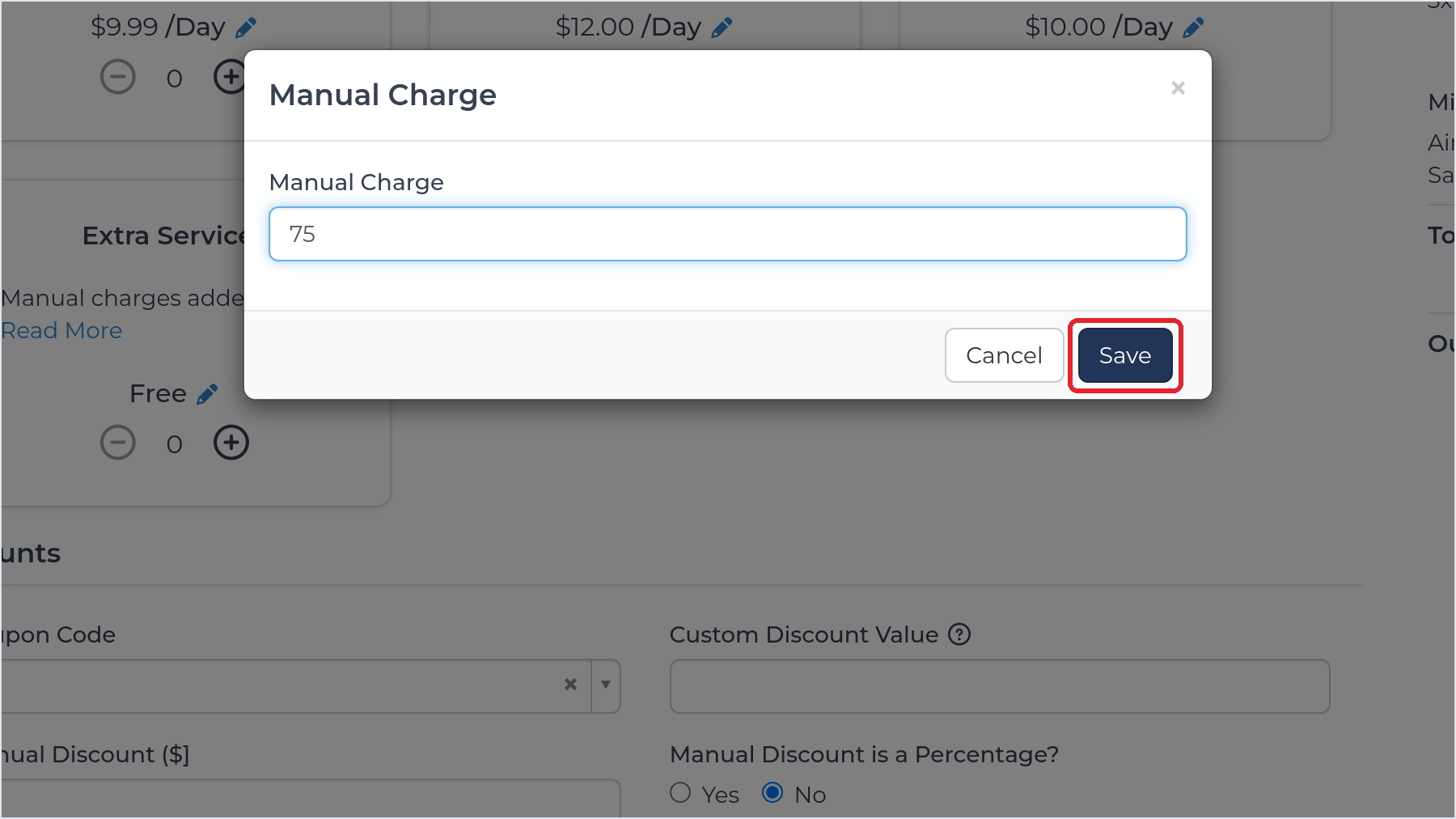
- Click Save. The price summary shows the new total.
Show me where (3 pictures)
Good To Know
Section titled “Good To Know”- The chosen Additional Charge also shows in step 3 like any other extra. Use a charge made only for this purpose.
- A quote sent from the new reservation keeps the manual charge, and so does the reservation booked from it.
If Something Goes Wrong
Section titled “If Something Goes Wrong”The Manual Charge Button Is Missing
Section titled “The Manual Charge Button Is Missing”- Why it happens: Manual Rental Charge is empty, or you are editing a saved reservation.
- What to do: Choose the charge in Manual Rental Charge. On a saved reservation, add or change charges in step 10. See Change Or Remove An Additional Charge In Step 10.
The Total Went Up More Than The Amount
Section titled “The Total Went Up More Than The Amount”- Why it happens: The chosen charge has Charge Type Daily Amount, or tax applies to it.
- What to do: Use an Additional Charge with Charge Type Amount.
Settings Used In This Article
Section titled “Settings Used In This Article”This setting is in Settings, under Car Rental, click Car Rental, tab Charges & Fees. Full details are in Charges & Fees Tab Reference: Additional Charges.
- Manual Rental Charge (Charges & Fees, Additional Charges): the Additional Charge that the Manual Charge button adds. Empty hides the button.
Related Articles
Section titled “Related Articles”- Charging Several Reservations At Once
- Create An Additional Charge
- How Each Charge Type Is Calculated
- How Additional Charges Are Priced
- Book A Reservation Step By Step
- Change Or Remove An Additional Charge In Step 10