Set Date Based Package Prices
Before You Start
Section titled “Before You Start”- Plan or add-on: Car Rental module, with Packages turned on by our support team.
How It Works
Section titled “How It Works”When A Dated Row Is Used
Section titled “When A Dated Row Is Used”Each row gets From Date, Until Date, For Bookings From and For Bookings Until. A row is used only when the pickup is on or after From Date and the return is before Until Date. The booking must also be made within the booking dates. Empty dates do not limit the row.
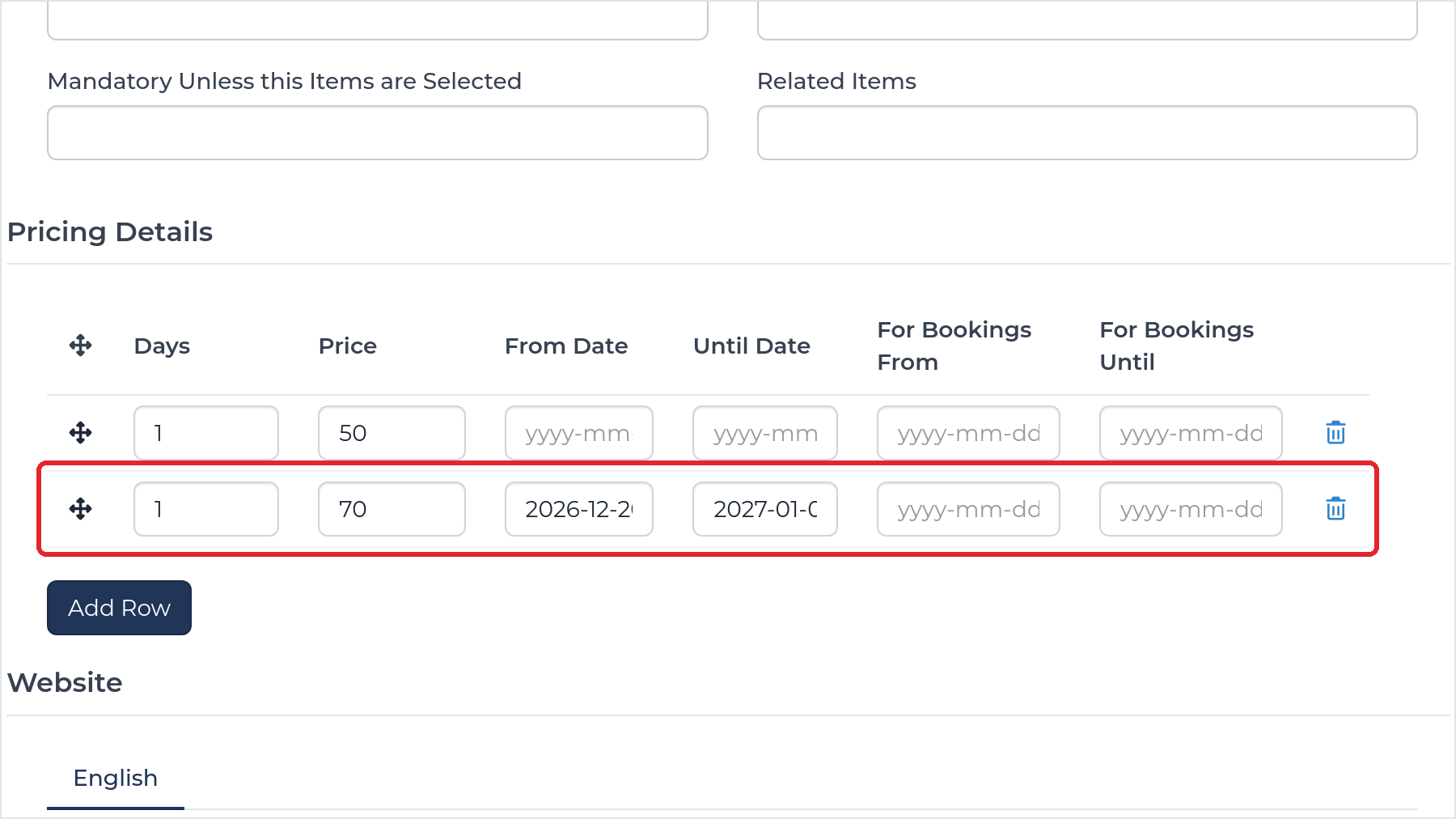
Example: Row A: 1 day, $50, no dates. Row B, below it: 1 day, $70, December 20 to January 6. December 22 to 24 uses row B: $140. January 3 to 7 returns after the Until Date, so it uses row A: $200.
Early Booking Prices
Section titled “Early Booking Prices”Use For Bookings Until to give a price only to bookings made by a date, whatever the travel dates.
Example: A row with For Bookings Until March 31 gives its price to bookings made by March 31.
Set It Up
Section titled “Set It Up”Turn It On
Section titled “Turn It On”Get There
Section titled “Get There”- Click Settings at the bottom of the left menu, then Car Rental.
- Click the tab Packages.
Page address: /settings/car-rental/packages-settings
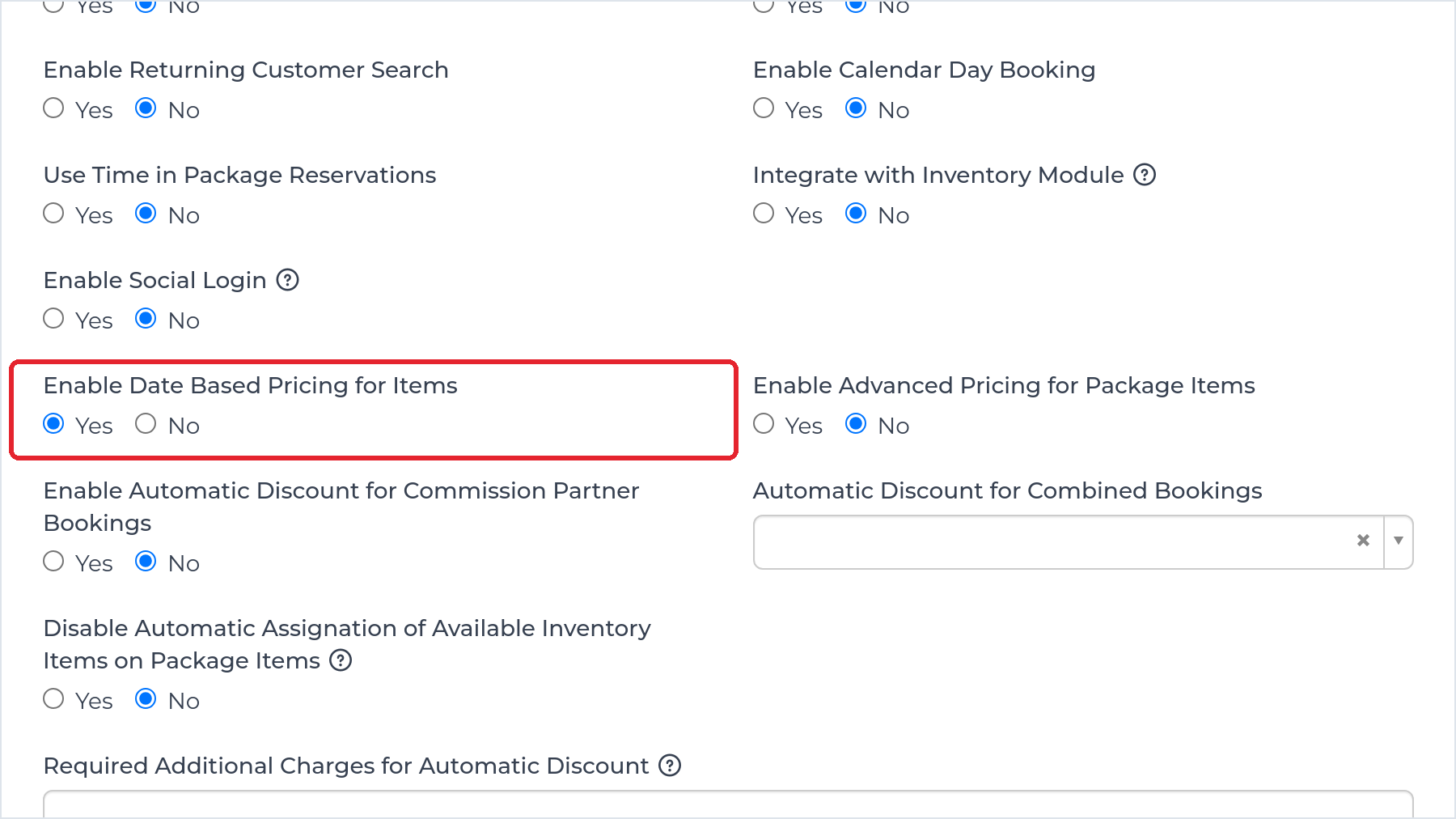
- Set Enable Date Based Pricing for Items to Yes.
- Click Save at the bottom of the page. The date columns show in every item’s Pricing Details.
Show me where (1 picture)
Add A Dated Price
Section titled “Add A Dated Price”- Open the Package Item.
- In Pricing Details, click Add Row and fill in Days, Price and the dates, in the format yyyy-mm-dd.
- Place the dated row below the undated row with the same Days.
- Click Save at the bottom of the page.
Show me where (1 picture)
If Something Goes Wrong
Section titled “If Something Goes Wrong”The Holiday Price Was Not Used
Section titled “The Holiday Price Was Not Used”- Why it happens: The return is after the Until Date, or the booking was made outside the booking dates. Or the holiday row is above the other row with the same Days.
- What to do: Check the dates, and move the holiday row below.
Settings Used In This Article
Section titled “Settings Used In This Article”- Enable Date Based Pricing for Items: adds the date columns. In the Car Rental settings, tab Packages.
Related Articles
Section titled “Related Articles”- Package Pricing
- Price A Package Item
- Set Up Advanced Package Pricing