Discounts
Before You Start
Section titled “Before You Start”- Plan or add-on: All plans, Car Rental module.
- Hidden settings: Hide Discounts and the tax settings in this article are hidden until you turn on Show Advanced Settings.
How It Works
Section titled “How It Works”Discount Types
Section titled “Discount Types”- Percentage: a percentage of the rental price. 20% of $300 is $60.
- Amount: a fixed amount, never more than the rental price. $50 off $300 leaves $250.
- Amount per Day: the amount once per rental day. $10 on 5 days is $50.
- Free Days: the price of that many days, using the first day’s price. 1 free day at $100 a day is $100.
- Amount per Item: only for Package reservations. It takes nothing off a regular rental.
How A Discount Gets On A Reservation
Section titled “How A Discount Gets On A Reservation”- Staff choose it from a list, or type its code. Customers booking online type the code.
- Online, only discounts with Visible For Direct booker? = Yes work.
- A discount with Days to apply this discount filled is added automatically to new reservations that long.
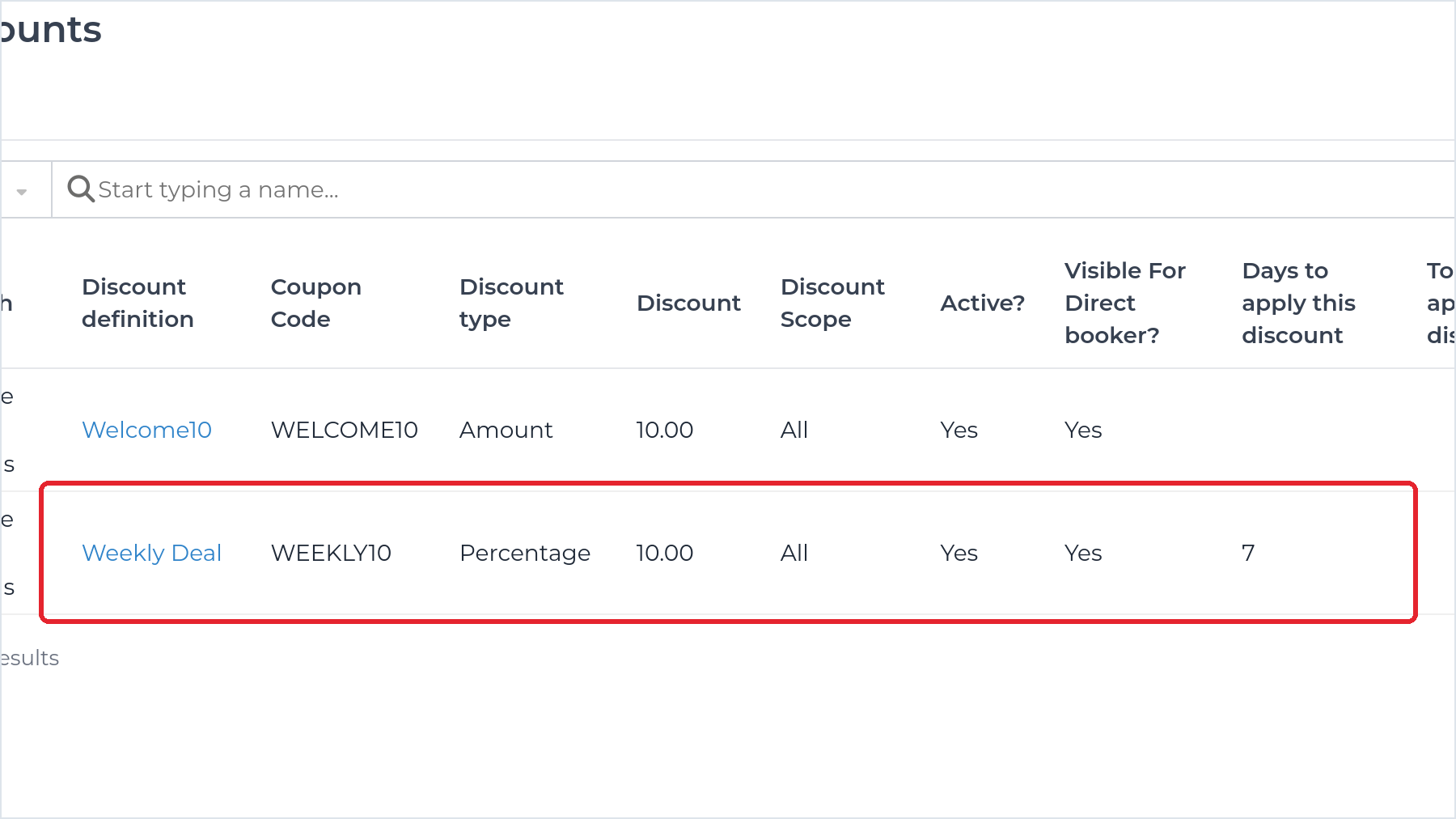
Example: Weekly Deal is a 10% discount with the code WEEKLY10 and a 7 day minimum. A customer enters WEEKLY10 on a 14 day rental and saves 10%.
Discounts And Taxes
Section titled “Discounts And Taxes”Discounts come off the rental price before taxes. The location fee and sales tax are calculated on the lower price.
Example: A $300 rental with a 20% discount and 10% sales tax: $300 − $60 = $240, plus $24 tax = $264.
Several Discounts
Section titled “Several Discounts”Each discount is worked out on the price before any discount, then the amounts are added. They do not compound.
Example: 10% and $20 off a $300 rental take $30 + $20 = $50 off. Two 10% discounts take $60 off.
Good To Know
Section titled “Good To Know”- If a later change breaks a condition, for example a shorter rental, HQ removes the discount.
- A discount used on a reservation cannot be deleted. Set Active? to No instead.
- The full calculation rules are in How Discounts Are Calculated.
If Something Goes Wrong
Section titled “If Something Goes Wrong”The Coupon Code Is Not Accepted
Section titled “The Coupon Code Is Not Accepted”- Why it happens: The discount is inactive, the dates or rental length are outside its limits, or the class or pickup Location is not allowed. Online, it may not be visible for direct bookers.
- What to do: Open the discount and check its Restrictions.
The Discount Disappeared After A Change
Section titled “The Discount Disappeared After A Change”- Why it happens: The new dates or length break one of its conditions.
- What to do: Check the discount’s limits against the new dates.
Settings Used In This Article
Section titled “Settings Used In This Article”All are hidden settings in Settings, under Car Rental. Full details are in General Settings Reference: Currencies, Payments And Workflow and Advanced Tab Reference: Locations, Pickup & Return And Pricing, Taxes & Discounts.
- Calculate Discounts After Taxes: treats amount discounts as amounts that include taxes. Tab General Settings, section Payments & Pricing.
- Hide Discounts: hides discounts from the menu and from reservations. Tab Advanced, section Pricing, Taxes & Discounts.
- Enable Discount Deduction Based on Percentages: splits a discount between the rental price and Additional Charges. Same section.