Fill In Missing Rates
Before You Start
Section titled “Before You Start”- Plan or add-on: All plans, Car Rental module.
How It Works
Section titled “How It Works”Which Rows Are Listed
Section titled “Which Rows Are Listed”Every active Season with every active Vehicle Class of the same Branch that has no rate of any Rate Type.
- With Enable Rates per Location = Yes, one row per Location without a rate.
- With Enable Season Rates Based on Multipliers = Yes, only the Seasons in Base Season for Multiplier Calculation.
Example: Branch North has Seasons Low and High, and classes Economy, Compact and SUV. Low and High have Economy rates, and Low has Compact. Fill Missing lists Low and SUV, High and Compact, and High and SUV.
What Is Saved
Section titled “What Is Saved”Each row with at least one price becomes a new rate, with no Rate Type and no intervals. An empty Daily Rate is saved as 0. Empty rows stay missing.
Example: You type Daily Rate 60 for High and Compact, and leave Low and SUV empty. HQ creates one rate. Low and SUV shows again next time.
Set It Up
Section titled “Set It Up”Fill In The Rates
Section titled “Fill In The Rates”Get There
Section titled “Get There”- Click Settings at the bottom of the left menu.
- In the left menu, under the group Car Rental, click Rates.
Show me where (2 pictures)
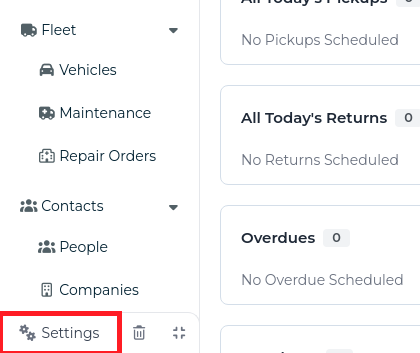
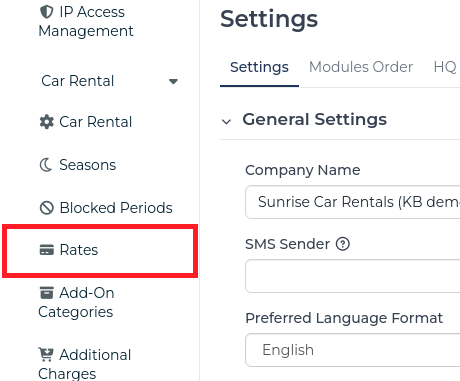
Page address: /settings/car-rental/rates
- Click ☰ at the top right of the list, then click Fill Missing.
- Type the prices of the rows you want to create, including the Daily Rate.
- Click Save.
- If you use Rate Types, open each new rate and choose its Rate Type.
Show me where (2 pictures)
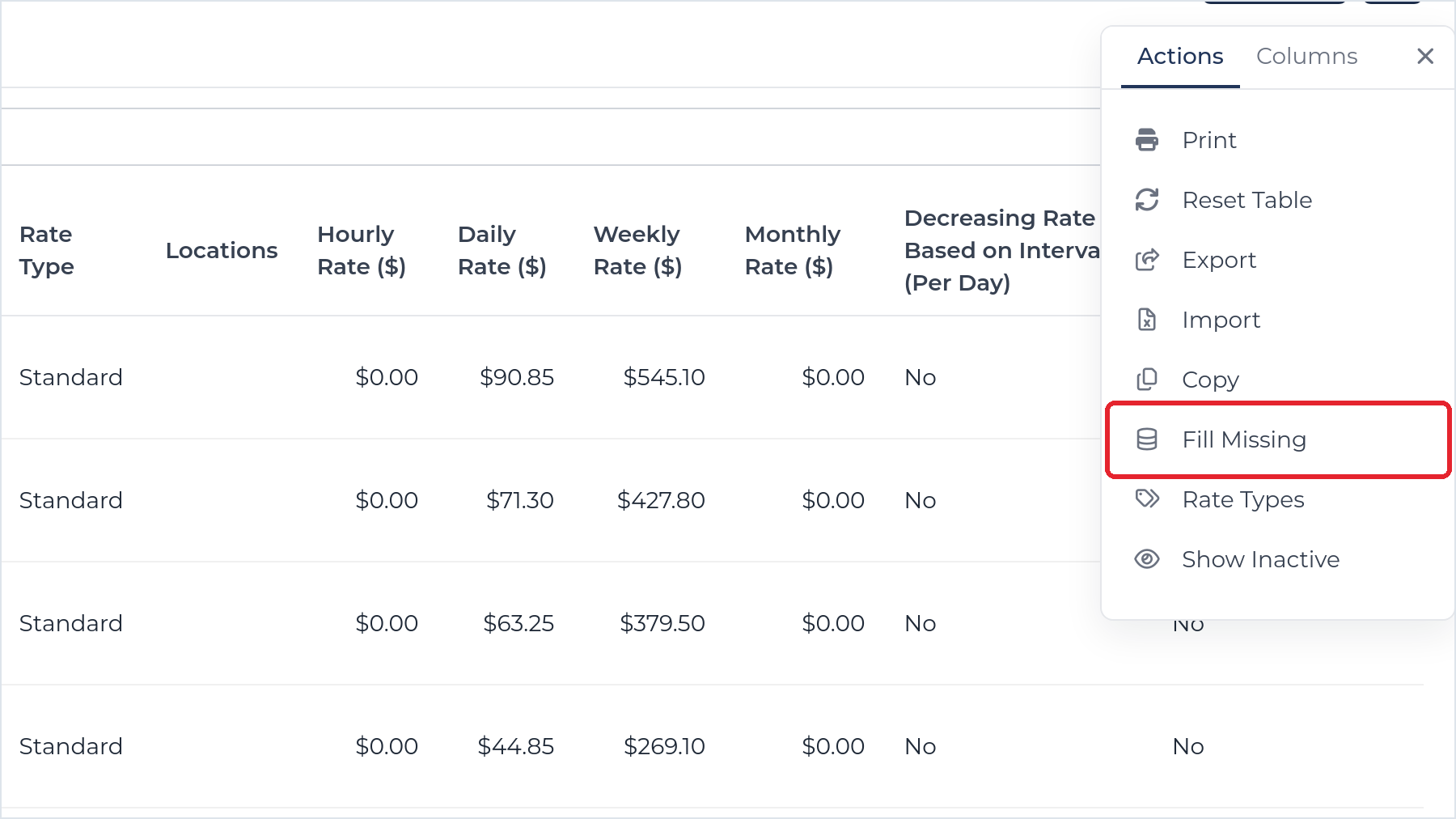
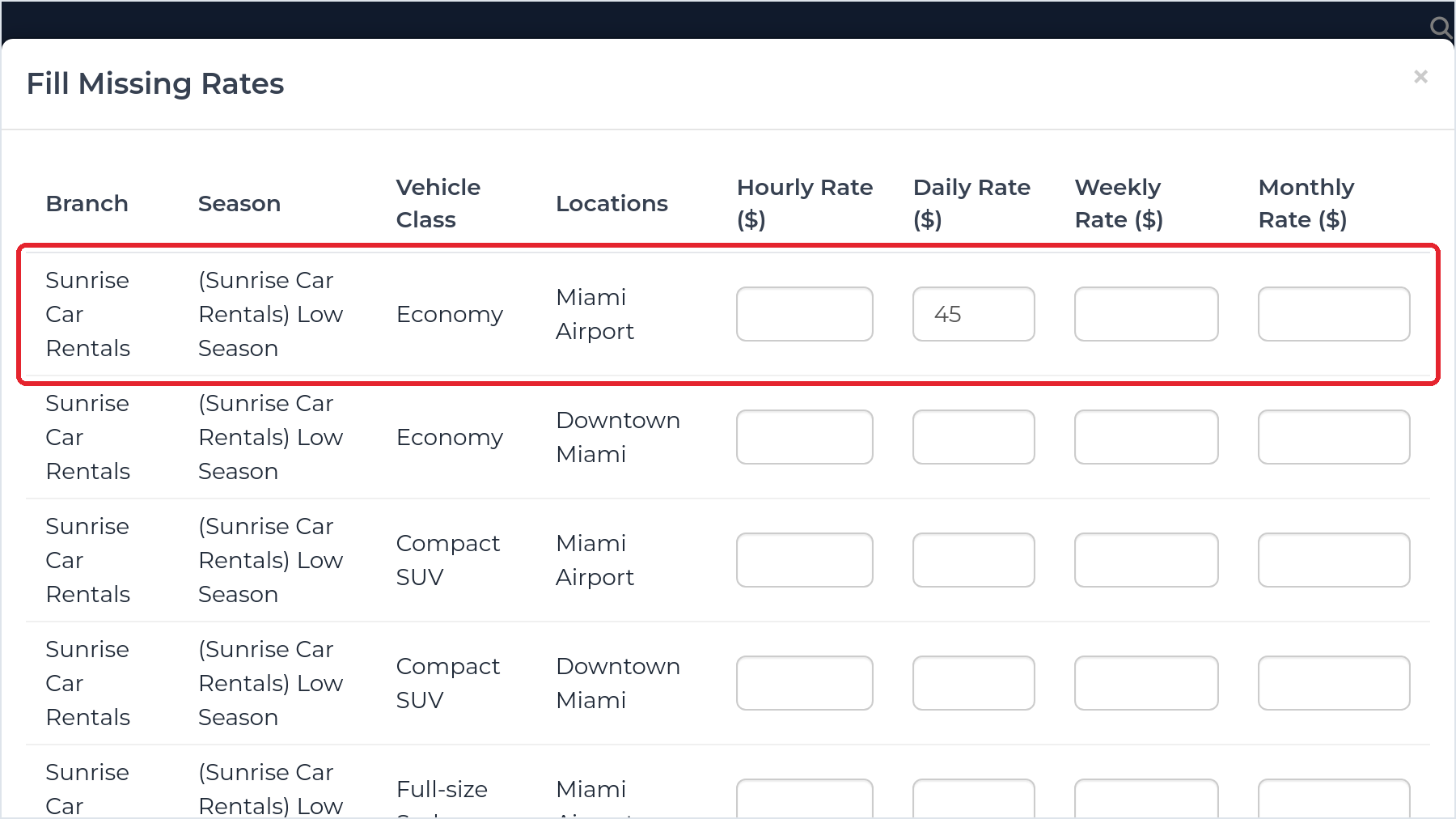
If Something Goes Wrong
Section titled “If Something Goes Wrong”A Combination Is Not Listed
Section titled “A Combination Is Not Listed”- Why it happens: It has a rate of any Rate Type, it is inactive or in the Rate Calendar, or it is not a base Season.
- What to do: Use Clone to add another rate for it.
A New Rate Has A Daily Rate Of 0
Section titled “A New Rate Has A Daily Rate Of 0”- Why it happens: Daily Rate was left empty.
- What to do: Open the rate and enter it.
Settings Used In This Article
Section titled “Settings Used In This Article”These are hidden settings in Settings, under Car Rental, tab General Settings, section Rates & Days Calculations.
- Enable Rates per Location: lists one row per Location.
- Enable Season Rates Based on Multipliers and Base Season for Multiplier Calculation: list only the base Seasons.