Map Market Codes To Your Vehicle Classes
Before You Start
Section titled “Before You Start”- Plan or add-on: Rate Radar paid add-on, turned on by our support team.
- Who can do it: roles with Can view Rate Radar.
- Equivalent SIPP Codes shows on a Vehicle Class only when Enable OTA Features on Vehicle Classes is Yes. That setting is hidden until you turn on Show Advanced Settings.
How It Works
Section titled “How It Works”Automatic Mapping
Section titled “Automatic Mapping”The market lists vehicles by SIPP code, a standard car code. When a code appears for the first time, HQ maps it to the active Vehicle Class with that SIPP Code. If there is none, it uses a class that lists the code in Equivalent SIPP Codes. Otherwise the code stays Not assigned.
Example: Economy has SIPP Code ECMR and lists EDMR in Equivalent SIPP Codes. Both market codes map to Economy.
Several Codes On One Class
Section titled “Several Codes On One Class”Several codes can point to the same Vehicle Class. Then, for each competitor, HQ uses the cheapest of those codes.
Example: A competitor charges $42 for ECMR and $39 for EDMR. Economy shows $39 for that competitor.
Set It Up
Section titled “Set It Up”Check Your SIPP Codes
Section titled “Check Your SIPP Codes”Get There
Section titled “Get There”- Click Settings at the bottom of the left menu.
- In the left menu, under the group Fleet, click Vehicle Classes.
Show me where (2 pictures)
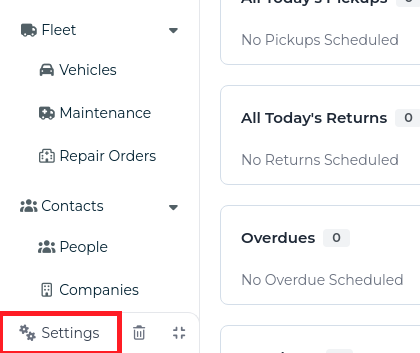
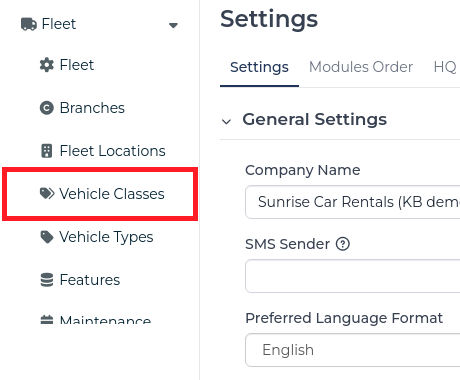
Page address: /settings/fleets/vehicle-classes
- Click a Vehicle Class to open it.
- Check its SIPP Code.
- In the section OTA Features, add other codes in Equivalent SIPP Codes.
- Click Save.
Show me where (2 pictures)
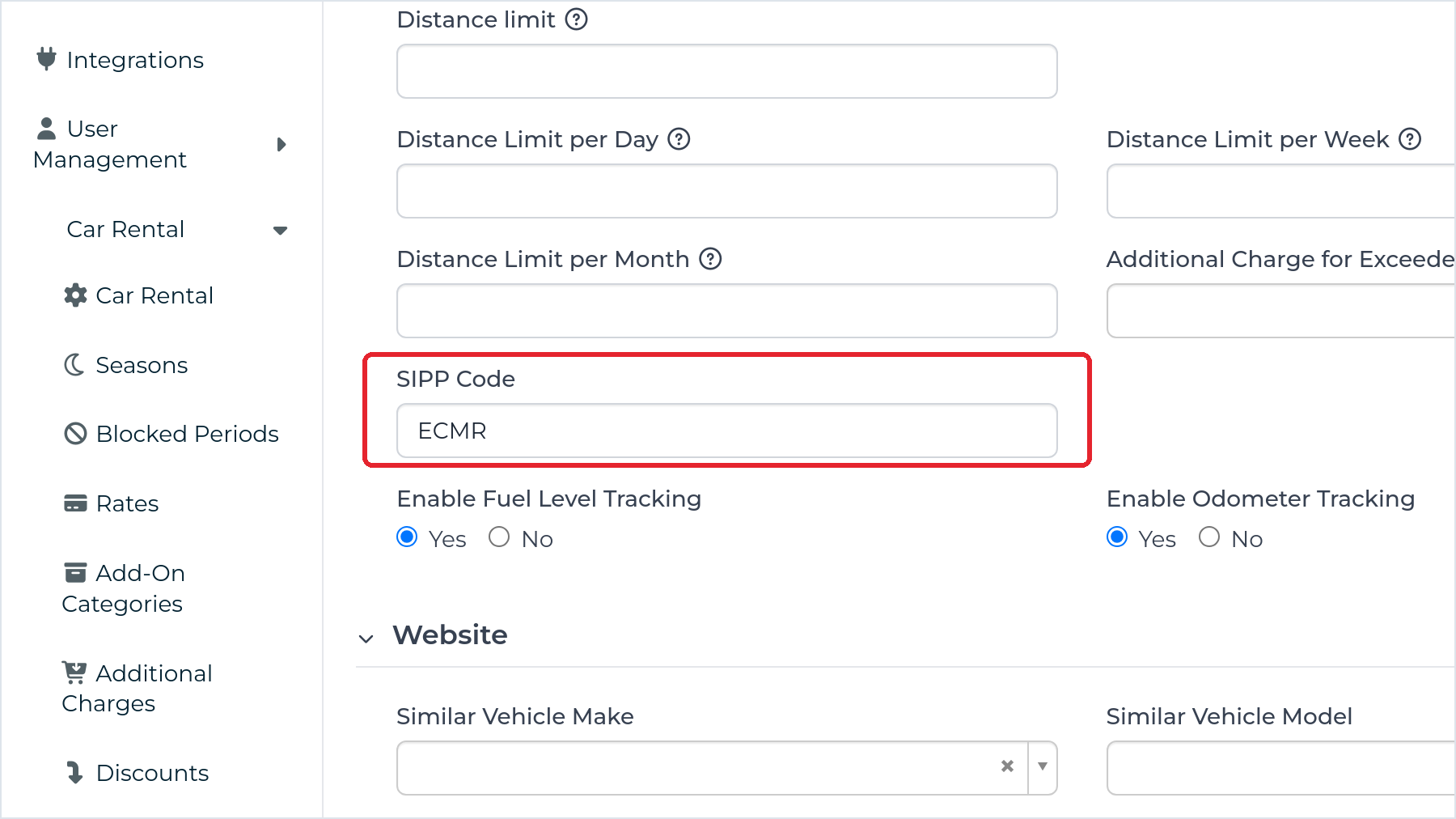
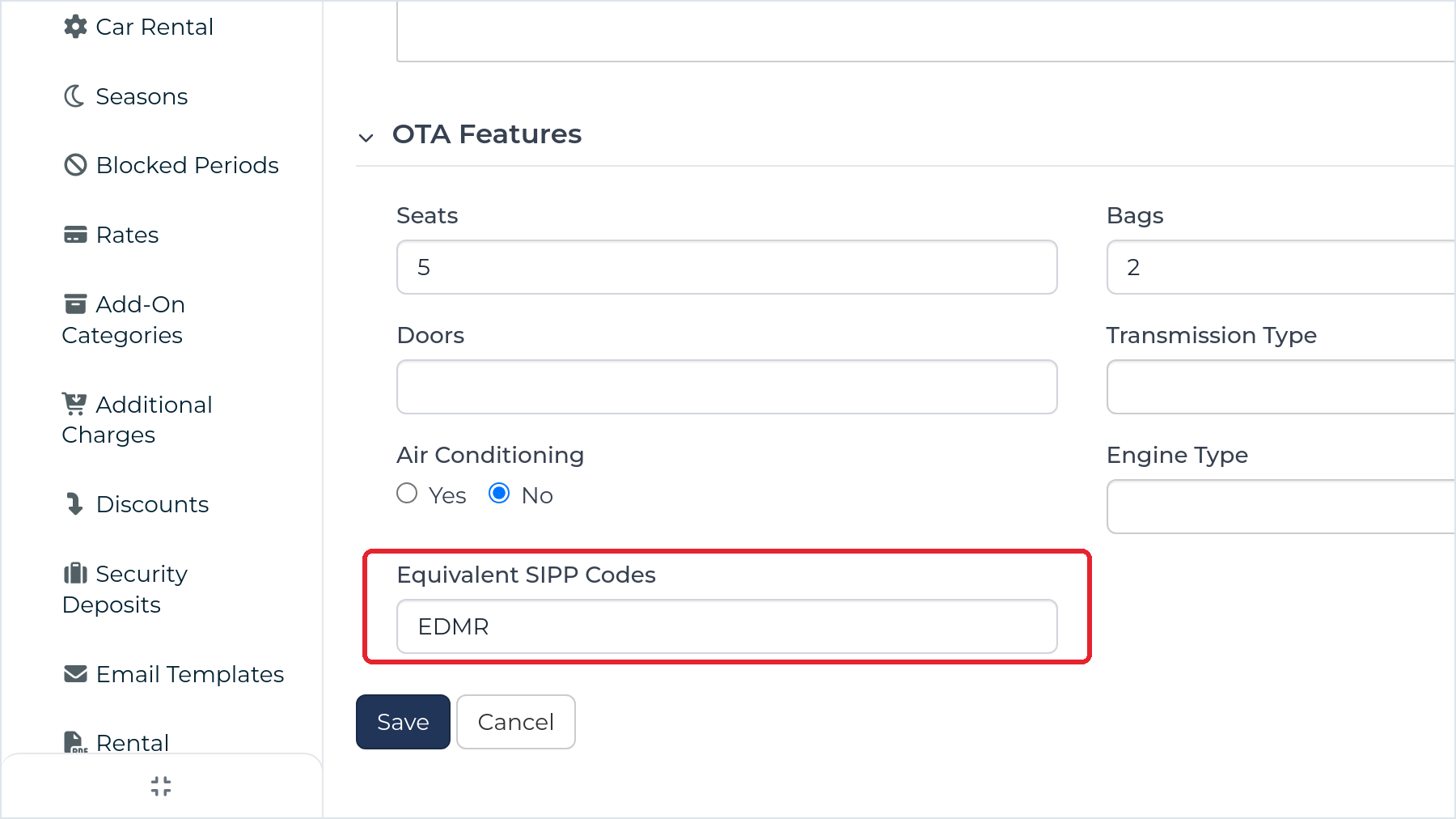
Map The Remaining Codes
Section titled “Map The Remaining Codes”Get There
Section titled “Get There”- In the left menu, under Car Rental, click Rate Radar.
- Click the tab Class mapping.
Page address: /car-rental/rate-radar/class-mappings
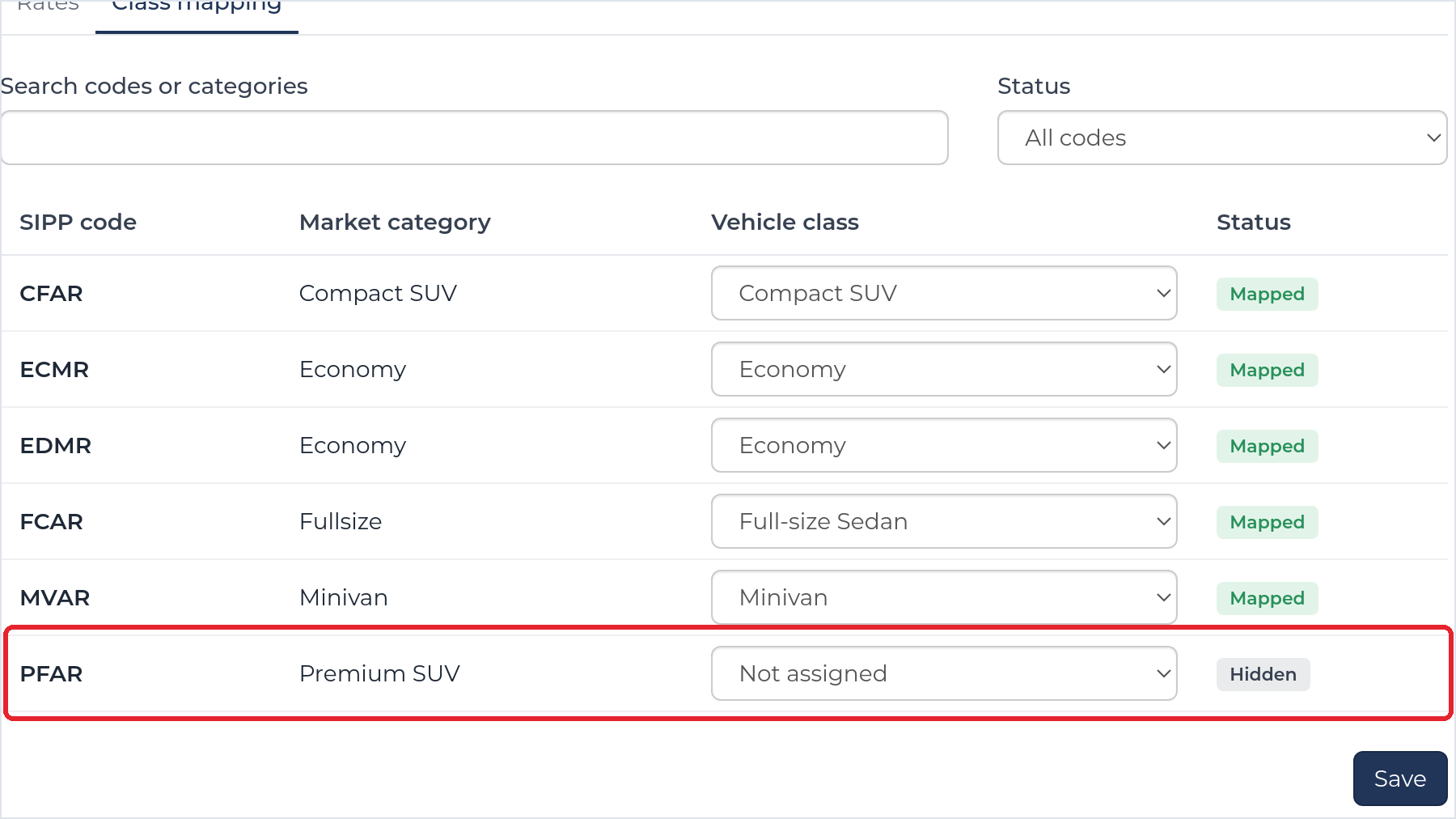
- Review the codes HQ mapped for you.
- Choose a Vehicle Class for each code that is Not assigned, or leave it for codes you do not rent.
- Click Save.
Show me where (1 picture)
Good To Know
Section titled “Good To Know”- Your choices are kept. A code you set to Not assigned is never mapped again automatically.
- Codes that are not assigned show Hidden, and their rates are left out of the Rates tab.
If Something Goes Wrong
Section titled “If Something Goes Wrong”The Rates Tab Says There Is Nothing To Compare
Section titled “The Rates Tab Says There Is Nothing To Compare”- Why it happens: No market code is mapped to one of your Vehicle Classes yet.
- What to do: Map the codes as shown above.
One Of My Vehicle Classes Is Missing
Section titled “One Of My Vehicle Classes Is Missing”- Why it happens: No code is mapped to it, or no competitor priced it for that selection.
- What to do: Check the Class mapping tab.
Settings Used In This Article
Section titled “Settings Used In This Article”- Enable OTA Features on Vehicle Classes: shows the section OTA Features, with Equivalent SIPP Codes, on each Vehicle Class. Hidden setting in Settings, under Car Rental, tab Advanced, section Other Features.