Set The Currency By Visitor Country
Before You Start
Section titled “Before You Start”- Plan or add-on: All plans, Car Rental module.
- Hidden settings: Set Currency Based on Location and Fallback Currency for not Supported Currency are hidden until you turn on Show Advanced Settings.
Show Hidden Settings
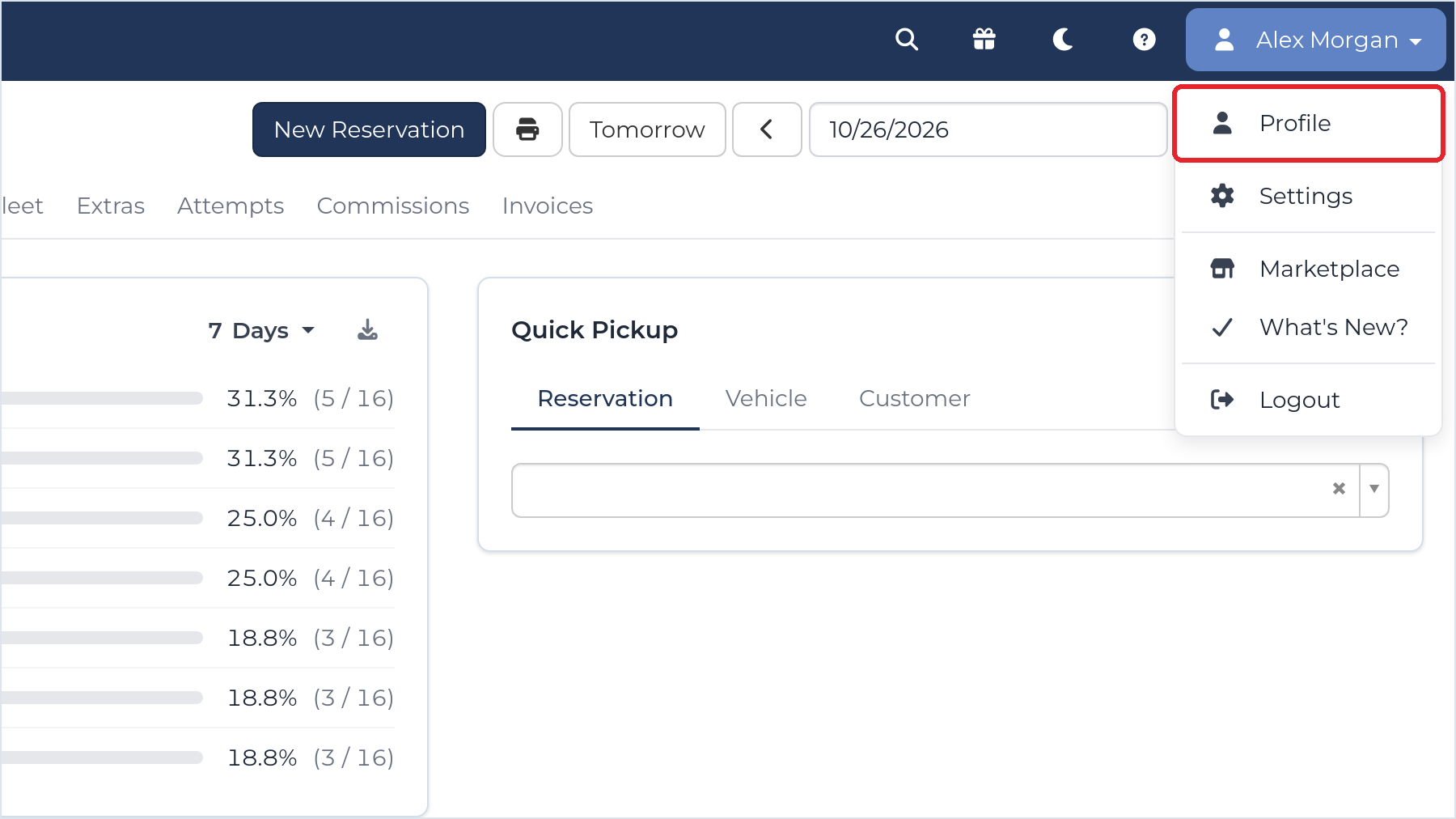
Section titled “Show Hidden Settings”- Click your name in the top right corner, then click Profile.
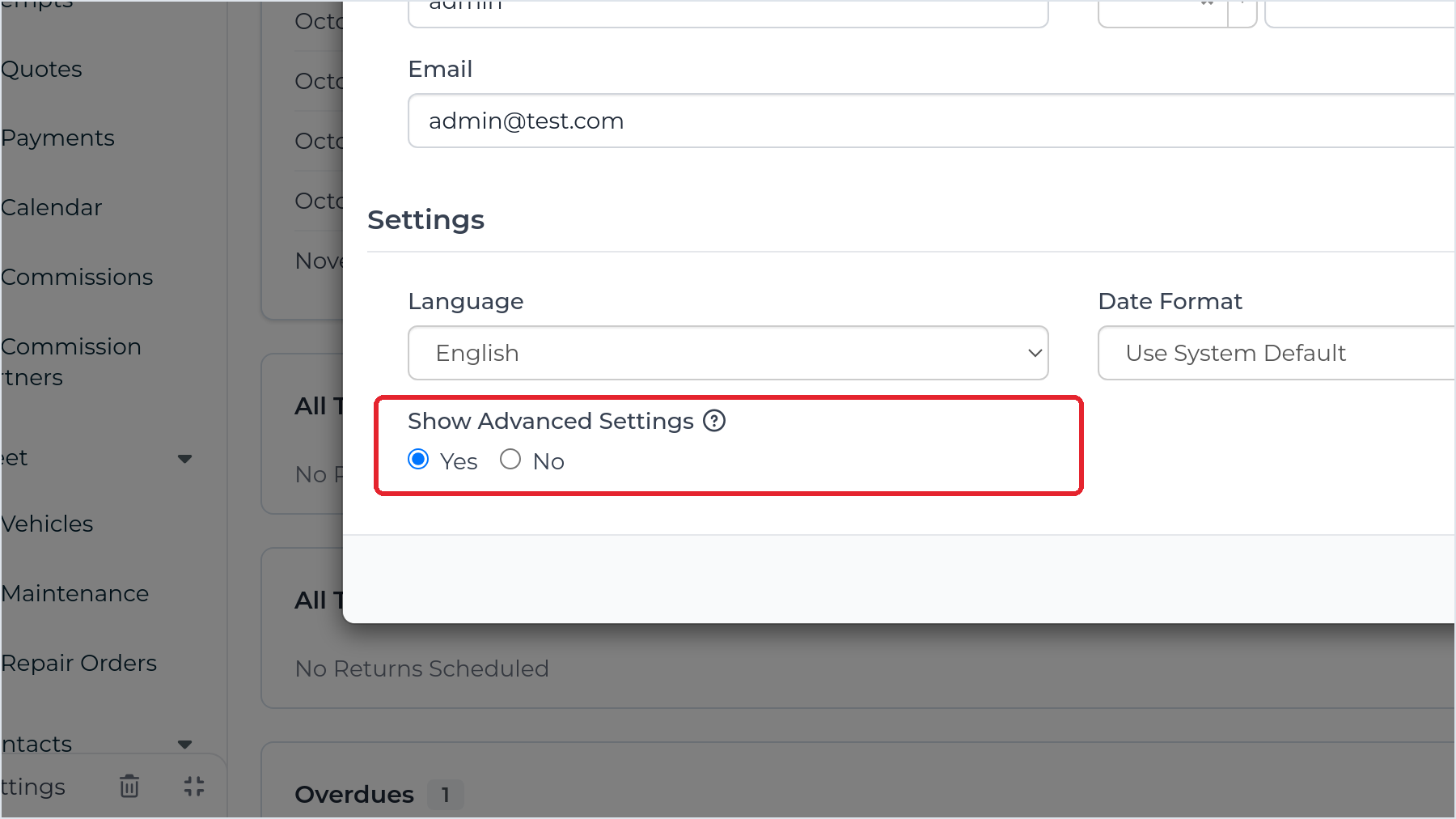
- In the User Profile window, find Show Advanced Settings and choose Yes.
- Click Save at the bottom of the window. Hidden settings now show on every settings page.
Show me where (2 pictures)
How It Works
Section titled “How It Works”Supported Or Fallback
Section titled “Supported Or Fallback”HQ detects the country from the visitor’s connection. If its currency is in Supported Currencies, the booking engine starts in it. If not, it starts in the Fallback Currency for not Supported Currency.
Example: You support EUR and USD, and the fallback is USD. A visitor from Spain starts in EUR. A visitor from Japan starts in USD.
Allowed Countries
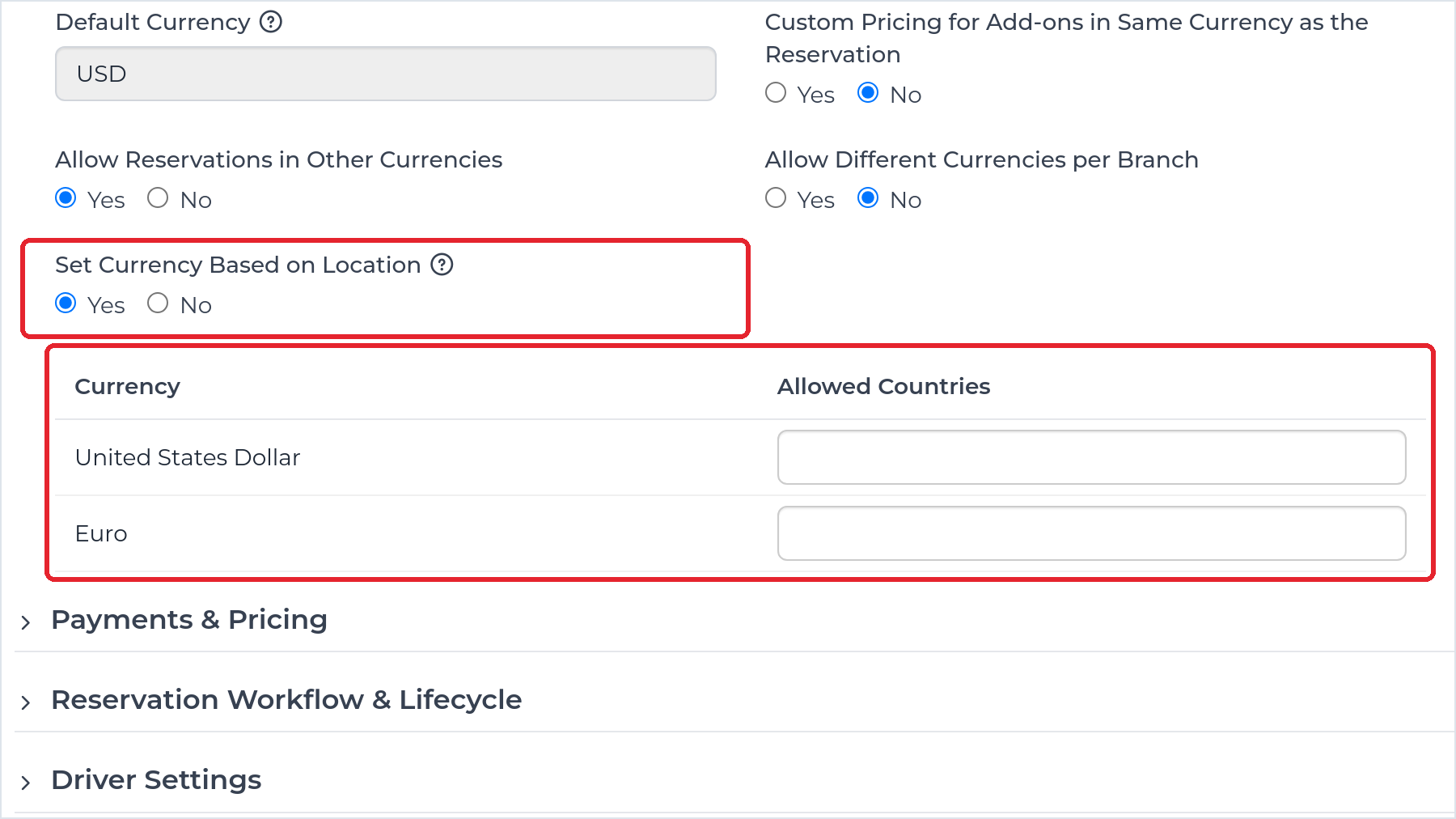
Section titled “Allowed Countries”A currency with countries in Allowed Countries is offered only to visitors from those countries. Empty means every country.
Example: You set Euro to Spain and France. A visitor from Germany does not see Euro in the currency list.
Set It Up
Section titled “Set It Up”Turn It On
Section titled “Turn It On”Get There
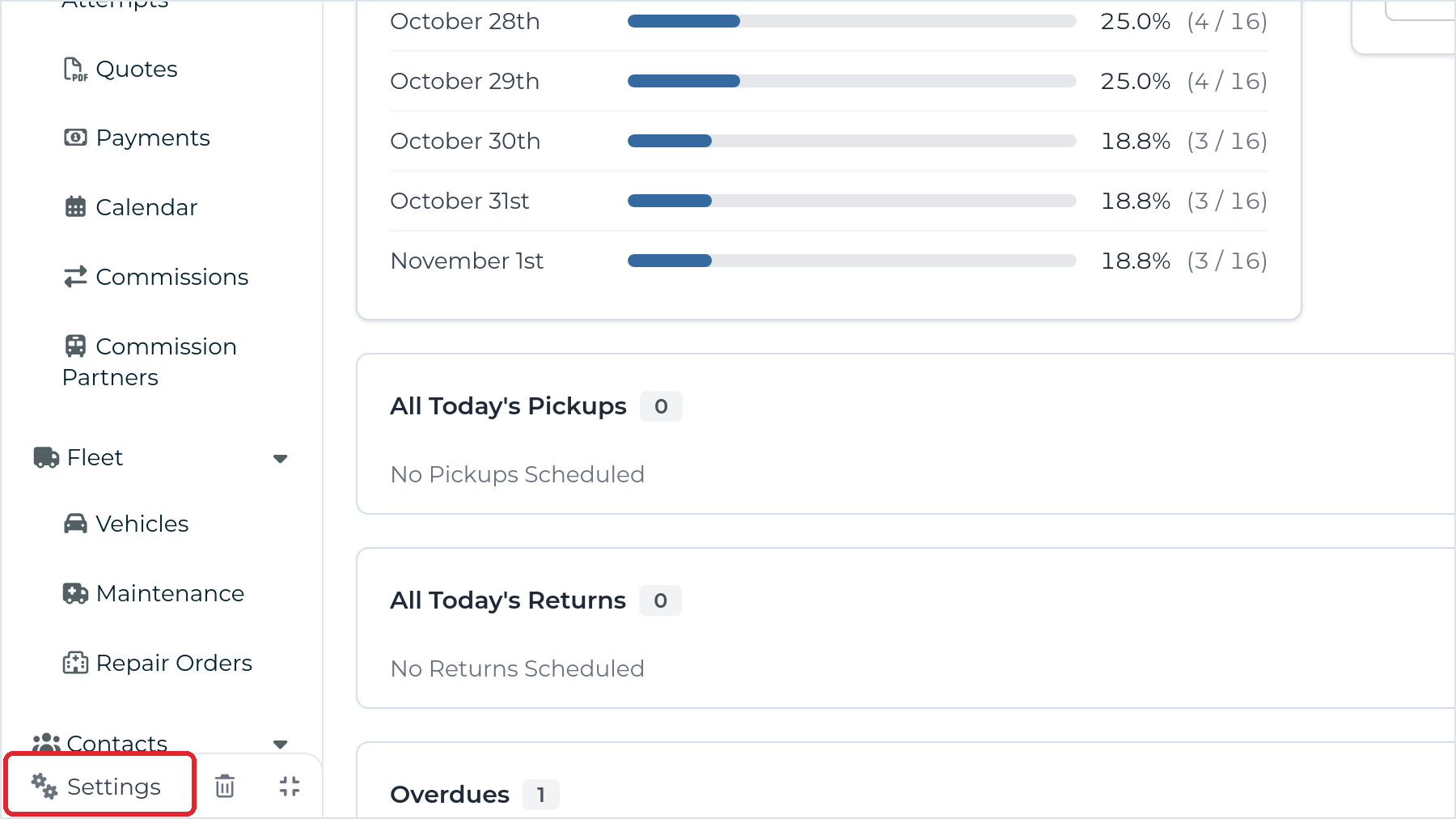
Section titled “Get There”- Click Settings at the bottom of the left menu.
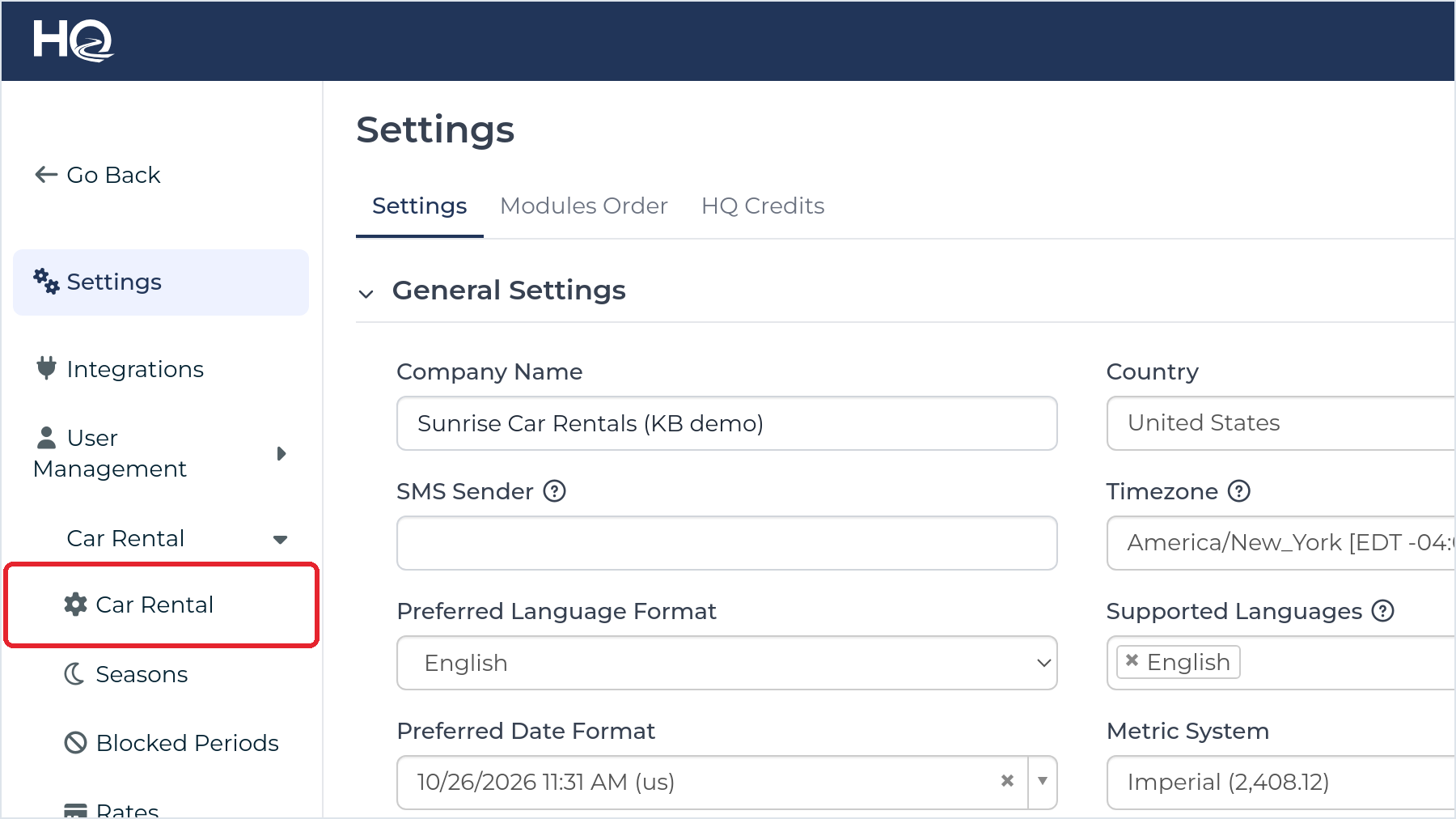
- In the left menu, under the group Car Rental, click Car Rental.
- Stay on the tab General Settings. It opens first.
Show me where (3 pictures)
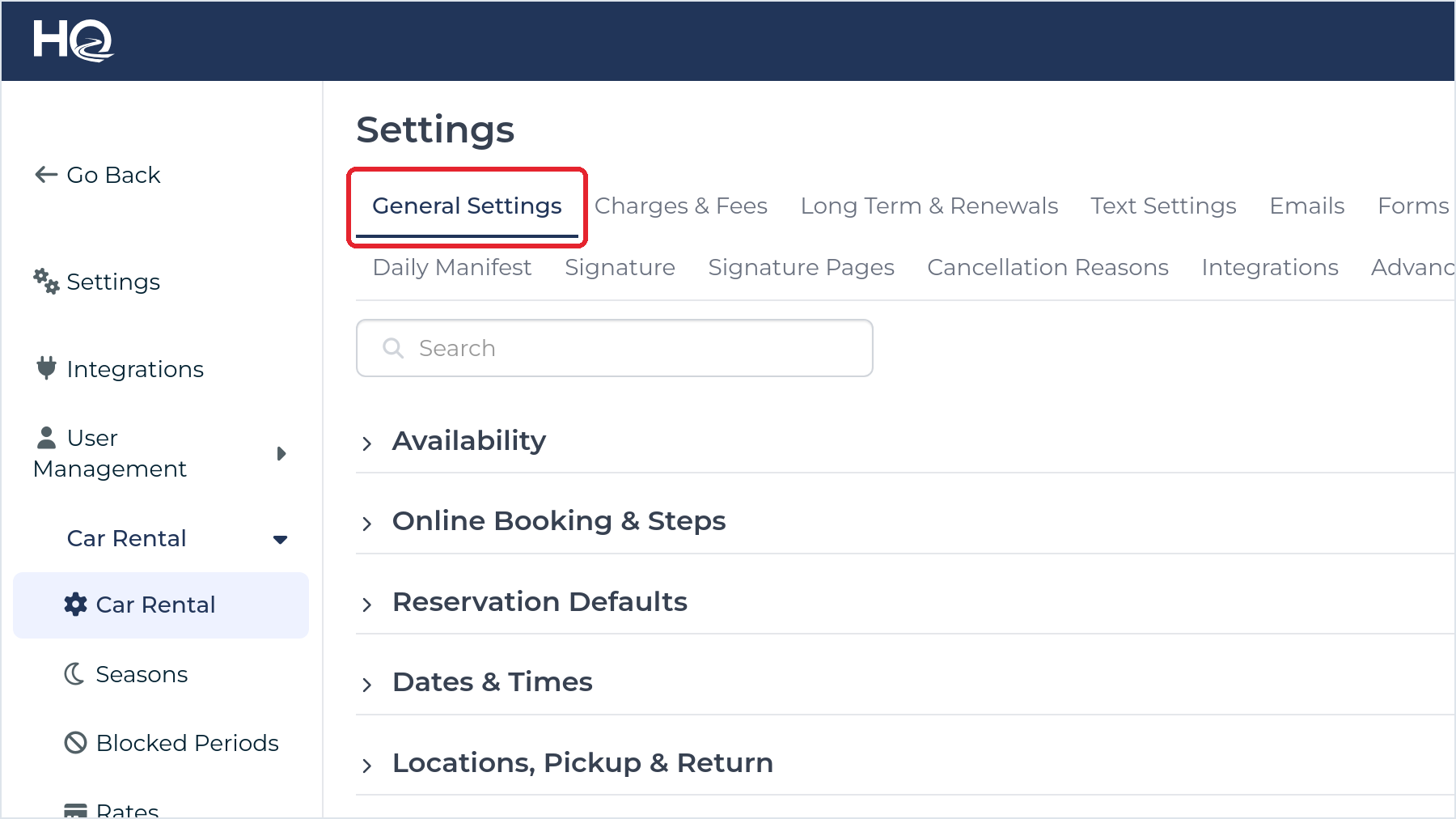
Page address: /settings/car-rental
- Click Currencies to open the section.
- Set Set Currency Based on Location to Yes.
- Optional: in Allowed Countries, pick the countries for each currency.
- Click Save at the bottom of the page.
- Choose the Fallback Currency for not Supported Currency, then click Save again.
Show me where (1 picture)
Good To Know
Section titled “Good To Know”- Visitors from countries that use IDR or THB start in USD, or in the fallback if you do not support USD.
- Visitors can still change the currency in the booking engine.
If Something Goes Wrong
Section titled “If Something Goes Wrong”Fallback Currency for not Supported Currency Is Missing
Section titled “Fallback Currency for not Supported Currency Is Missing”- Why it happens: It shows only after Set Currency Based on Location is saved as Yes.
- What to do: Save first, then choose it.
Settings Used In This Article
Section titled “Settings Used In This Article”These are in Settings, under Car Rental, tab General Settings, section Currencies.
- Set Currency Based on Location: starts the booking engine in the visitor’s currency. Hidden setting.
- Fallback Currency for not Supported Currency: used when the visitor’s currency is not supported. Hidden setting.
- Allowed Countries: limits each currency to visitors from the selected countries.