Importing Rates From A Spreadsheet
Before You Start
Section titled “Before You Start”- Plan or add-on: All plans, Car Rental module.
- Who can do it: roles with Can process imports, Can confirm imports and Can cancel imports in Access Control.
- Create these first: your Seasons, Vehicle Classes, Rate Types and Locations. The import does not create them.
How It Works
Section titled “How It Works”The Four Steps
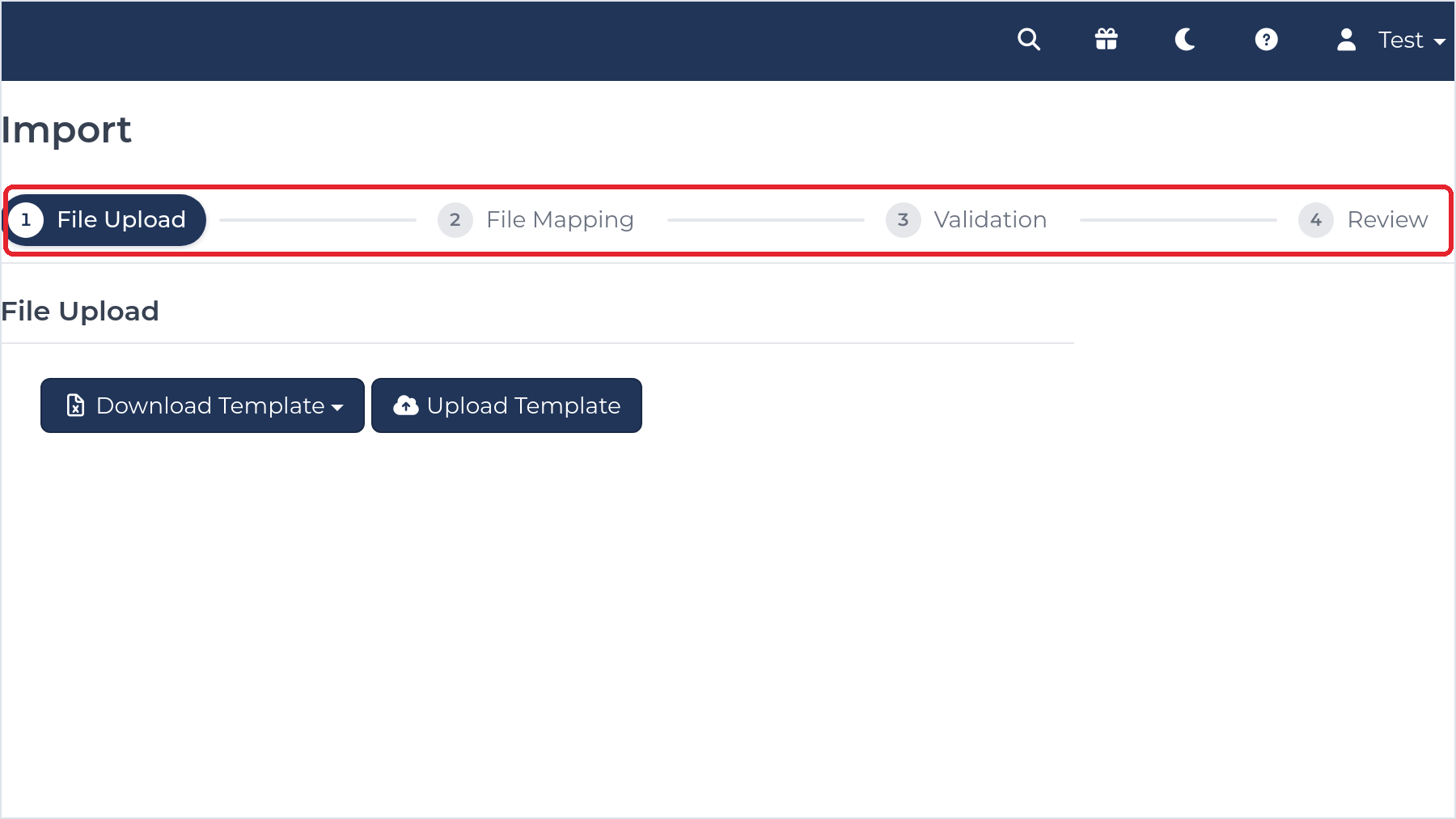
Section titled “The Four Steps”- File Upload: download the template and upload your file.
- File Mapping: match each column of your file to a rate field.
- Validation: HQ checks every row and emails you a summary.
- Review: you confirm, and HQ saves the valid rows.
Example: Ana uploads a file with 20 rows. The summary shows 19 valid rows and 1 invalid row. She confirms, and HQ saves the 19 valid rows.
New Or Updated Rates
Section titled “New Or Updated Rates”For each row, HQ looks for a rate with the same Season and Vehicle Class. The Rate Type and Locations must match too, when the row has them. If one exists, the row updates it. Otherwise it creates a new rate.
Example: You import last month’s file again with a new price. The existing rate is updated. No second rate is created.
Rows That Are Rejected
Section titled “Rows That Are Rejected”A row with an error is listed in the summary with its row number and is not saved. The other rows are saved when you confirm.
Example: Row 4 names the Season “Hi Season”, which does not exist. Row 4 is rejected, and the rest are saved.
Good To Know
Section titled “Good To Know”- Rates of Rate Calendar seasons are never imported. Use the Rate Calendar import for those.
- Only one import can run at a time in your account.
- New rates created by the import have no Commission Partner.
If Something Goes Wrong
Section titled “If Something Goes Wrong”I Do Not See The Import Option
Section titled “I Do Not See The Import Option”- Why it happens: Your role does not have Can process imports.
- What to do: Ask an administrator to give it to your role in Access Control.